> ## Documentation Index
> Fetch the complete documentation index at: https://docs.occtoo.com/llms.txt
> Use this file to discover all available pages before exploring further.
# Multifactor authentication
When signing in to Occtoo, multifactor authentication (MFA) is required for enhanced security. Instead of a password, you'll receive a code via email, or you can opt for social login with Microsoft. As an additional layer of security, you'll need to verify your identity using an authenticator app, ensuring your account stays protected.
First, the user needs to be invited by the administrator. When the user is invited, they will receive an invitation email with a link to the studio.
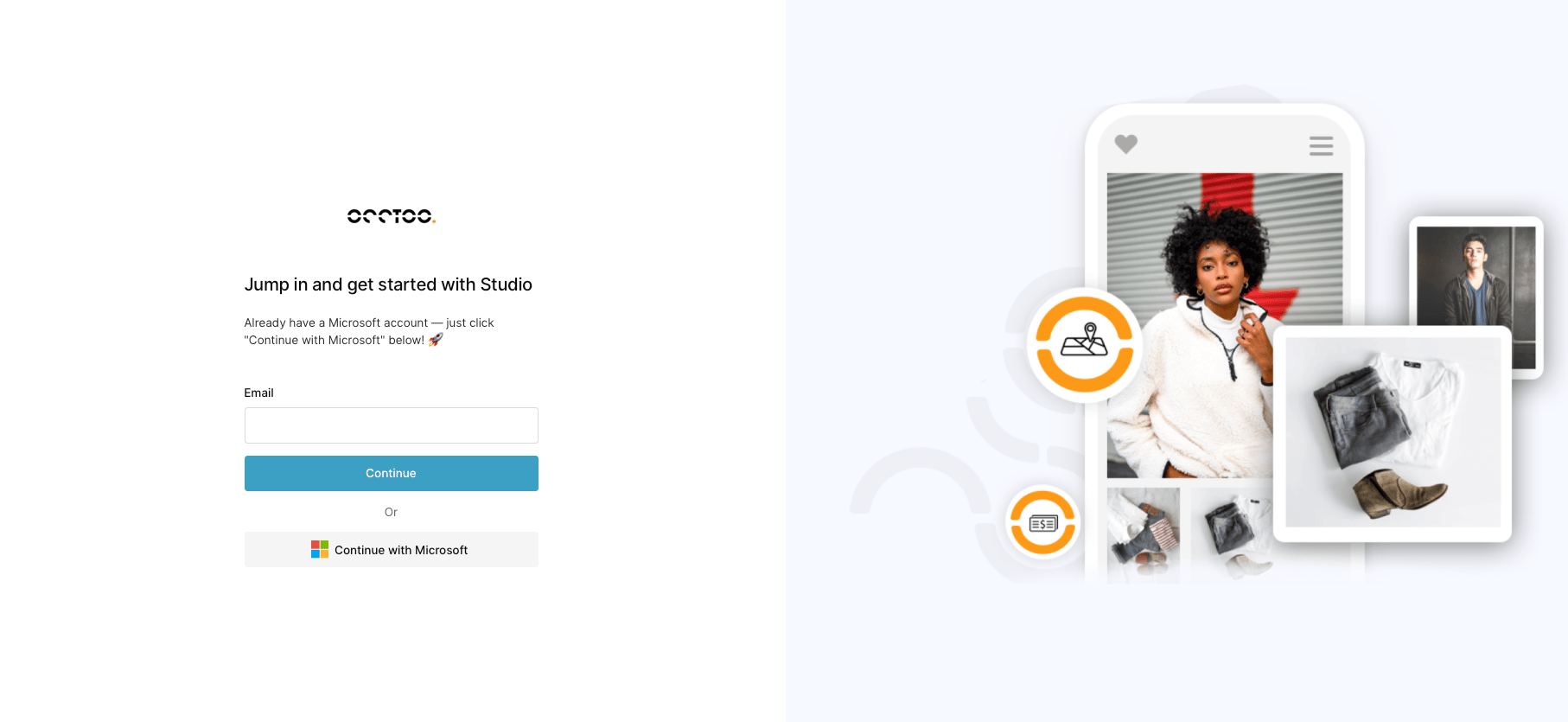
If the email is connected to a Microsoft account within the organization, the user can choose "Continue with Microsoft." Otherwise, simply type in the email and press "Continue."
 ## Sign in without Microsoft account
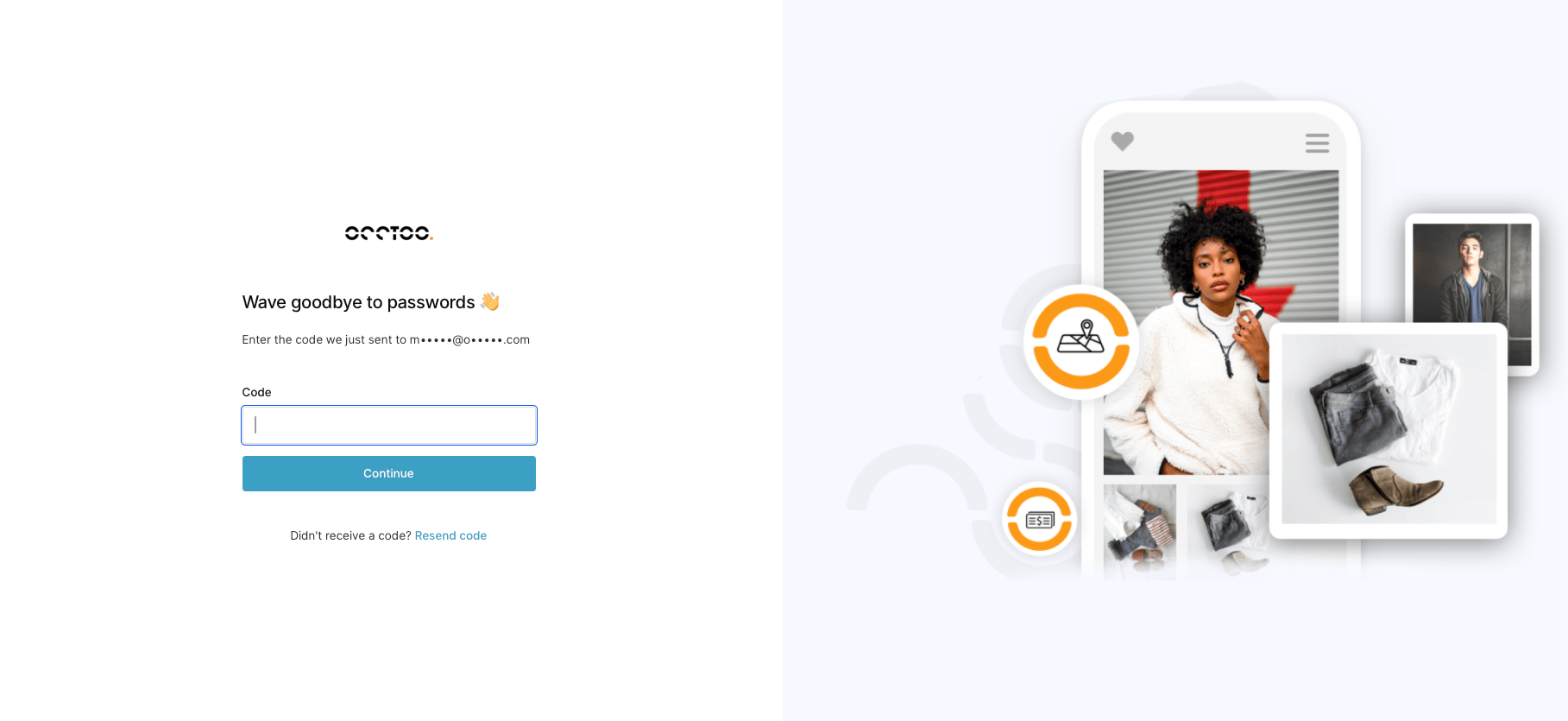
After entering your email and pressing "Continue," please check your inbox where you will receive a code. Once the code is entered, open the authenticator application to complete the login procedure.
## Sign in without Microsoft account
After entering your email and pressing "Continue," please check your inbox where you will receive a code. Once the code is entered, open the authenticator application to complete the login procedure.
 ## Sign in with Microsoft account
If your email is connected to a Microsoft account, press "Continue with Microsoft." If your browser is already logged in to Microsoft, you will proceed directly to the final login step, which is obtaining the code from the authenticator application. If you're not logged in, please follow the prompts provided by Microsoft.
## Configure authentication application
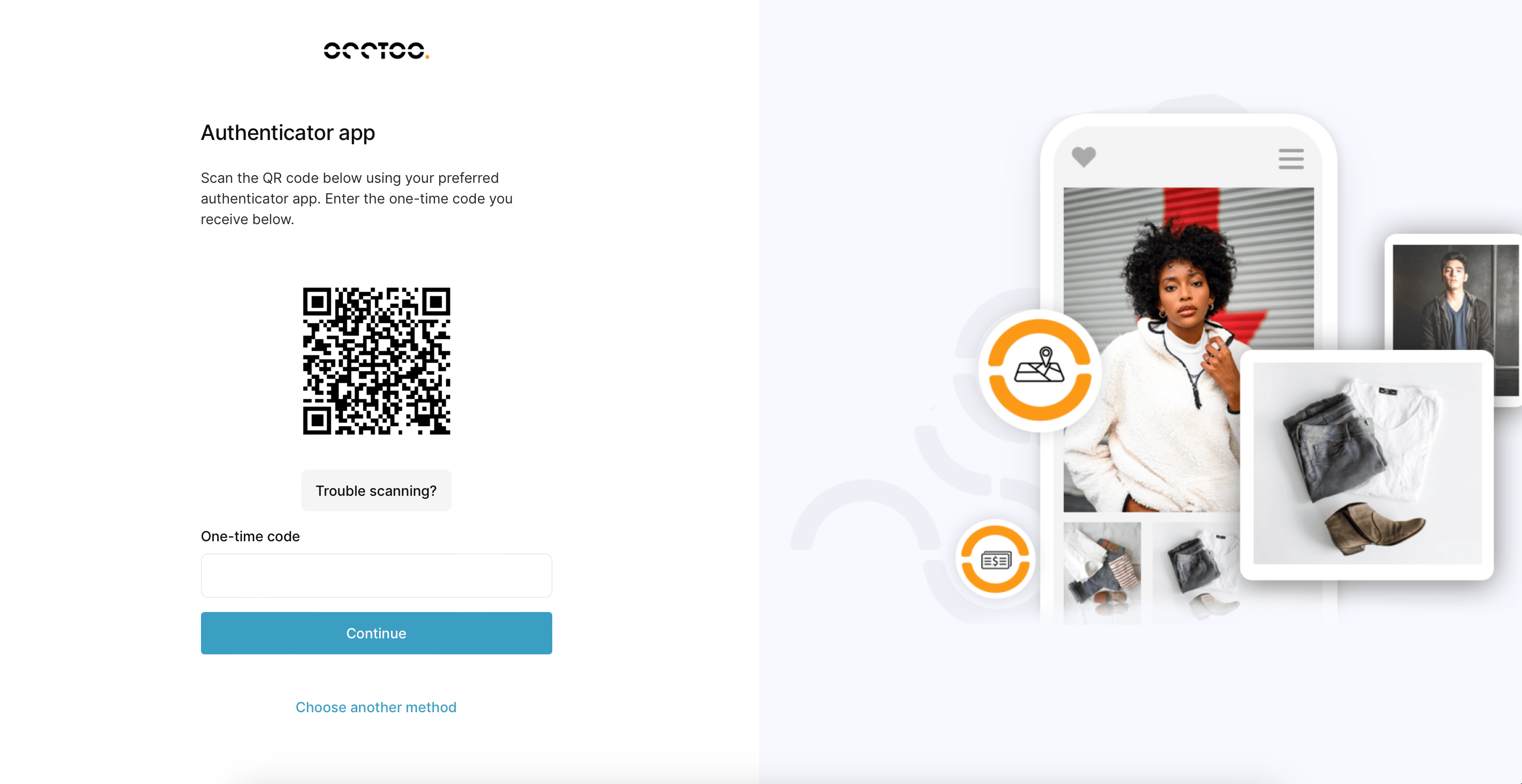
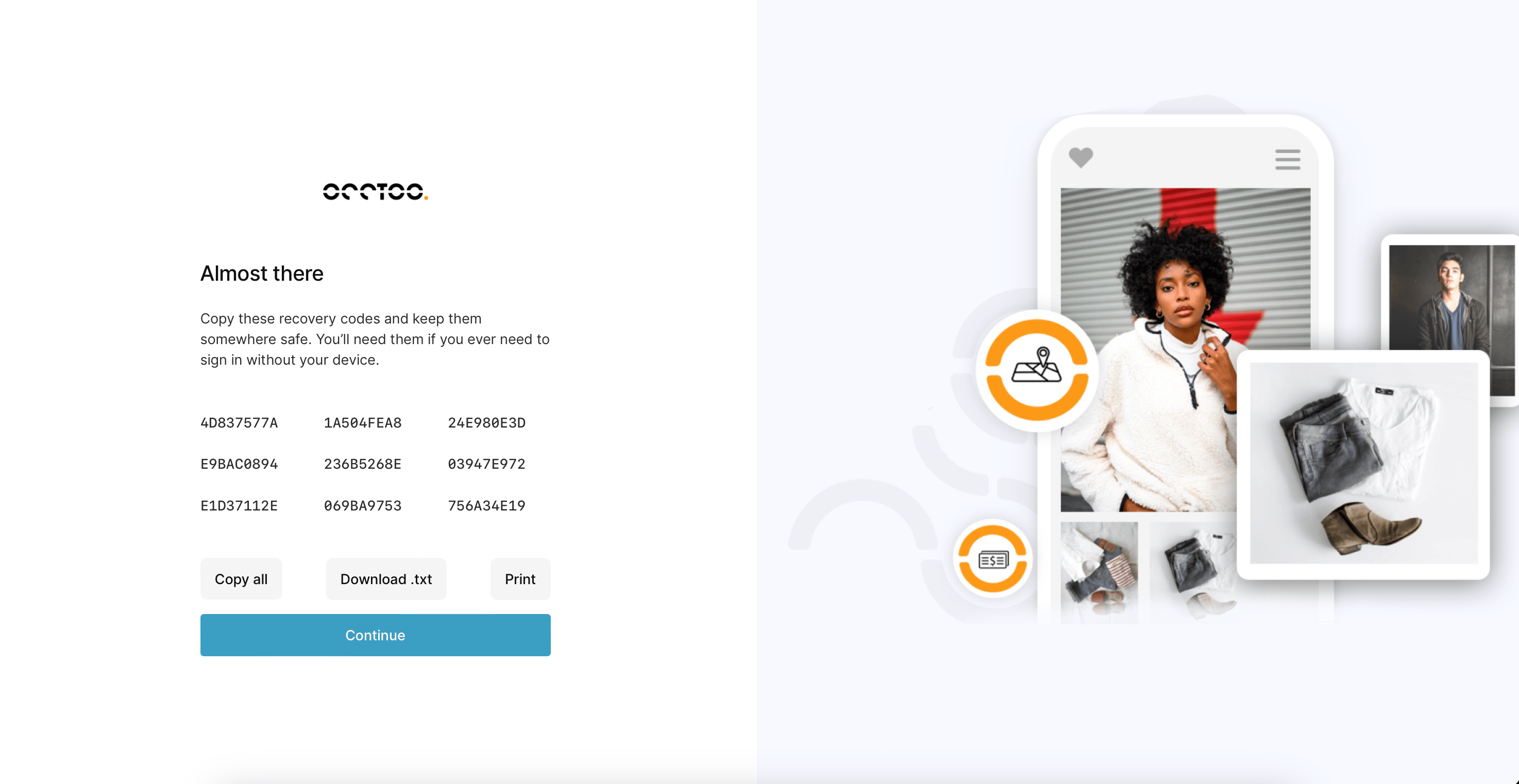
All authentication applications are supported. Follow the instructions in the authentication application to add Occtoo. After adding the authenticator, please save the security codes provided to reset the application if needed.
## Sign in with Microsoft account
If your email is connected to a Microsoft account, press "Continue with Microsoft." If your browser is already logged in to Microsoft, you will proceed directly to the final login step, which is obtaining the code from the authenticator application. If you're not logged in, please follow the prompts provided by Microsoft.
## Configure authentication application
All authentication applications are supported. Follow the instructions in the authentication application to add Occtoo. After adding the authenticator, please save the security codes provided to reset the application if needed.