> ## Documentation Index
> Fetch the complete documentation index at: https://docs.occtoo.com/llms.txt
> Use this file to discover all available pages before exploring further.
# Card relations
> Link two cards on a shared property, label both directions, and optionally sort the related entries.
A relation connects two cards on a matching property, so an entry on one card can reach the entries related to it on another.
Relations live in the **Relations** widget at the bottom of the card page.
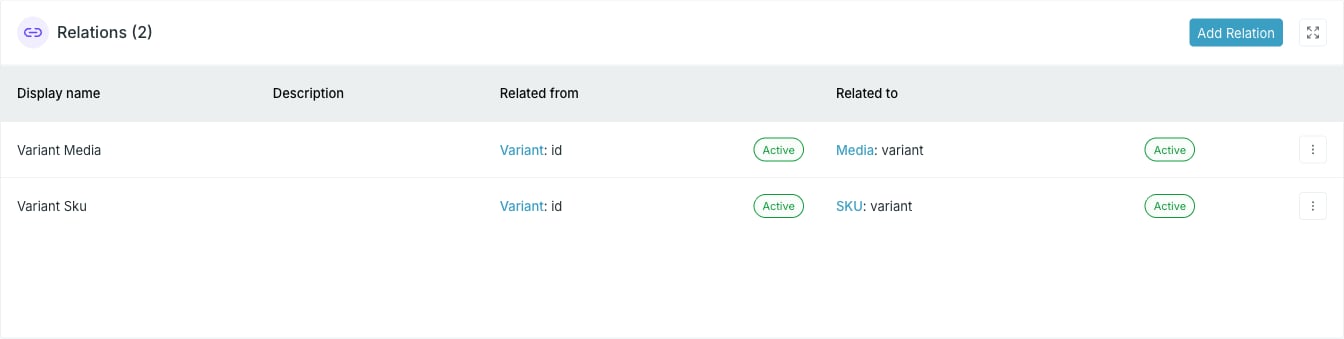 **Add Relation** only works on an **Active** card. On any other status the
button is disabled with the tooltip "You can add relation only to active
card".
Press **Add Relation**.
* **Name** — required.
* **Identifier** — required, derived from the name. This is what destinations use.
* **Description** — optional.
* **Display category** — **Default**, **Show sources**, **Show targets** or **Show target and source**. Controls how the relation is presented in the catalog.
The identifier must not match any property ID on either card, and cannot be changed after the relation is created.
**Add Relation** only works on an **Active** card. On any other status the
button is disabled with the tooltip "You can add relation only to active
card".
Press **Add Relation**.
* **Name** — required.
* **Identifier** — required, derived from the name. This is what destinations use.
* **Description** — optional.
* **Display category** — **Default**, **Show sources**, **Show targets** or **Show target and source**. Controls how the relation is presented in the catalog.
The identifier must not match any property ID on either card, and cannot be changed after the relation is created.
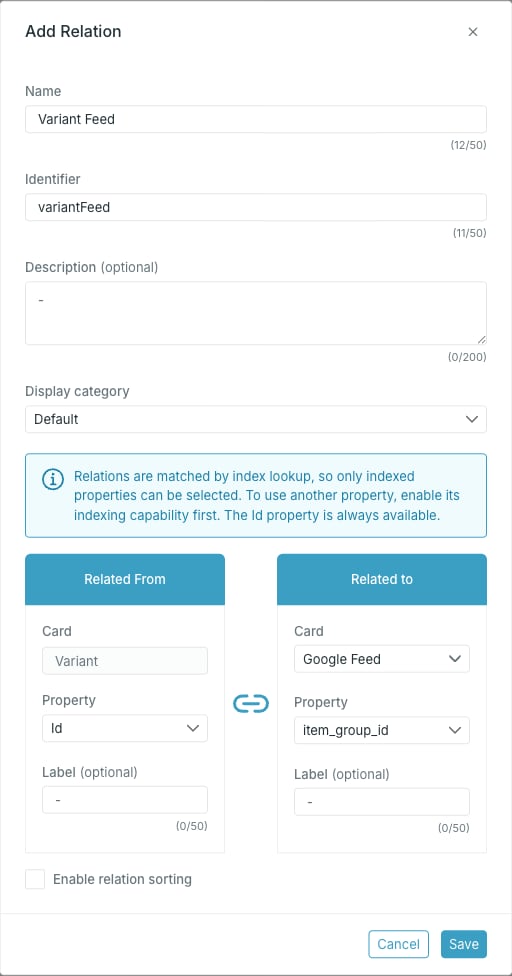 **Related From** is the card you are on. **Related to** is the card you are linking to; only **Active** cards are listed.
On each side choose the **Property** that holds the matching value, and optionally a **Label** naming that direction of the relation.
The labels are display names used inside Studio: on the **Relations** tab and the entry hierarchy panel of an entry, and on relation-based filters in the segment builder. Where a label is empty, Studio falls back to the relation's **Name**.
Relations are matched by index lookup, so only indexed properties can be selected — to use another property, enable its indexing capability on the source first. The `id` property is always available.
Two constraints are enforced when you save: the two sides cannot both be the `id` property, and a list property cannot be related to another list property.
Tick **Enable relation sorting** to control the order related entries come back in. This is only available once a **Related to** card is chosen.
**Related From** is the card you are on. **Related to** is the card you are linking to; only **Active** cards are listed.
On each side choose the **Property** that holds the matching value, and optionally a **Label** naming that direction of the relation.
The labels are display names used inside Studio: on the **Relations** tab and the entry hierarchy panel of an entry, and on relation-based filters in the segment builder. Where a label is empty, Studio falls back to the relation's **Name**.
Relations are matched by index lookup, so only indexed properties can be selected — to use another property, enable its indexing capability on the source first. The `id` property is always available.
Two constraints are enforced when you save: the two sides cannot both be the `id` property, and a list property cannot be related to another list property.
Tick **Enable relation sorting** to control the order related entries come back in. This is only available once a **Related to** card is chosen.
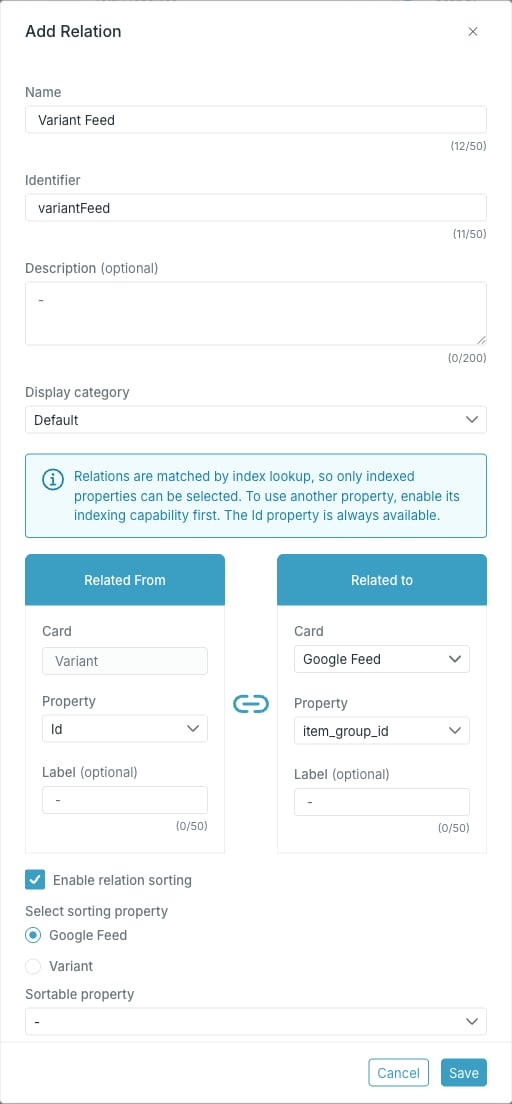 **Select sorting property** picks which of the two cards the sort property comes from, then **Sortable property** picks the property itself.
The sortable property list is filtered by side: from the target card only **Integer** and **Decimal** properties are offered; from the source card only **List** properties are, because the list's order defines the sequence.
Press **Save**. The relation appears in the table, with the status of each card next to it.
## Edit or delete a relation
The menu at the end of a relation row holds **Edit relation** and **Delete relation**.
**Select sorting property** picks which of the two cards the sort property comes from, then **Sortable property** picks the property itself.
The sortable property list is filtered by side: from the target card only **Integer** and **Decimal** properties are offered; from the source card only **List** properties are, because the list's order defines the sequence.
Press **Save**. The relation appears in the table, with the status of each card next to it.
## Edit or delete a relation
The menu at the end of a relation row holds **Edit relation** and **Delete relation**.
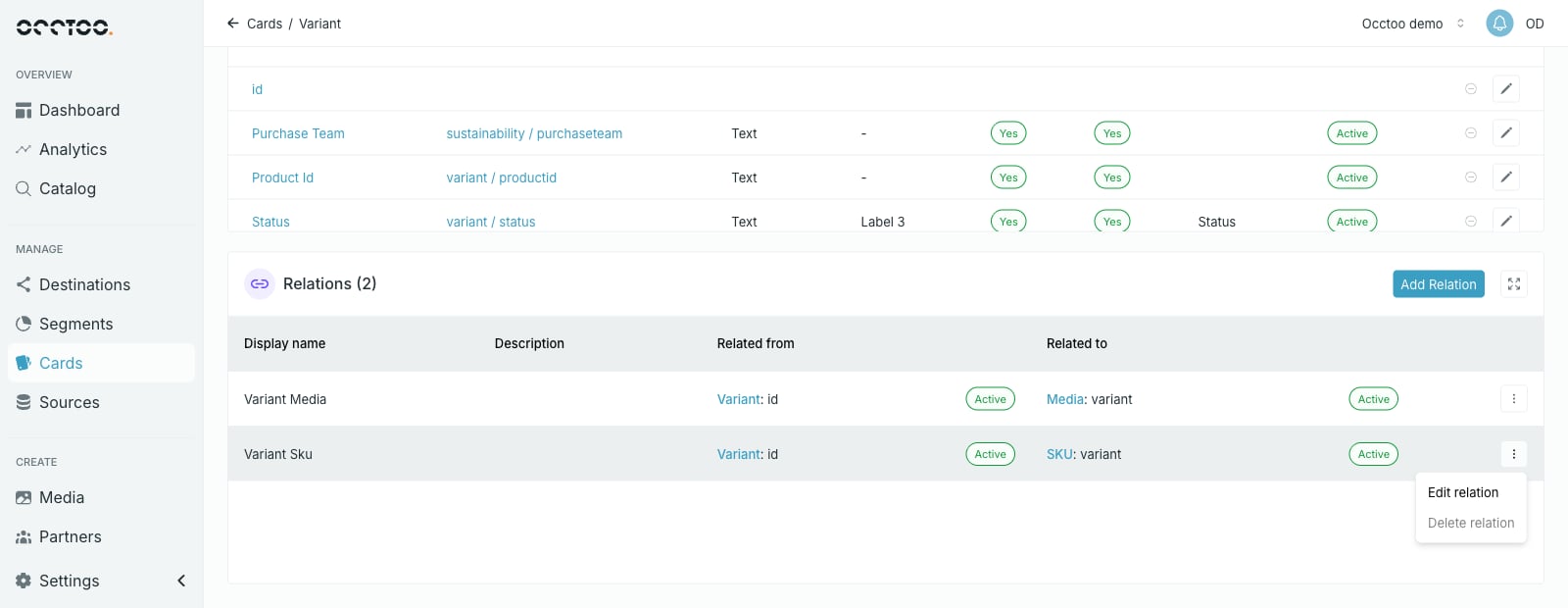 On edit, the two cards are fixed — name, description, labels, display category and sorting can be changed. Both items are disabled while either card is **Updating** or **Archived**.
**Delete relation** is disabled while the relation is in use: "You can't
delete relation if it used in any destination or segment."
## Using a relation in a destination
Creating a relation makes it available; it does not switch it on anywhere. To return related data from an endpoint, enable the relation on that endpoint in **Destinations**.
On edit, the two cards are fixed — name, description, labels, display category and sorting can be changed. Both items are disabled while either card is **Updating** or **Archived**.
**Delete relation** is disabled while the relation is in use: "You can't
delete relation if it used in any destination or segment."
## Using a relation in a destination
Creating a relation makes it available; it does not switch it on anywhere. To return related data from an endpoint, enable the relation on that endpoint in **Destinations**.