> ## Documentation Index
> Fetch the complete documentation index at: https://docs.occtoo.com/llms.txt
> Use this file to discover all available pages before exploring further.
# Create a card
> Build a card in four steps: card details, property selection, property details, and display sections.
A card is a unified dataset built on one or more data sources. Creating one is a four-step flow that opens full screen.
To start, press **New card** in the upper right corner of the **Cards** page.
* **Name your card** — required, and unique across cards. A clash is reported when you press **Next**.
* **Add a description** — optional.
* **Choose data source** — required. You can pick several.
* **Allow properties enrichment** — **Yes** or **No**. This sets the default for every property selected in this flow. **No** is preselected.
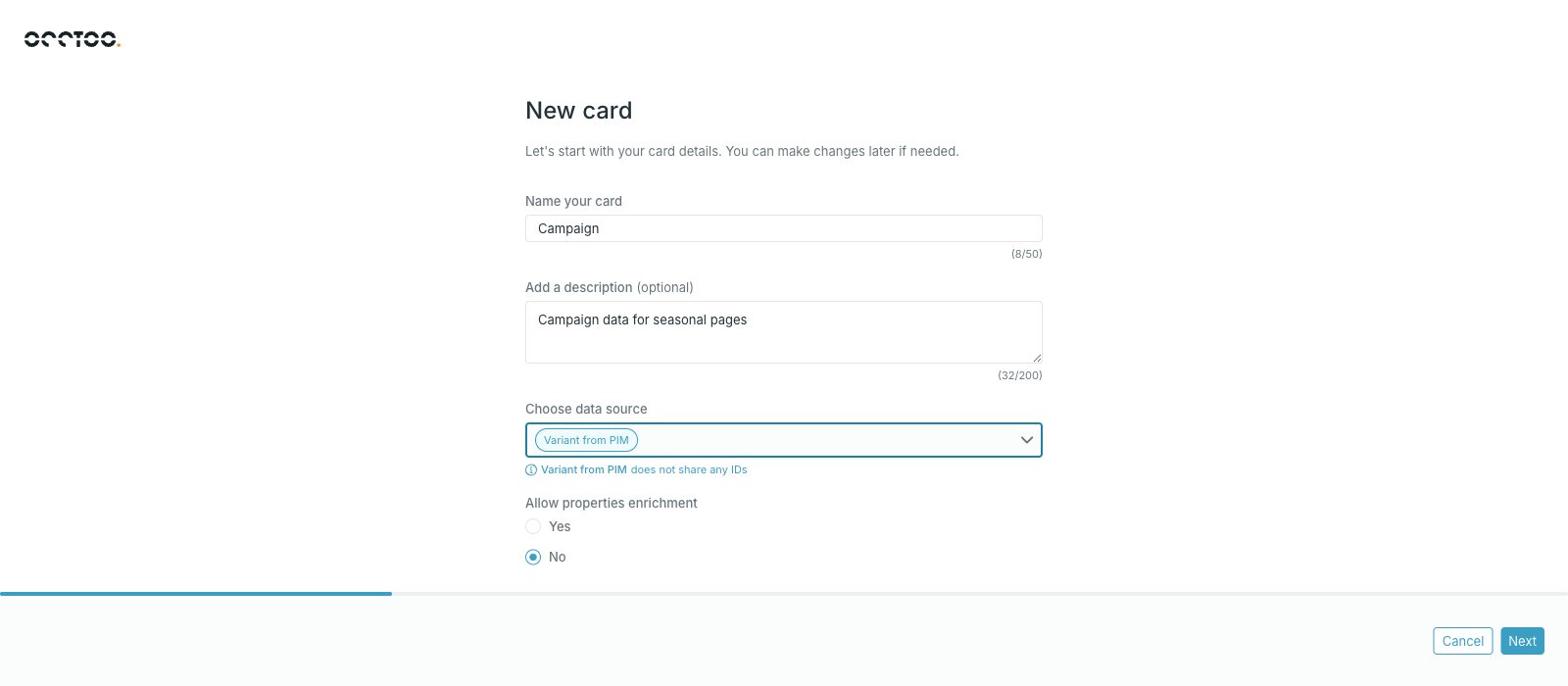 After the first source is picked, the list narrows to sources that share IDs with it, and a note under the field reads either "source shares ID with other sources" or "source does not share any IDs". Sources that share no IDs cannot be combined on one card. You define which sources share IDs on the source itself.
The table lists every property in the selected sources, with **Source property ID**, **Source** and **Data origin** (**Source based** or **User created**). Tick the properties the card should hold.
After the first source is picked, the list narrows to sources that share IDs with it, and a note under the field reads either "source shares ID with other sources" or "source does not share any IDs". Sources that share no IDs cannot be combined on one card. You define which sources share IDs on the source itself.
The table lists every property in the selected sources, with **Source property ID**, **Source** and **Data origin** (**Source based** or **User created**). Tick the properties the card should hold.
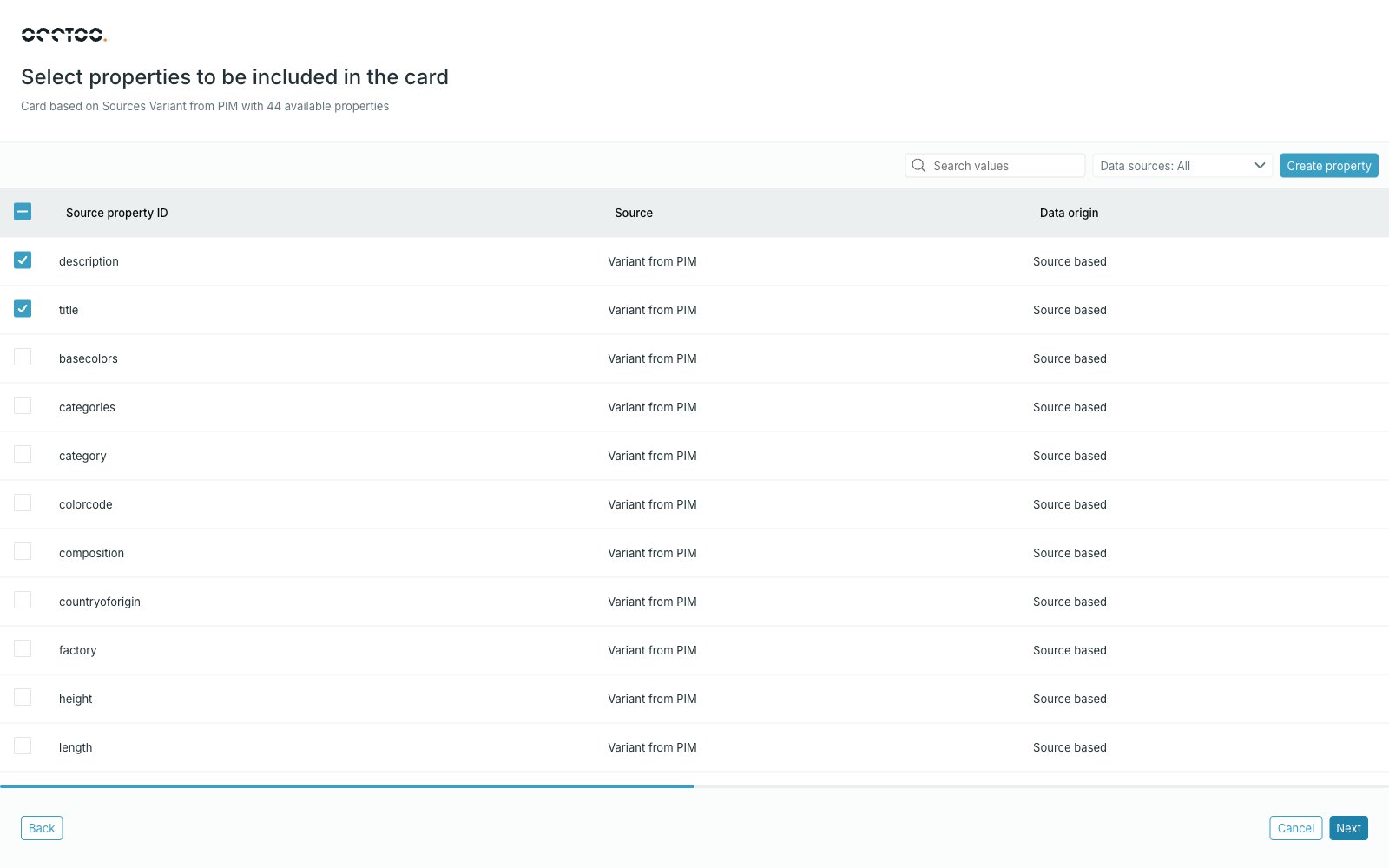 Narrow the list with **Search values** or the **Data sources** filter. There is no limit on how many properties you select.
With nothing selected, the button reads **Save card without properties** and creates an empty card. It changes to **Next** as soon as you tick a property.
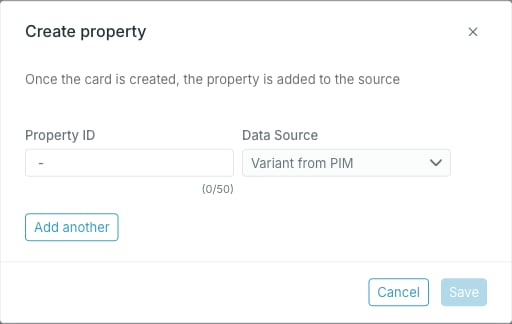
**Create property** adds a property that does not exist in the source yet. Enter a **Property ID**, pick the **Data Source**, and use **Add another** for more rows. The property is written to the source once the card is created.
Narrow the list with **Search values** or the **Data sources** filter. There is no limit on how many properties you select.
With nothing selected, the button reads **Save card without properties** and creates an empty card. It changes to **Next** as soon as you tick a property.
**Create property** adds a property that does not exist in the source yet. Enter a **Property ID**, pick the **Data Source**, and use **Add another** for more rows. The property is written to the source once the card is created.
 Set how each selected property behaves on the card. **Identifier** is prefilled from the source's suggestion.
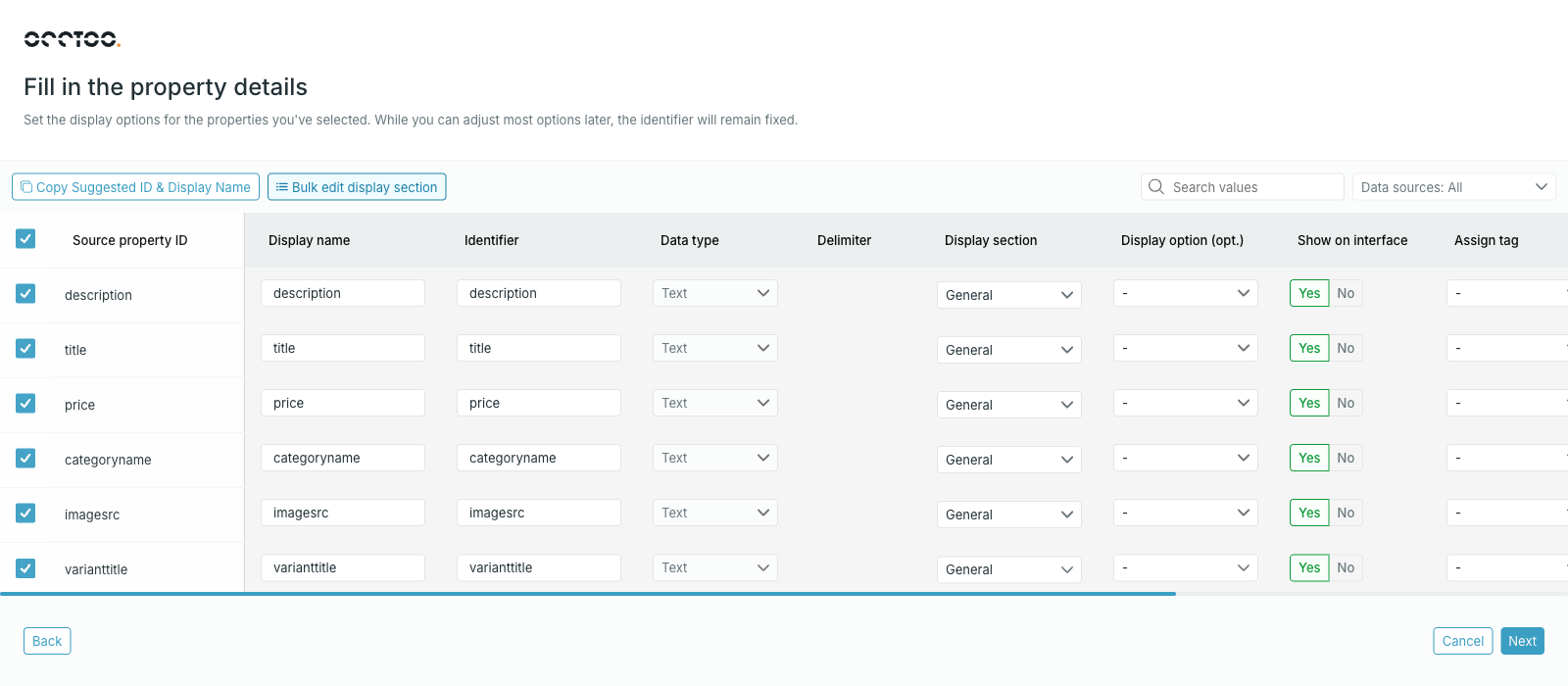 * **Display name** — required, the name shown in Studio.
* **Identifier** — the name destinations use for this property.
* **Data type** and **Delimiter** — inherited from the source property. See [Add a property](/guides/studio/cards/add-a-property) for when these can be changed.
* **Display section** — which section the property sits in on the entry interface.
* **Display option (opt.)** — see [Display sections and display options](/guides/studio/cards/display-sections-and-options).
* **Show on interface** — whether the property is visible on entries.
* **Assign tag** and **Key based tag** — connect the property to a managed tag list.
The identifier is fixed once the card is created. Everything else on this step can be changed later.
Selecting rows reveals two bulk actions.
* **Display name** — required, the name shown in Studio.
* **Identifier** — the name destinations use for this property.
* **Data type** and **Delimiter** — inherited from the source property. See [Add a property](/guides/studio/cards/add-a-property) for when these can be changed.
* **Display section** — which section the property sits in on the entry interface.
* **Display option (opt.)** — see [Display sections and display options](/guides/studio/cards/display-sections-and-options).
* **Show on interface** — whether the property is visible on entries.
* **Assign tag** and **Key based tag** — connect the property to a managed tag list.
The identifier is fixed once the card is created. Everything else on this step can be changed later.
Selecting rows reveals two bulk actions.
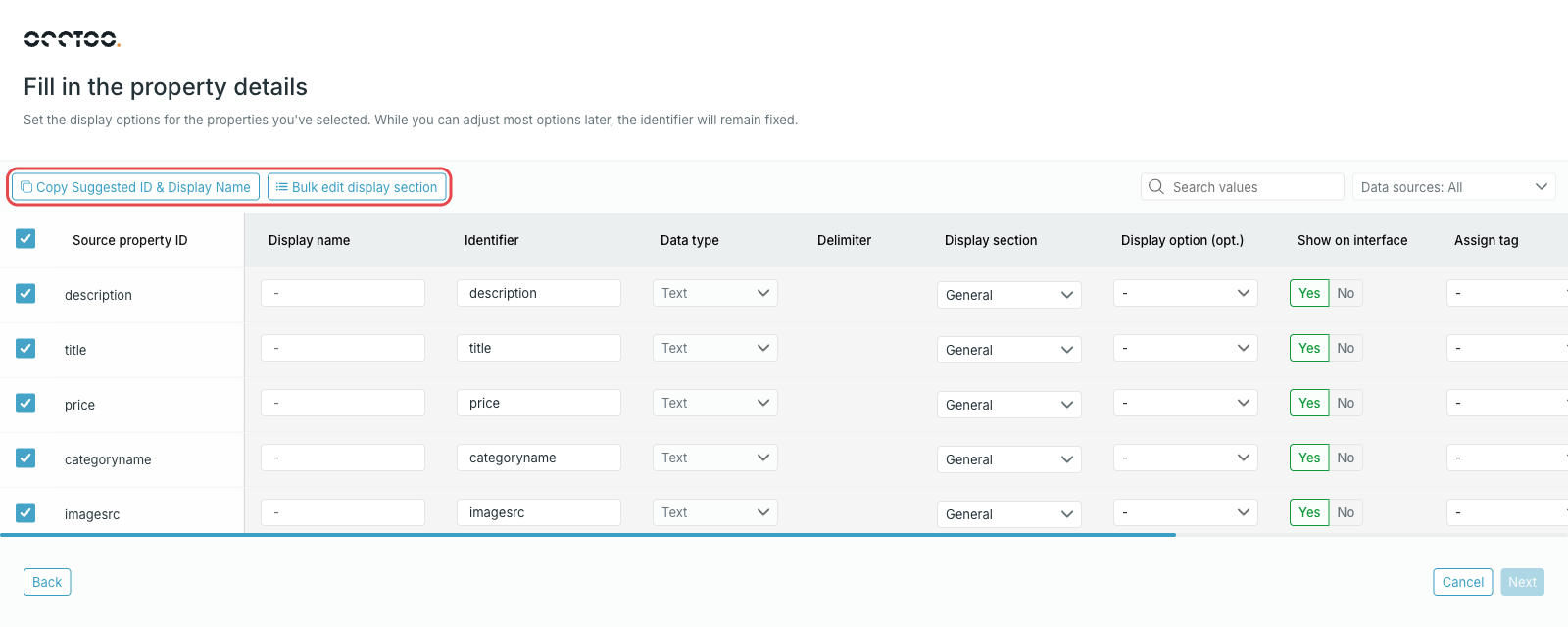 * **Copy Suggested ID & Display Name** — fills identifier and display name for the selected rows from the source property.
* **Bulk edit display section** — moves the selected rows into one section.
* **Copy Suggested ID & Display Name** — fills identifier and display name for the selected rows from the source property.
* **Bulk edit display section** — moves the selected rows into one section.
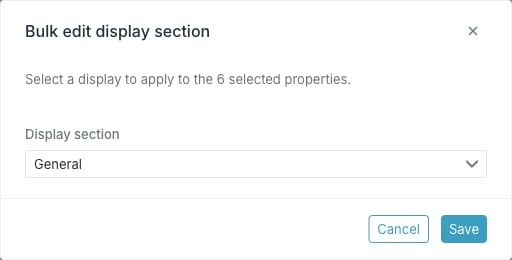 Pick **Add new section** in that dialog to type a **New section name**.
The **Allow enrichment** column only appears when you answered **Yes** to **Allow properties enrichment** in the first step.
Drag sections and the properties inside them into the order you want. **Add new section** creates another section; the handles on each section row remove, rename and reorder it.
Pick **Add new section** in that dialog to type a **New section name**.
The **Allow enrichment** column only appears when you answered **Yes** to **Allow properties enrichment** in the first step.
Drag sections and the properties inside them into the order you want. **Add new section** creates another section; the handles on each section row remove, rename and reorder it.
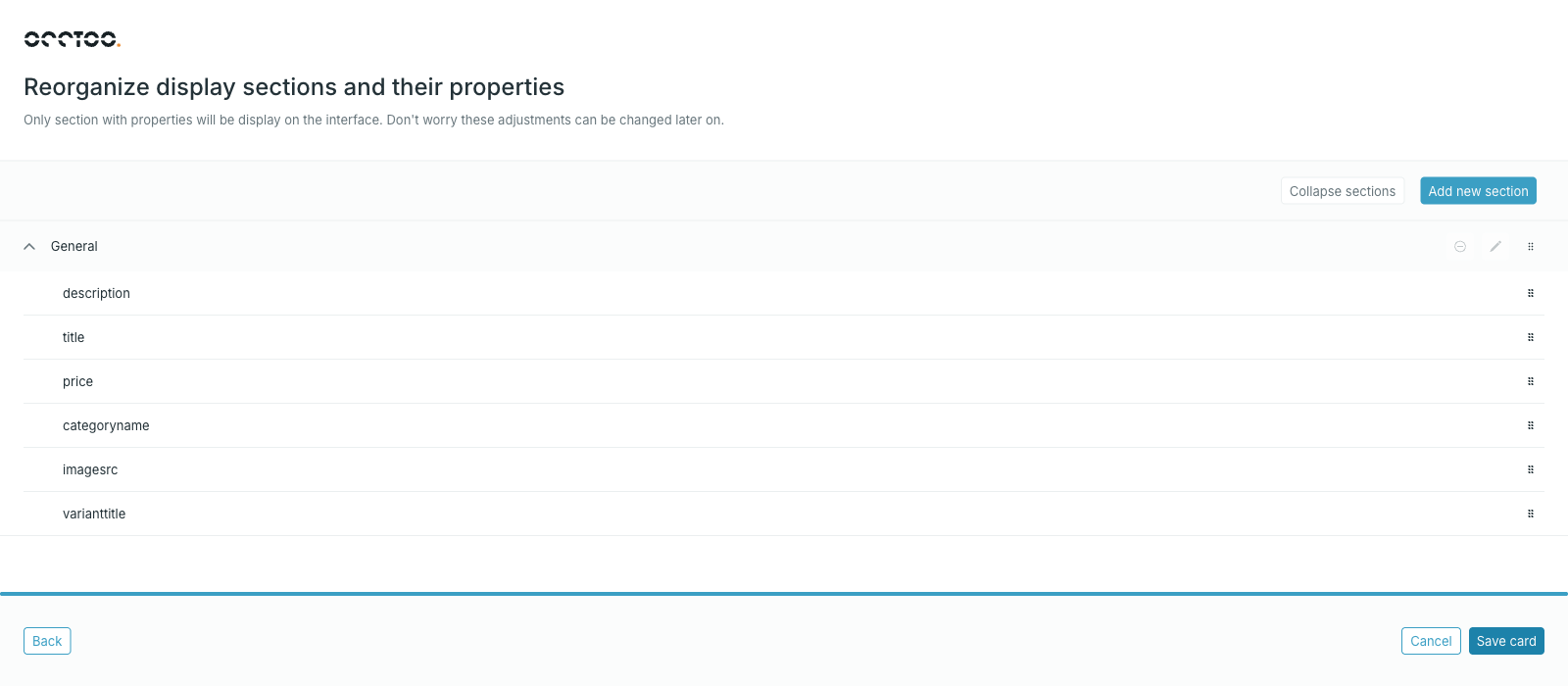 Press **Save card** to create the card. It is created with status **Draft**.
Only sections that hold properties are shown on the interface, and all of this can be changed later from the card page.
## Activate the card
A new card stays in **Draft** until you activate it. Open the card and press **Activate card**. Only then can it be used in segments and destinations.
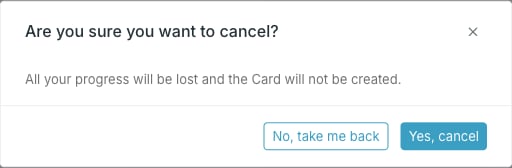
Leaving the flow discards everything. **Cancel**, the browser back button and closing the tab all ask you to confirm first.
Press **Save card** to create the card. It is created with status **Draft**.
Only sections that hold properties are shown on the interface, and all of this can be changed later from the card page.
## Activate the card
A new card stays in **Draft** until you activate it. Open the card and press **Activate card**. Only then can it be used in segments and destinations.
Leaving the flow discards everything. **Cancel**, the browser back button and closing the tab all ask you to confirm first.