> ## Documentation Index
> Fetch the complete documentation index at: https://docs.occtoo.com/llms.txt
> Use this file to discover all available pages before exploring further.
# Display sections and display options
> Group properties into sections, order them, and choose which property acts as name, description or image.
Two settings control how a card's data is presented: **display sections** group properties on the entry interface, and **display options** pick which property fills a named slot on an entry card.
## Display options
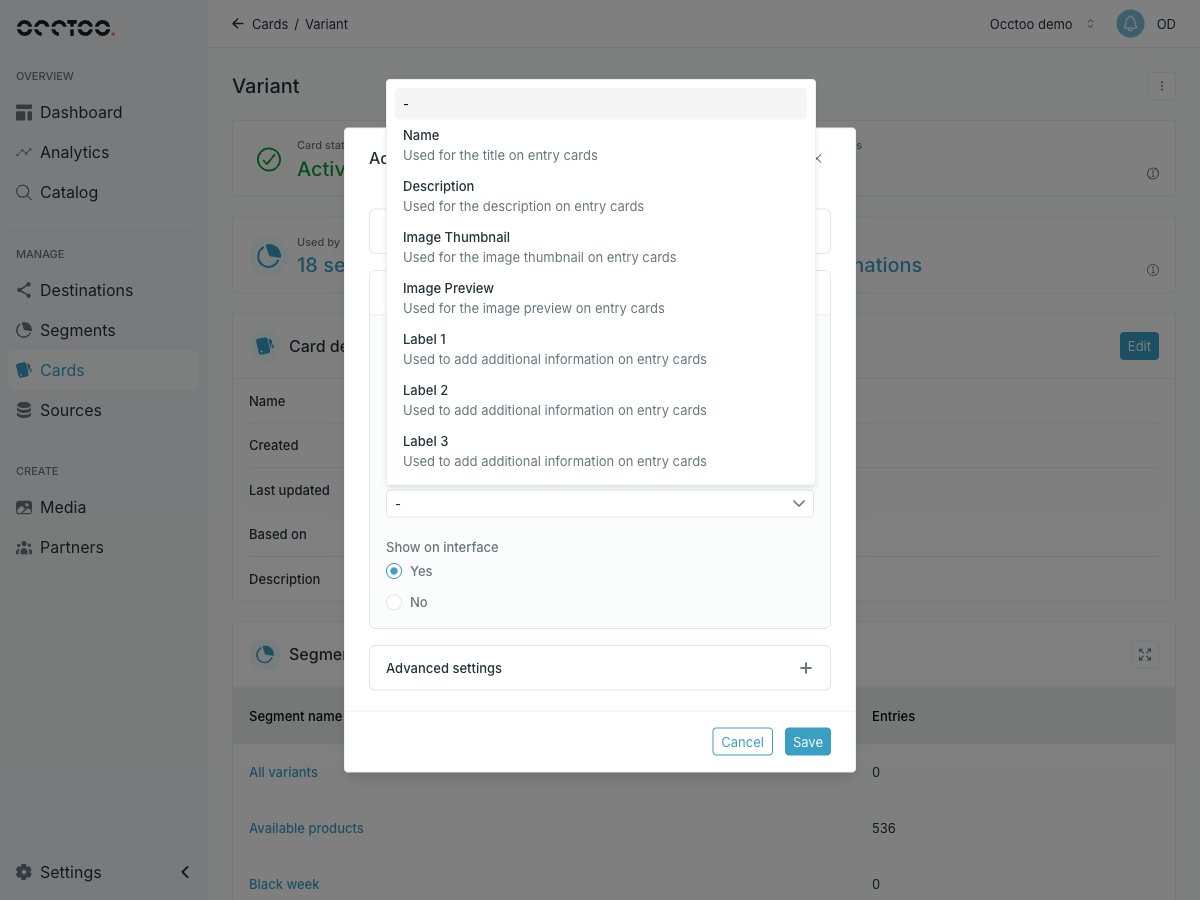
A display option assigns one property to one slot. Set it in the property dialog under **Interface settings**, or on the **Display option** column of the properties table.
 | Option | Used for |
| ------------------------------------- | ------------------------------------- |
| **Name** | The title on entry cards |
| **Description** | The description on entry cards |
| **Image Thumbnail** | The image thumbnail on entry cards |
| **Image Preview** | The image preview on entry cards |
| **Label 1**, **Label 2**, **Label 3** | Additional information on entry cards |
Pick `-` to give a property no display option.
These are the settings that used to be called "Select as card name", "card description" and "card image". **Image Thumbnail** and **Image Preview** expect the property to hold an image URL.
Each option holds one property at a time. Assigning **Name** to a second property moves the option, leaving the first property without one.
## Display sections
Every property belongs to a display section. Cards start with a section called **General**, and you can add as many as you need. Sections only show on the interface when they hold at least one property.
Assign a section in the property dialog under **Interface settings**, with **Choose an existing display section** or **Create a new display section**.
## Reorder sections and properties
Press **Edit order and sections** in the **Properties** widget. The dialog opens full screen and lists every section with its properties.
| Option | Used for |
| ------------------------------------- | ------------------------------------- |
| **Name** | The title on entry cards |
| **Description** | The description on entry cards |
| **Image Thumbnail** | The image thumbnail on entry cards |
| **Image Preview** | The image preview on entry cards |
| **Label 1**, **Label 2**, **Label 3** | Additional information on entry cards |
Pick `-` to give a property no display option.
These are the settings that used to be called "Select as card name", "card description" and "card image". **Image Thumbnail** and **Image Preview** expect the property to hold an image URL.
Each option holds one property at a time. Assigning **Name** to a second property moves the option, leaving the first property without one.
## Display sections
Every property belongs to a display section. Cards start with a section called **General**, and you can add as many as you need. Sections only show on the interface when they hold at least one property.
Assign a section in the property dialog under **Interface settings**, with **Choose an existing display section** or **Create a new display section**.
## Reorder sections and properties
Press **Edit order and sections** in the **Properties** widget. The dialog opens full screen and lists every section with its properties.
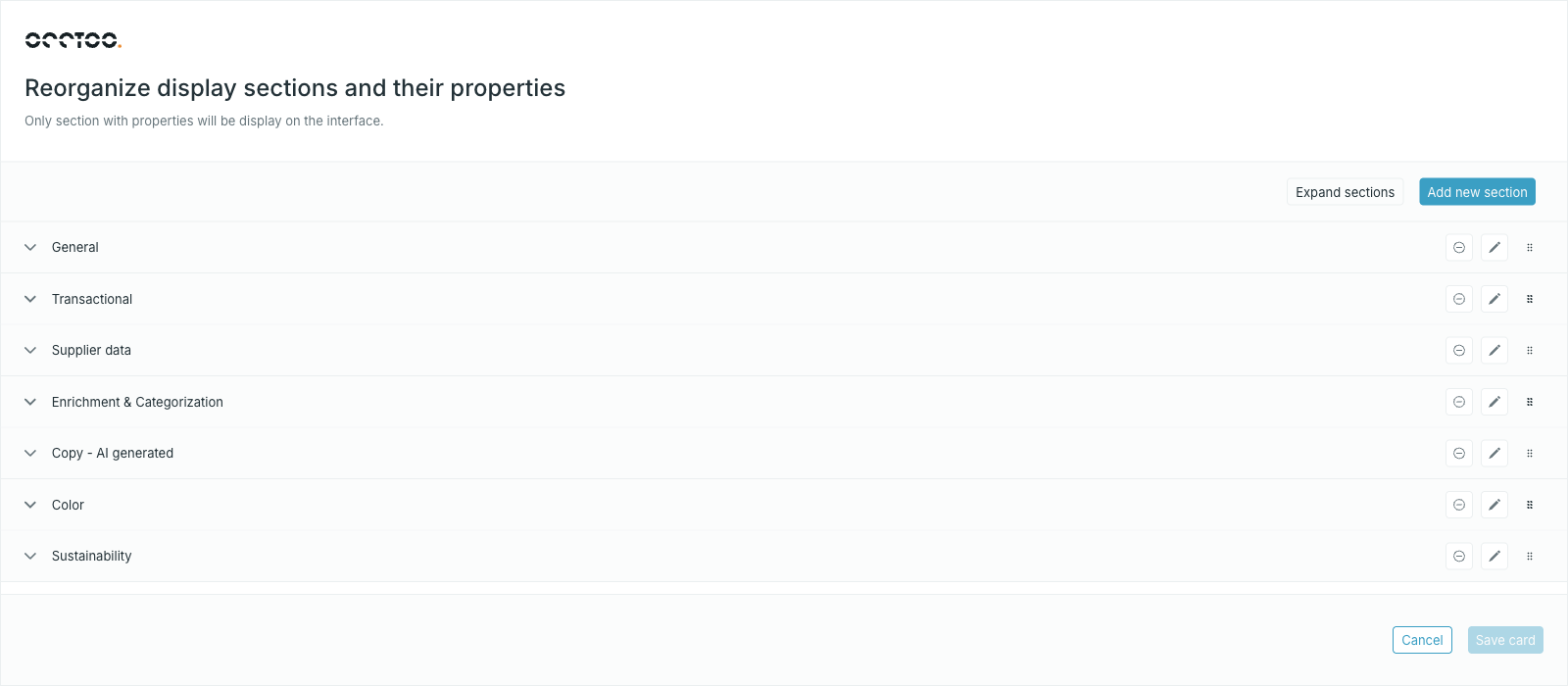 * Drag the handle on a property to move it inside its section or into another one.
* Drag the handle on a section header to reorder sections.
* The icons on a section header remove or rename it.
* **Collapse sections** and **Expand sections** toggle the whole list; **Add new section** appends one.
Press **Save card** to apply, or **Cancel** to leave everything as it was.
The properties table on the card page is grouped by these sections, in this order, so the table mirrors what catalog users see.
* Drag the handle on a property to move it inside its section or into another one.
* Drag the handle on a section header to reorder sections.
* The icons on a section header remove or rename it.
* **Collapse sections** and **Expand sections** toggle the whole list; **Add new section** appends one.
Press **Save card** to apply, or **Cancel** to leave everything as it was.
The properties table on the card page is grouped by these sections, in this order, so the table mirrors what catalog users see.