> ## Documentation Index
> Fetch the complete documentation index at: https://docs.occtoo.com/llms.txt
> Use this file to discover all available pages before exploring further.
# Filter entries
> Narrow the entry list with the filter panel, and turn the result into a query segment.
Search only matches entry titles. To narrow the list on any other property — a colour, a price range, a status, a date, a relation — open the **Filter** panel from the toolbar.
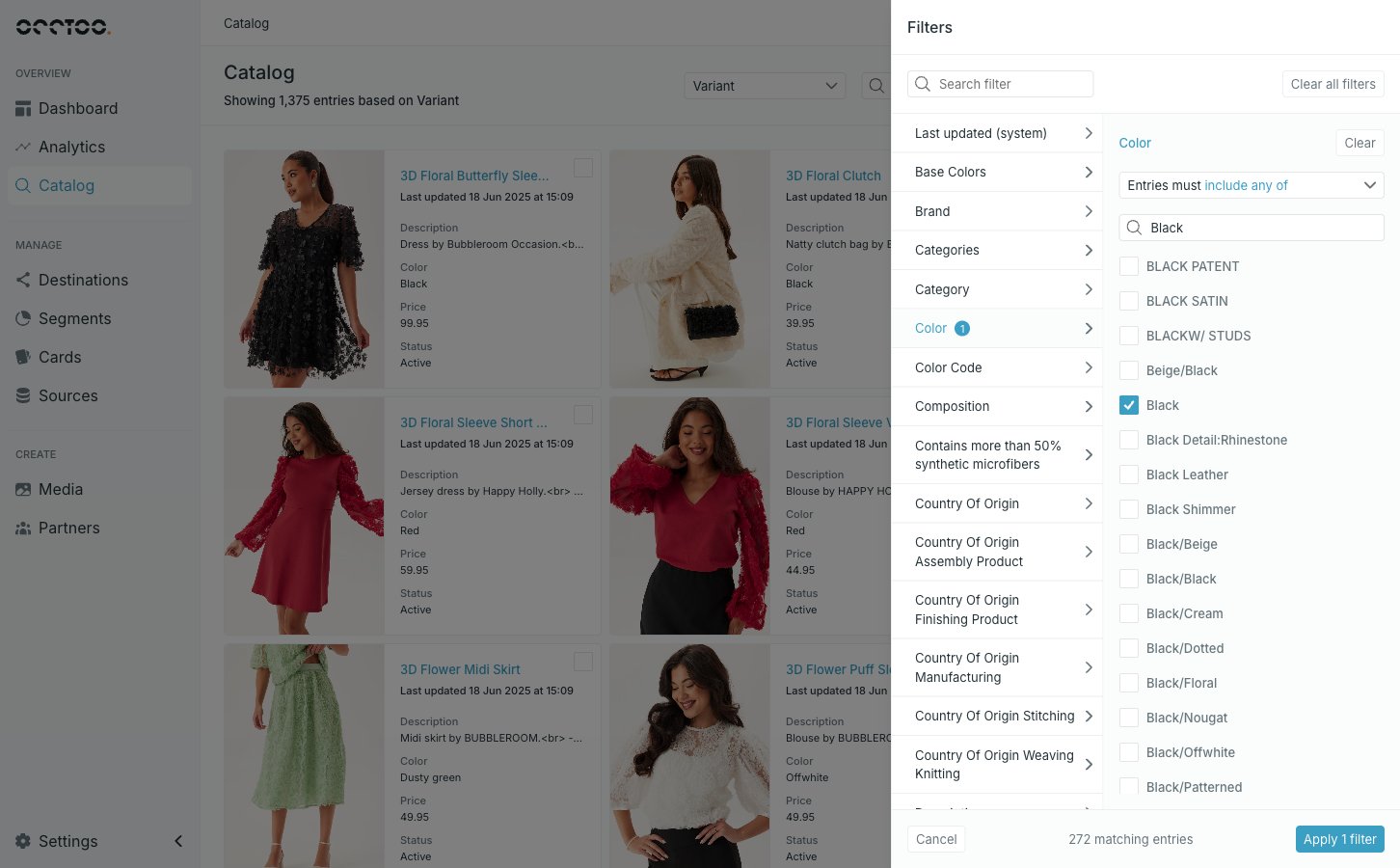 The panel lists the card's filterable properties on the left with **Last updated (system)** pinned at the top, and the value editor for the selected property on the right. The footer counts how many entries match before you commit, and **Apply** puts the filters on the list.
This is the same panel used when building a segment. [Filter segment entries](/guides/studio/segments/filter-segment-entries) documents every operator, the number, date, boolean and relation editors, the **Localized content** selector, and why some properties are greyed out.
## What differs in Catalog
* Filters are **not saved**. They live on the page while you are on it, and switching card clears them.
* The **Filter** button carries a badge with the number of applied filters, so you can tell a filtered list from a full one.
* The **Localized content** selector only appears when the card's sources carry languages. On a card with no localized data the panel has no language control at all.
## Turn a filtered list into a segment
Once at least one filter is applied, **Create query segment** appears next to **Filter**.
The panel lists the card's filterable properties on the left with **Last updated (system)** pinned at the top, and the value editor for the selected property on the right. The footer counts how many entries match before you commit, and **Apply** puts the filters on the list.
This is the same panel used when building a segment. [Filter segment entries](/guides/studio/segments/filter-segment-entries) documents every operator, the number, date, boolean and relation editors, the **Localized content** selector, and why some properties are greyed out.
## What differs in Catalog
* Filters are **not saved**. They live on the page while you are on it, and switching card clears them.
* The **Filter** button carries a badge with the number of applied filters, so you can tell a filtered list from a full one.
* The **Localized content** selector only appears when the card's sources carry languages. On a card with no localized data the panel has no language control at all.
## Turn a filtered list into a segment
Once at least one filter is applied, **Create query segment** appears next to **Filter**.
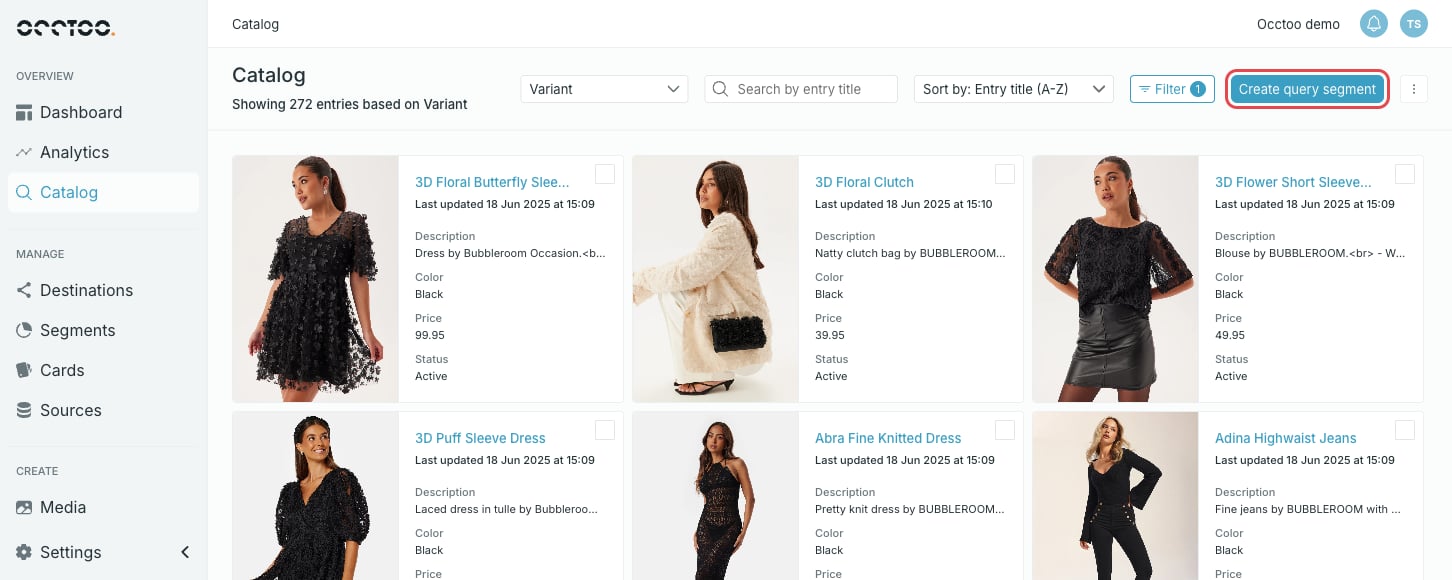 Apply the filters that describe the entries you want. The entry count under the heading is the size of the segment you are about to create.
Studio opens the segment creation form with the card and your filters already filled in, at the **Segment details** step.
Fill in the name, description and tags. See [Create a segment](/guides/studio/segments/create-a-segment) for the rest of the form.
A query segment keeps the criteria, not a list of ids — it re-evaluates as the data changes. To pin a fixed list of entries instead, select them in the list and see [Select entries](/guides/studio/catalog/select-entries).
Apply the filters that describe the entries you want. The entry count under the heading is the size of the segment you are about to create.
Studio opens the segment creation form with the card and your filters already filled in, at the **Segment details** step.
Fill in the name, description and tags. See [Create a segment](/guides/studio/segments/create-a-segment) for the rest of the form.
A query segment keeps the criteria, not a list of ids — it re-evaluates as the data changes. To pin a fixed list of entries instead, select them in the list and see [Select entries](/guides/studio/catalog/select-entries).