> ## Documentation Index
> Fetch the complete documentation index at: https://docs.occtoo.com/llms.txt
> Use this file to discover all available pages before exploring further.
# Find entries
> Browse the entries behind one card, search them by title and sort them.
**Catalog** is the read-and-enrich view of your data. It shows the entries of one card at a time — the unified result of every source that feeds that card — so you can look up a single product, review a slice of the assortment, or open an entry to edit it.
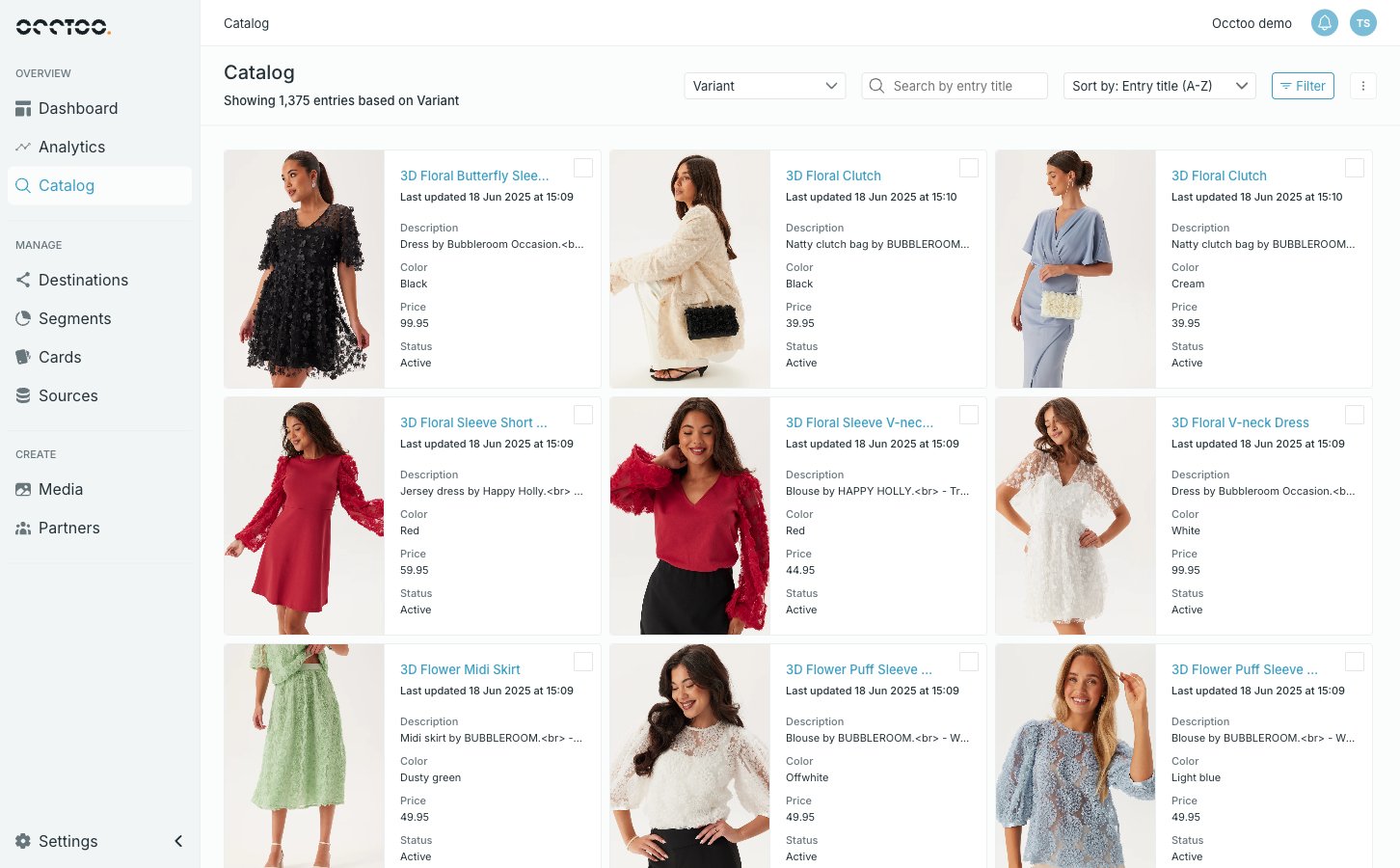 Catalog lists entries. The card itself — its properties, sources and relations
— is managed under [Cards](/guides/studio/cards/card-page).
## Pick a card
The combobox on the left of the toolbar chooses which card you are looking at. It lists every **Active** card; draft and archived cards do not appear.
Catalog lists entries. The card itself — its properties, sources and relations
— is managed under [Cards](/guides/studio/cards/card-page).
## Pick a card
The combobox on the left of the toolbar chooses which card you are looking at. It lists every **Active** card; draft and archived cards do not appear.
 The line under the heading confirms the selection and the size of the result — for example *Showing 1,375 entries based on Variant*.
Switching card clears the search term, every applied filter and any entries
you had selected.
If the tenant has no active card at all, Catalog shows an empty state instead of a list, with a shortcut to the Cards section.
## Search
**Search by entry title** matches the property that the card assigns to the **Name** display option, not the entry id and not the other properties. To find an entry by id, use the **Filter** panel instead.
## Sort
**Sort by** offers four orders:
| Option | Sorts on |
| --------------------------- | --------------------------------------- |
| Entry title (A-Z) | The **Name** display option, ascending |
| Entry title (Z-A) | The **Name** display option, descending |
| Last updated (Newest first) | When the entry last changed |
| Last updated (Oldest first) | When the entry last changed |
Entry title (A-Z) is the default.
The line under the heading confirms the selection and the size of the result — for example *Showing 1,375 entries based on Variant*.
Switching card clears the search term, every applied filter and any entries
you had selected.
If the tenant has no active card at all, Catalog shows an empty state instead of a list, with a shortcut to the Cards section.
## Search
**Search by entry title** matches the property that the card assigns to the **Name** display option, not the entry id and not the other properties. To find an entry by id, use the **Filter** panel instead.
## Sort
**Sort by** offers four orders:
| Option | Sorts on |
| --------------------------- | --------------------------------------- |
| Entry title (A-Z) | The **Name** display option, ascending |
| Entry title (Z-A) | The **Name** display option, descending |
| Last updated (Newest first) | When the entry last changed |
| Last updated (Oldest first) | When the entry last changed |
Entry title (A-Z) is the default.
 ## What a tile shows
Each tile is built from the card's display options: the image thumbnail, the **Name**, when the entry was last updated, and then the **Description** and **Label** properties. A card with no display options set shows only the entry id and the last-updated line. See [Display sections and display options](/guides/studio/cards/display-sections-and-options) for how those slots are assigned.
## Who can do what
Anyone can browse the catalog. Enriching entries, adding, importing and exporting them, and creating segments from a selection all need the **Contributor** role or higher — a **Reader** sees the same entries with those controls disabled. See [Users and roles](/guides/studio/settings/users-and-roles).
## What a tile shows
Each tile is built from the card's display options: the image thumbnail, the **Name**, when the entry was last updated, and then the **Description** and **Label** properties. A card with no display options set shows only the entry id and the last-updated line. See [Display sections and display options](/guides/studio/cards/display-sections-and-options) for how those slots are assigned.
## Who can do what
Anyone can browse the catalog. Enriching entries, adding, importing and exporting them, and creating segments from a selection all need the **Contributor** role or higher — a **Reader** sees the same entries with those controls disabled. See [Users and roles](/guides/studio/settings/users-and-roles).