> ## Documentation Index
> Fetch the complete documentation index at: https://docs.occtoo.com/llms.txt
> Use this file to discover all available pages before exploring further.
# Import entries
> Add or update many entries at once from a CSV or Excel file.
**Import entries** in the toolbar menu takes a spreadsheet and applies it to the selected card: rows that match an existing entry update it, rows that do not create a new one.
 It needs the card to have at least one property with **Allow enrichment**
turned on — otherwise the item is disabled, because an import can only write
to enrichable properties.
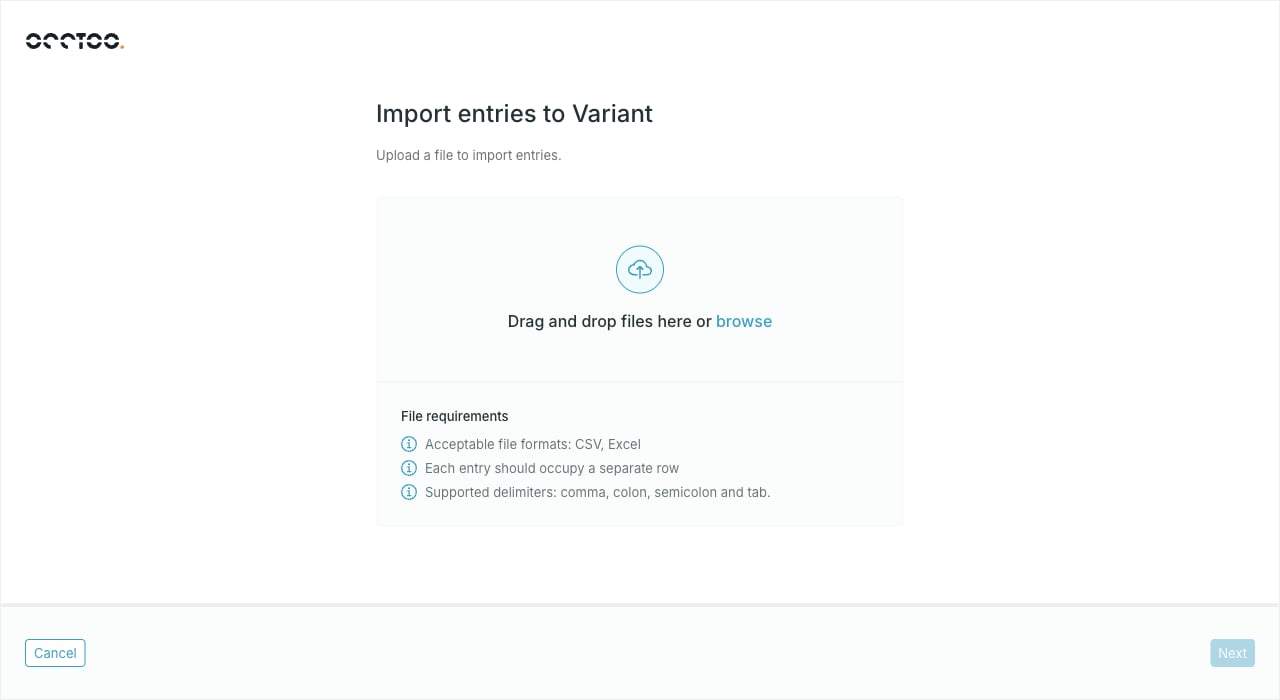
## File requirements
* CSV or Excel
* One entry per row
* Comma, colon, semicolon or tab as the delimiter
Run [Export entries](/guides/studio/catalog/export-entries) on the same card
first. The exported file has the columns the card expects, which makes it a
safe starting point for the file you import.
## Import
Drag it onto the dialog or use **browse**. Studio uploads it and then
analyses it, with a progress bar for each step. **Cancel** at any point
abandons the import.
The summary states how many entries would be added, how many updated, and
how many rows failed validation. When rows failed, **Download invalid
entries** gives you a file listing them so you can fix the source data.
The button is only enabled once the analysis passes. Studio starts the
import in the background and closes the dialog; progress is tracked in the
notification center, and the entry list refreshes when the import finishes.
Nothing is written until you press **Import entries** — uploading and
analysing the file is safe. Once started, an import updates existing entries
in place; there is no undo, so review the analysis before confirming.
To create a single entry instead, see [Add an entry](/guides/studio/catalog/add-an-entry).
It needs the card to have at least one property with **Allow enrichment**
turned on — otherwise the item is disabled, because an import can only write
to enrichable properties.
## File requirements
* CSV or Excel
* One entry per row
* Comma, colon, semicolon or tab as the delimiter
Run [Export entries](/guides/studio/catalog/export-entries) on the same card
first. The exported file has the columns the card expects, which makes it a
safe starting point for the file you import.
## Import
Drag it onto the dialog or use **browse**. Studio uploads it and then
analyses it, with a progress bar for each step. **Cancel** at any point
abandons the import.
The summary states how many entries would be added, how many updated, and
how many rows failed validation. When rows failed, **Download invalid
entries** gives you a file listing them so you can fix the source data.
The button is only enabled once the analysis passes. Studio starts the
import in the background and closes the dialog; progress is tracked in the
notification center, and the entry list refreshes when the import finishes.
Nothing is written until you press **Import entries** — uploading and
analysing the file is safe. Once started, an import updates existing entries
in place; there is no undo, so review the analysis before confirming.
To create a single entry instead, see [Add an entry](/guides/studio/catalog/add-an-entry).