> ## Documentation Index
> Fetch the complete documentation index at: https://docs.occtoo.com/llms.txt
> Use this file to discover all available pages before exploring further.
# Create an endpoint
> Add an endpoint to a version and choose the card or segment it serves.
An endpoint is one callable path on a destination. A version can hold several, each exposing different data.
Open the destination and select **Endpoints**, then click **Add Endpoint**.
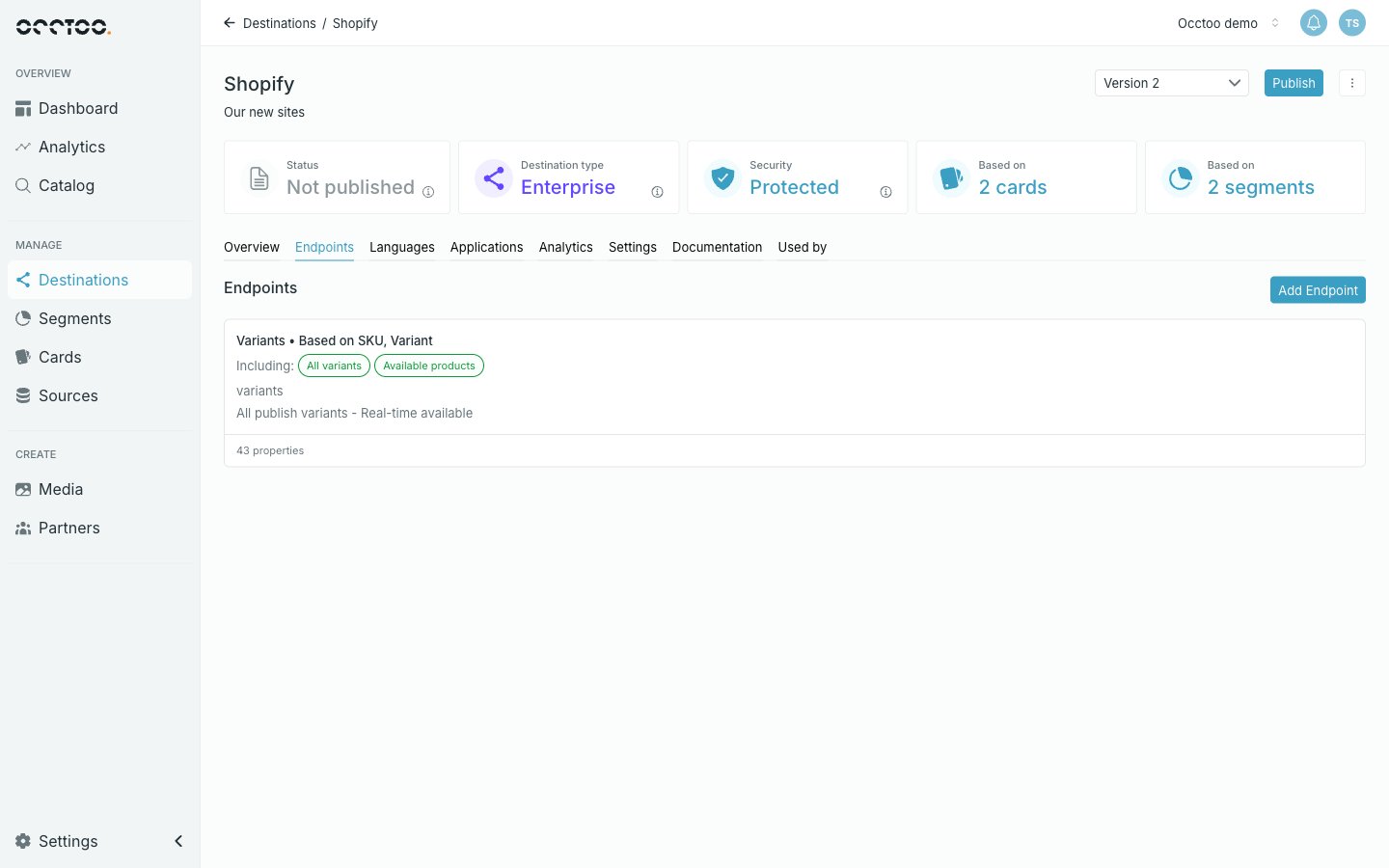 Each endpoint is listed with the card it is based on, the segments filtering it, its identifier, and how many properties it exposes.
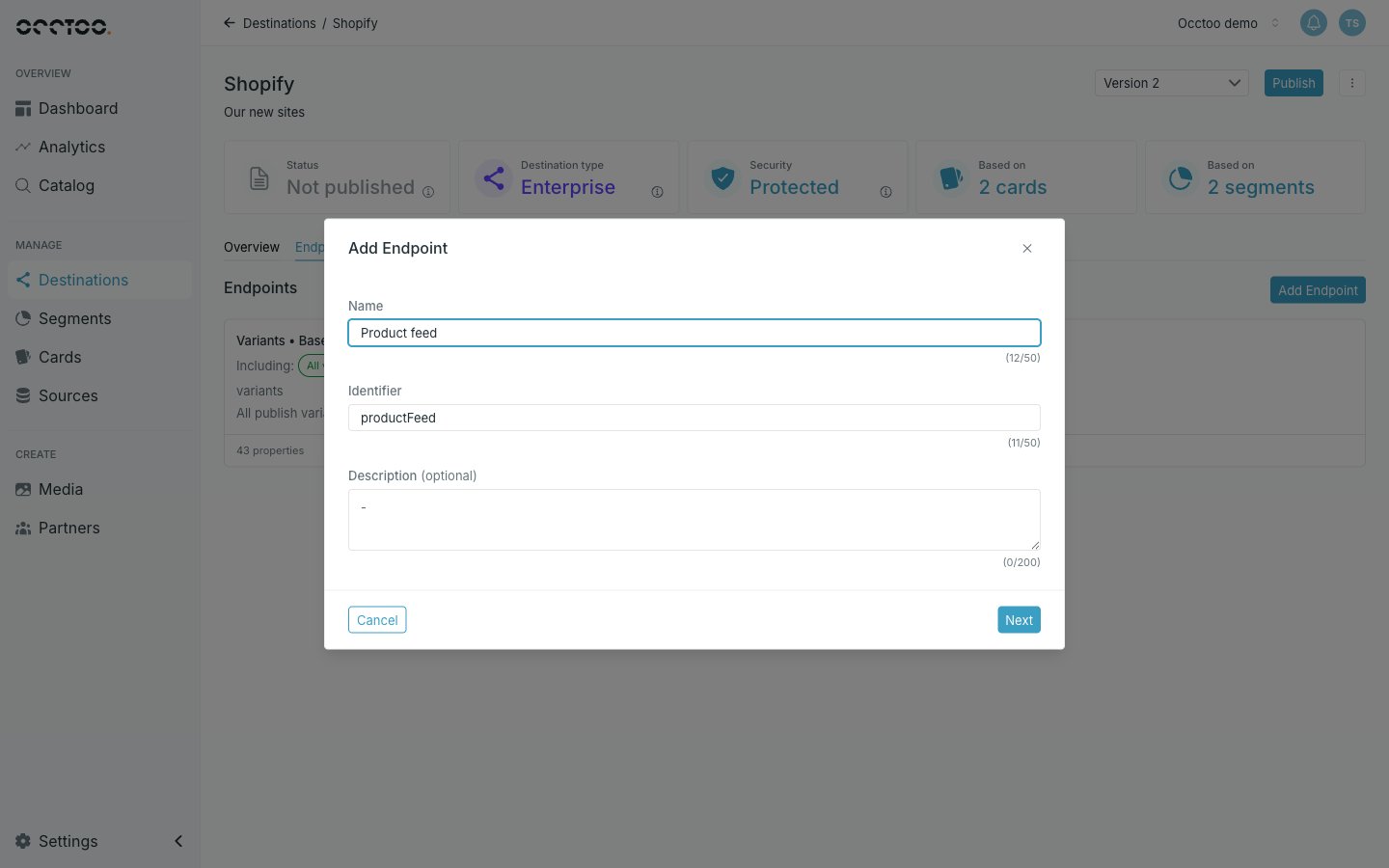 * **Name** — the display name.
* **Identifier** — the URL segment, derived from the name as you type. At least 3 characters, alphanumeric and underscore only.
* **Description** — optional.
Click **Next**.
* **Name** — the display name.
* **Identifier** — the URL segment, derived from the name as you type. At least 3 characters, alphanumeric and underscore only.
* **Description** — optional.
Click **Next**.
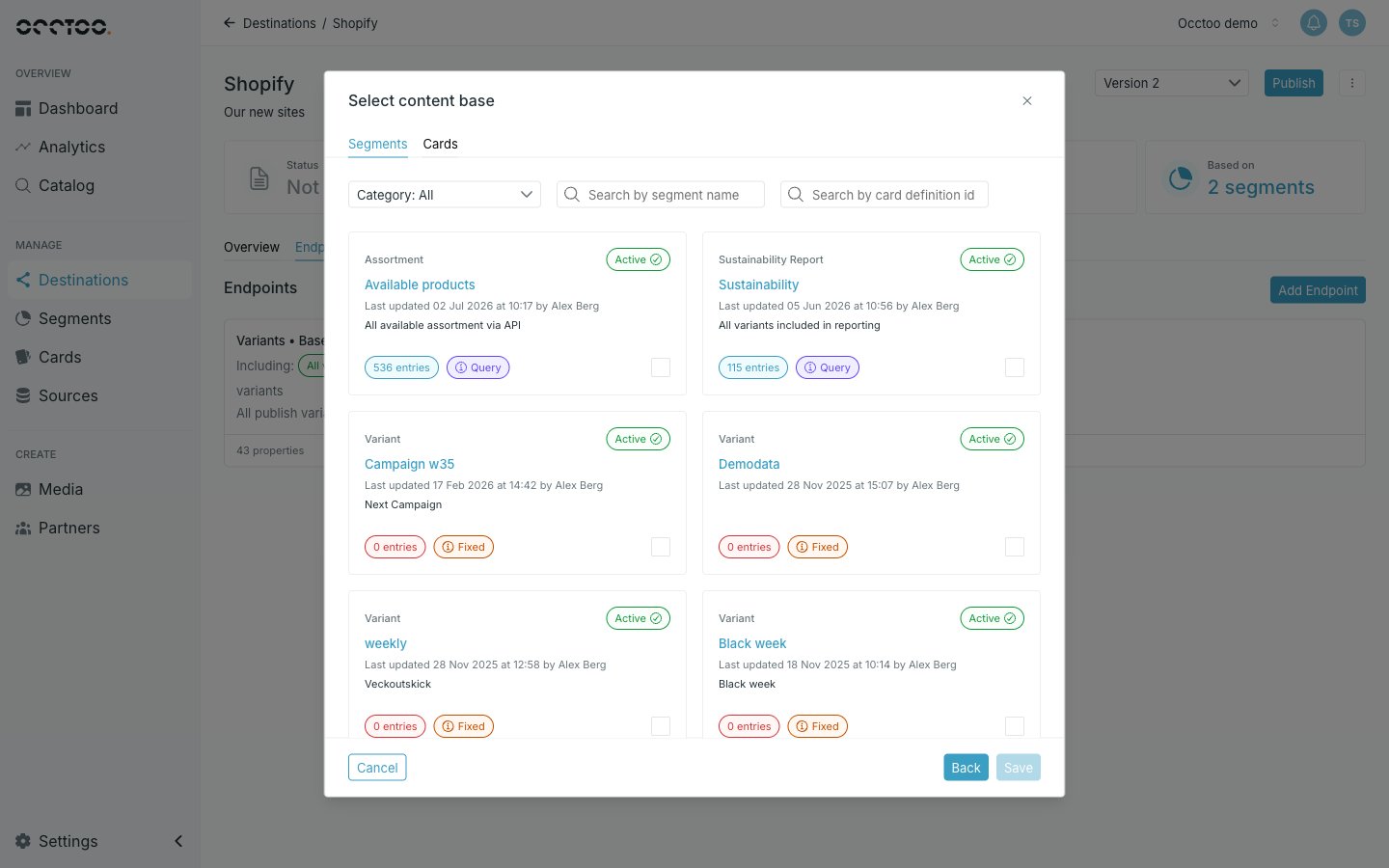 Two tabs decide what the endpoint serves:
* **Segments** — the endpoint returns only the entries in that segment. Picking a segment also fixes the card it belongs to.
* **Cards** — the endpoint returns every entry of that card.
Filter by category or search by name, then tick the tile. Only one content base can be selected.
Switching between the **Segments** and **Cards** tab clears the selection you had made on the other tab.
Click **Save**. Studio creates the endpoint with every property of the card selected, and opens it so you can narrow that down.
Endpoints can only be added to a version that is not yet published. On a published version **Add Endpoint** is disabled — create a new version instead. See [Create a version](/guides/studio/destinations/create-a-version).
Next, choose which properties and relations the endpoint exposes — see [Endpoint content](/guides/studio/destinations/endpoint-content).
Two tabs decide what the endpoint serves:
* **Segments** — the endpoint returns only the entries in that segment. Picking a segment also fixes the card it belongs to.
* **Cards** — the endpoint returns every entry of that card.
Filter by category or search by name, then tick the tile. Only one content base can be selected.
Switching between the **Segments** and **Cards** tab clears the selection you had made on the other tab.
Click **Save**. Studio creates the endpoint with every property of the card selected, and opens it so you can narrow that down.
Endpoints can only be added to a version that is not yet published. On a published version **Add Endpoint** is disabled — create a new version instead. See [Create a version](/guides/studio/destinations/create-a-version).
Next, choose which properties and relations the endpoint exposes — see [Endpoint content](/guides/studio/destinations/endpoint-content).