> ## Documentation Index
> Fetch the complete documentation index at: https://docs.occtoo.com/llms.txt
> Use this file to discover all available pages before exploring further.
# Filter an endpoint with segments
> Include and exclude segments to control which entries an endpoint returns.
An endpoint based on a card returns every entry of that card. Segments narrow that down, and can be combined: include one set, exclude another.
## Apply filters
Open the destination, select **Endpoints**, and click the endpoint.
Click the segment icon next to the node name in the tree — the root node for the endpoint's own entries, or a relation node to filter the related entries instead.
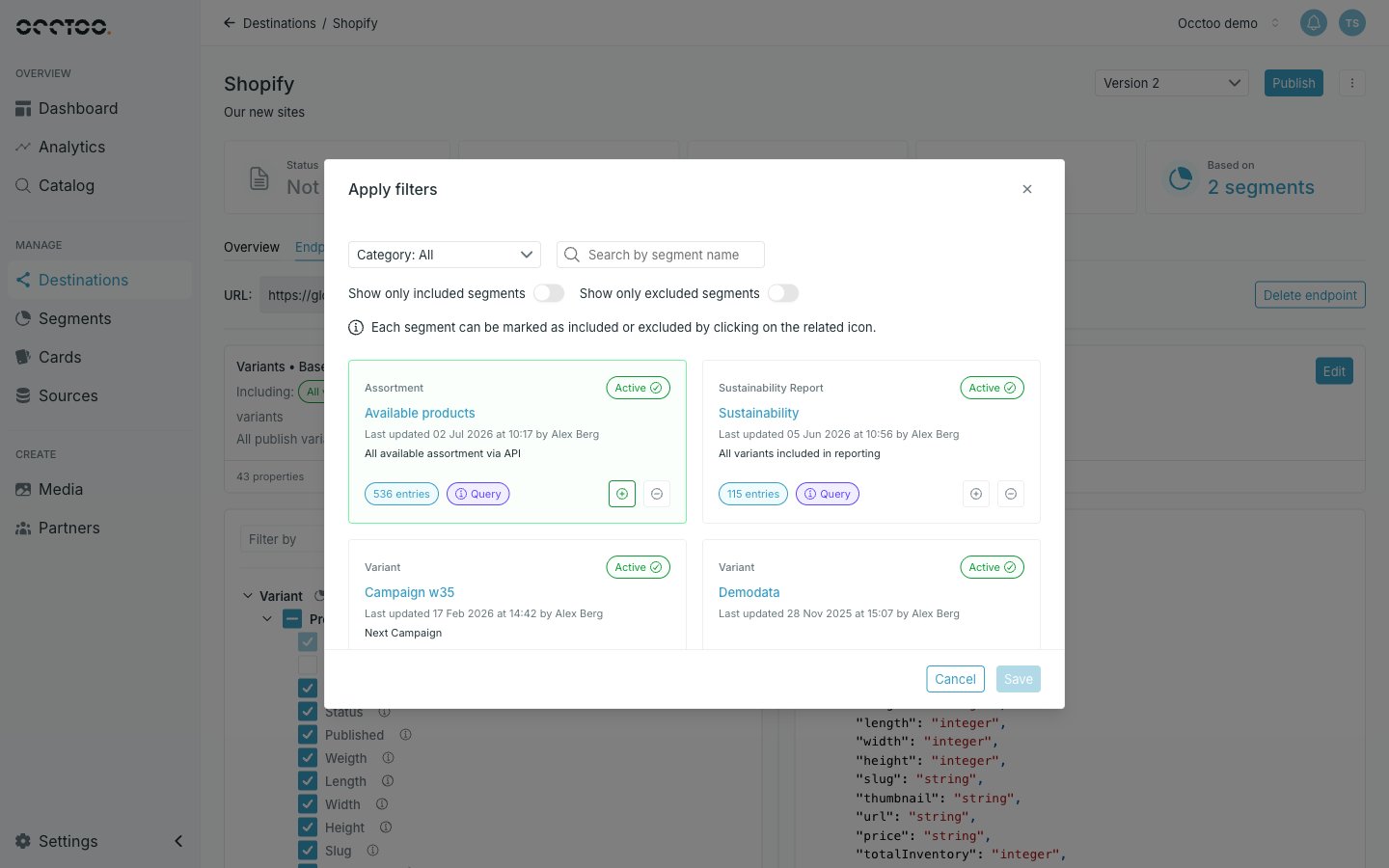 Each segment tile carries two controls: **+** includes the segment, **−** excludes it. Click a control again to clear that choice.
Narrow the list with the **Category** selector, the segment name search, or the **Show only included segments** and **Show only excluded segments** switches.
Click **Save**. Filters save immediately against the endpoint rather than waiting for **Save settings** on the tree.
## How include and exclude combine
Include narrows to the union of the included segments; exclude then removes those entries. An entry that is both included and excluded is excluded.
With nothing selected the endpoint returns all entries of its card — the endpoint header reads *Including all \ entries*. Once filters exist, the header lists them as **Including** and **Excluding** badges.
Only segments built on the endpoint's own card can be applied. If a segment you expect is missing, check which card it belongs to — see [Find segments](/guides/studio/segments/find-segments).
Segment membership is evaluated continuously. Adding an entry to an included segment makes it appear on the endpoint without republishing — and removing it takes it away just as quietly.
Each segment tile carries two controls: **+** includes the segment, **−** excludes it. Click a control again to clear that choice.
Narrow the list with the **Category** selector, the segment name search, or the **Show only included segments** and **Show only excluded segments** switches.
Click **Save**. Filters save immediately against the endpoint rather than waiting for **Save settings** on the tree.
## How include and exclude combine
Include narrows to the union of the included segments; exclude then removes those entries. An entry that is both included and excluded is excluded.
With nothing selected the endpoint returns all entries of its card — the endpoint header reads *Including all \ entries*. Once filters exist, the header lists them as **Including** and **Excluding** badges.
Only segments built on the endpoint's own card can be applied. If a segment you expect is missing, check which card it belongs to — see [Find segments](/guides/studio/segments/find-segments).
Segment membership is evaluated continuously. Adding an entry to an included segment makes it appear on the endpoint without republishing — and removing it takes it away just as quietly.