> ## Documentation Index
> Fetch the complete documentation index at: https://docs.occtoo.com/llms.txt
> Use this file to discover all available pages before exploring further.
# Build the event filter
> Choose event types, narrow them with conditions, and read the expression Studio compiles from your choices.
The filter decides which events reach the subscription. It has two parts: the **event types** you want, and optional **conditions** that narrow those types to one source, card, segment, destination or user.
 ## Event types
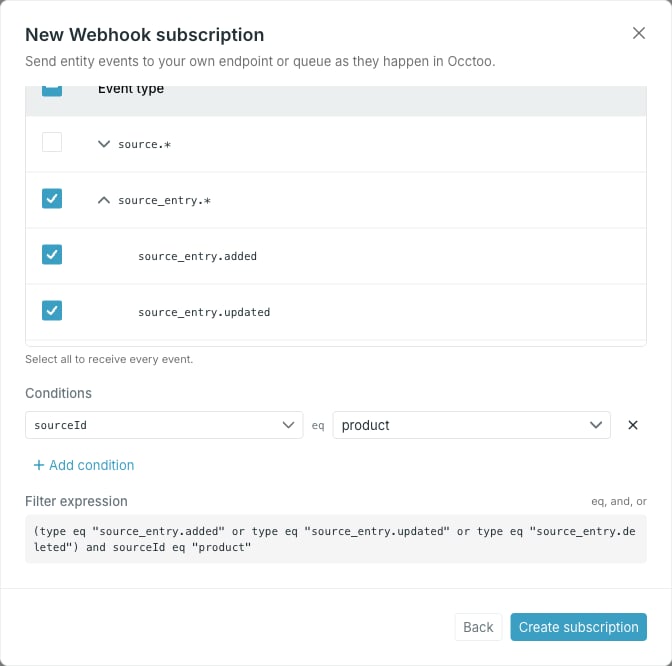
The tree groups the 30 event types into nine families. Ticking a family row selects every type under it; expand the row to pick individual types. The header checkbox selects all of them, and the counter above the tree tracks how many of the 30 are selected.
At least one type is required — the dialog will not create or save a subscription without one.
What each type means, and what its payload carries, is listed in the [Events API reference](/api-reference/events/overview#event-types).
## Conditions
**Add condition** adds a `property eq value` row. The property list holds only the properties the selected event types actually carry:
| Event types | Properties you can filter on |
| ----------------------------------- | ----------------------------------------------------------- |
| `source.*`, `source_entry.*` | `sourceId` |
| `card.updated` | `cardDefinitionId` |
| `card.segment_membership_changed` | `cardDefinitionId`, `segmentId` |
| `card_definition.*` | `cardDefinitionId` |
| `segment.*` | `segmentId`, `segmentDefinitionId`, `cardDefinitionId` |
| `destination.*` | `destinationId` |
| `destination_entry.*`, `endpoint.*` | `destinationId`, `endpointId`, `apiVersionId`, `apiVersion` |
| `user.*` | `userId` |
Select several families and the list offers the union of their properties.
Every property except `apiVersion` picks its value from a list of what exists in the environment — sources, card definitions, segments, destinations, endpoints, API versions or users — and sends the underlying id rather than the name you chose. `apiVersion` is the version number itself, so you type it.
Conditions are combined with **and**, so a condition applies to every selected event type. Adding `sourceId` while `user.*` types are also selected leaves the user events unable to match at all.
Narrowing the event types can strand a condition on a property the remaining types do not carry. Studio then re-points that row at the first property that is still allowed — check the conditions again after you change the selection.
## The compiled expression
**Filter expression** shows exactly what Studio sends, in a grammar limited to `eq`, `and` and `or`:
```text theme={null}
(type eq "source_entry.added" or type eq "source_entry.updated" or type eq "source_entry.deleted") and sourceId eq "product"
```
Types are joined with `or` and bracketed as a group once a condition is present; conditions are appended with `and`. A condition left without a value is omitted from the expression preview, but it blocks creation and saving. Fill in the value or remove the condition before submitting.
## Event types
The tree groups the 30 event types into nine families. Ticking a family row selects every type under it; expand the row to pick individual types. The header checkbox selects all of them, and the counter above the tree tracks how many of the 30 are selected.
At least one type is required — the dialog will not create or save a subscription without one.
What each type means, and what its payload carries, is listed in the [Events API reference](/api-reference/events/overview#event-types).
## Conditions
**Add condition** adds a `property eq value` row. The property list holds only the properties the selected event types actually carry:
| Event types | Properties you can filter on |
| ----------------------------------- | ----------------------------------------------------------- |
| `source.*`, `source_entry.*` | `sourceId` |
| `card.updated` | `cardDefinitionId` |
| `card.segment_membership_changed` | `cardDefinitionId`, `segmentId` |
| `card_definition.*` | `cardDefinitionId` |
| `segment.*` | `segmentId`, `segmentDefinitionId`, `cardDefinitionId` |
| `destination.*` | `destinationId` |
| `destination_entry.*`, `endpoint.*` | `destinationId`, `endpointId`, `apiVersionId`, `apiVersion` |
| `user.*` | `userId` |
Select several families and the list offers the union of their properties.
Every property except `apiVersion` picks its value from a list of what exists in the environment — sources, card definitions, segments, destinations, endpoints, API versions or users — and sends the underlying id rather than the name you chose. `apiVersion` is the version number itself, so you type it.
Conditions are combined with **and**, so a condition applies to every selected event type. Adding `sourceId` while `user.*` types are also selected leaves the user events unable to match at all.
Narrowing the event types can strand a condition on a property the remaining types do not carry. Studio then re-points that row at the first property that is still allowed — check the conditions again after you change the selection.
## The compiled expression
**Filter expression** shows exactly what Studio sends, in a grammar limited to `eq`, `and` and `or`:
```text theme={null}
(type eq "source_entry.added" or type eq "source_entry.updated" or type eq "source_entry.deleted") and sourceId eq "product"
```
Types are joined with `or` and bracketed as a group once a condition is present; conditions are appended with `and`. A condition left without a value is omitted from the expression preview, but it blocks creation and saving. Fill in the value or remove the condition before submitting.