> ## Documentation Index
> Fetch the complete documentation index at: https://docs.occtoo.com/llms.txt
> Use this file to discover all available pages before exploring further.
# Edit a segment
> Change the details of a segment, or change which entries it contains.
A segment is edited in two places: the **Segment details** widget for name, tags, schedule and description, and **Edit segmentation** for the entry selection.
 ## Edit the details
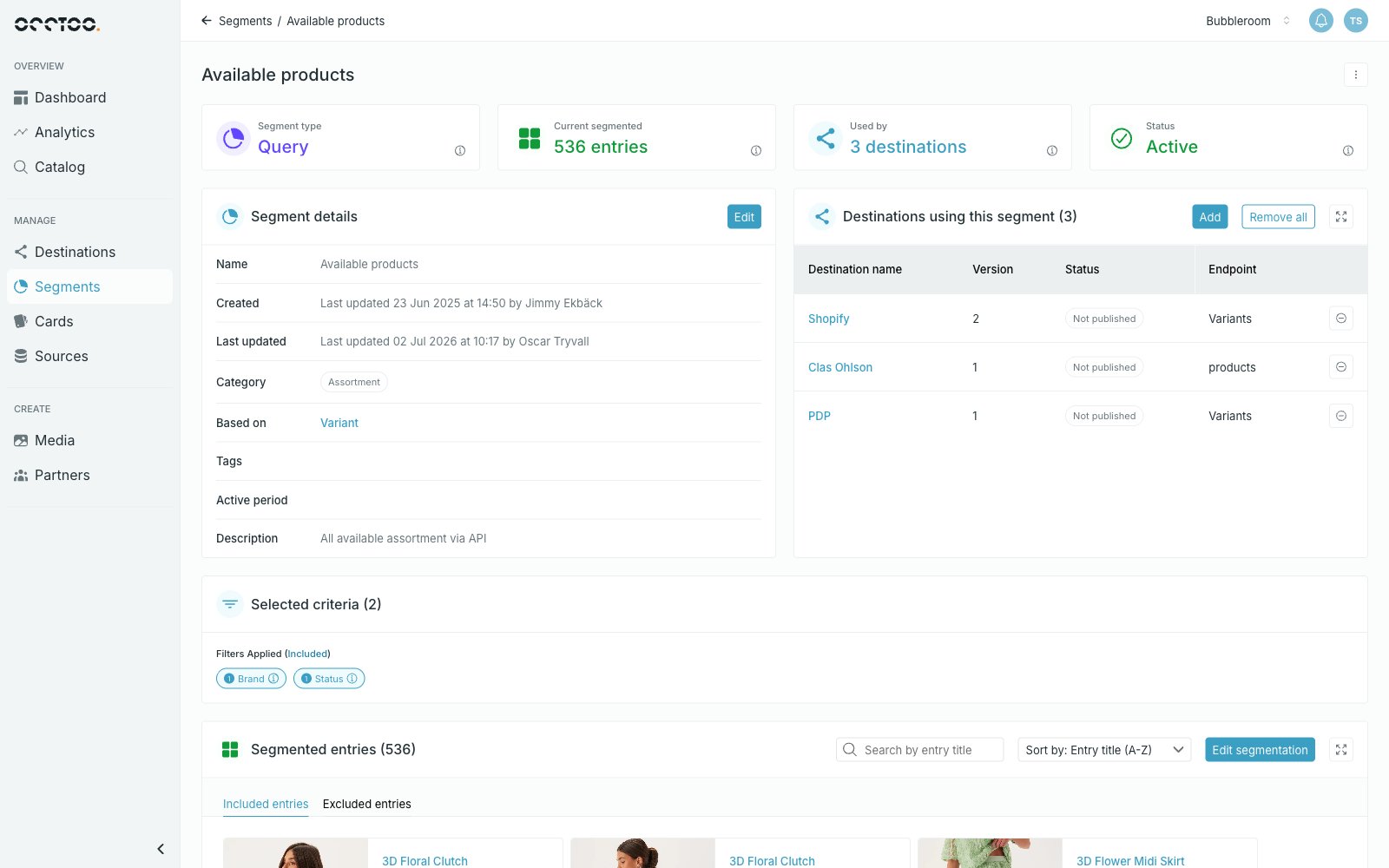
Press **Edit** in the **Segment details** widget.
## Edit the details
Press **Edit** in the **Segment details** widget.
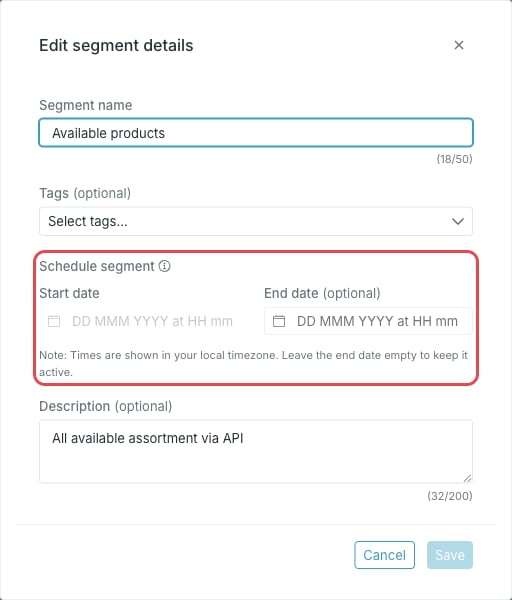 You can change:
* **Segment name**
* **Tags**
* **Schedule segment** — start and end date
* **Description**
Press **Save** to apply the changes.
The card and the category a segment is based on cannot be changed after the
segment is created.
## Edit the entry selection
Press **Edit segmentation** in the **Segmented entries** widget.
You can change:
* **Segment name**
* **Tags**
* **Schedule segment** — start and end date
* **Description**
Press **Save** to apply the changes.
The card and the category a segment is based on cannot be changed after the
segment is created.
## Edit the entry selection
Press **Edit segmentation** in the **Segmented entries** widget.
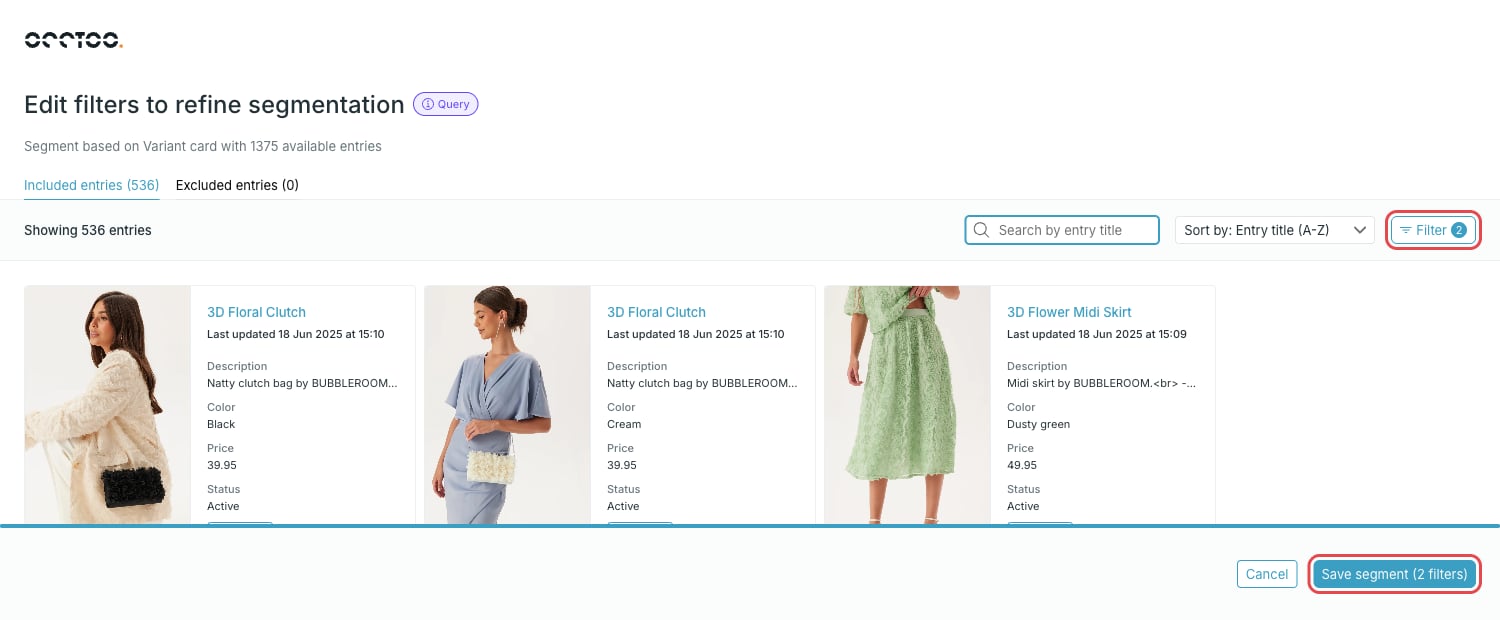 Press **Filter** to open the filter panel. The filters already on the segment are preselected. Adjust them, or press **Clear all filters** to start over, and press **Apply** to see the new result.
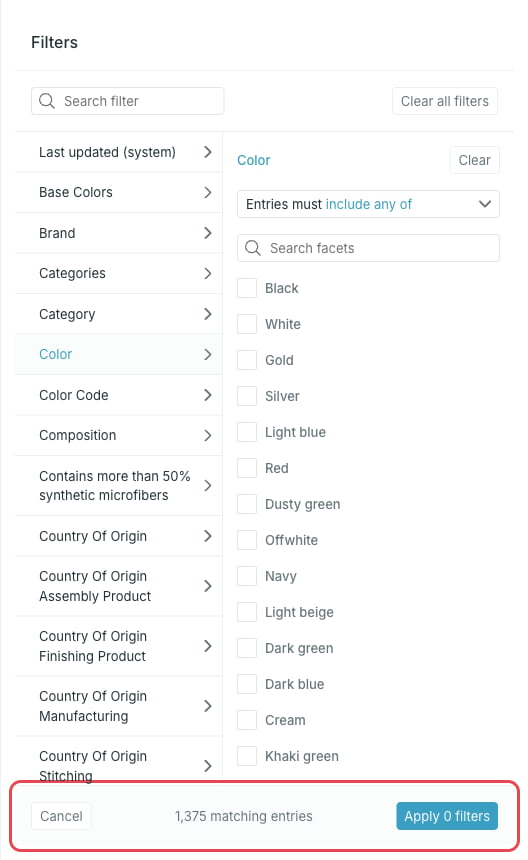 Every filter type is described in [Filter segment entries](/guides/studio/segments/filter-segment-entries).
On a **Query** segment, press **Exclude** on an entry to keep it out of the result, and **Include** to bring it back. The **Included entries** and **Excluded entries** tabs show the current split.
On a **Fixed** segment, entries carry a checkbox instead. Tick entries under **All entries** to add them, untick them under **Included entries** to remove them, or press **Clear** to empty the selection.
Press **Save segment** in the lower right corner. **Cancel** discards the changes.
When you change the query criteria, allow a few minutes after saving for the new settings to be processed.
For a fixed segment you can also replace or extend the entries with a CSV
file. See [Upload a fixed
segment](/guides/studio/segments/upload-a-fixed-segment).
Every filter type is described in [Filter segment entries](/guides/studio/segments/filter-segment-entries).
On a **Query** segment, press **Exclude** on an entry to keep it out of the result, and **Include** to bring it back. The **Included entries** and **Excluded entries** tabs show the current split.
On a **Fixed** segment, entries carry a checkbox instead. Tick entries under **All entries** to add them, untick them under **Included entries** to remove them, or press **Clear** to empty the selection.
Press **Save segment** in the lower right corner. **Cancel** discards the changes.
When you change the query criteria, allow a few minutes after saving for the new settings to be processed.
For a fixed segment you can also replace or extend the entries with a CSV
file. See [Upload a fixed
segment](/guides/studio/segments/upload-a-fixed-segment).