> ## Documentation Index
> Fetch the complete documentation index at: https://docs.occtoo.com/llms.txt
> Use this file to discover all available pages before exploring further.
# Find a segment
> Search, sort and filter the segments list.
The **Segments** page lists every segment in the tenant with its category, status, entry count and type.
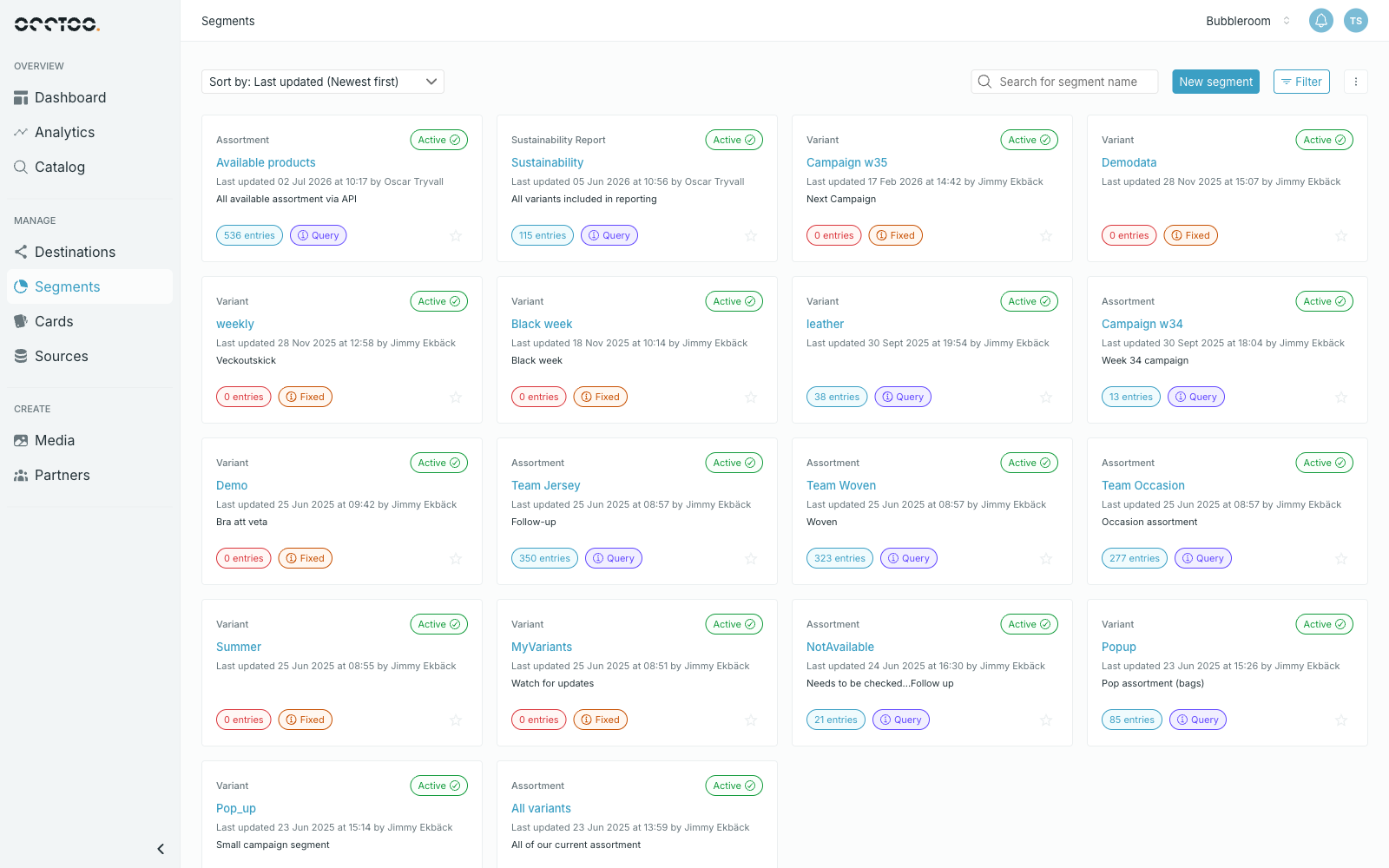 * **Search for segment name** — find a segment by name.
* **Sort by** — last updated, name, or date created, ascending or descending.
* **Filter** — narrow the list down by several properties at once.
* The star marks the segment as a favourite, which pins it to your dashboard.
## Filters
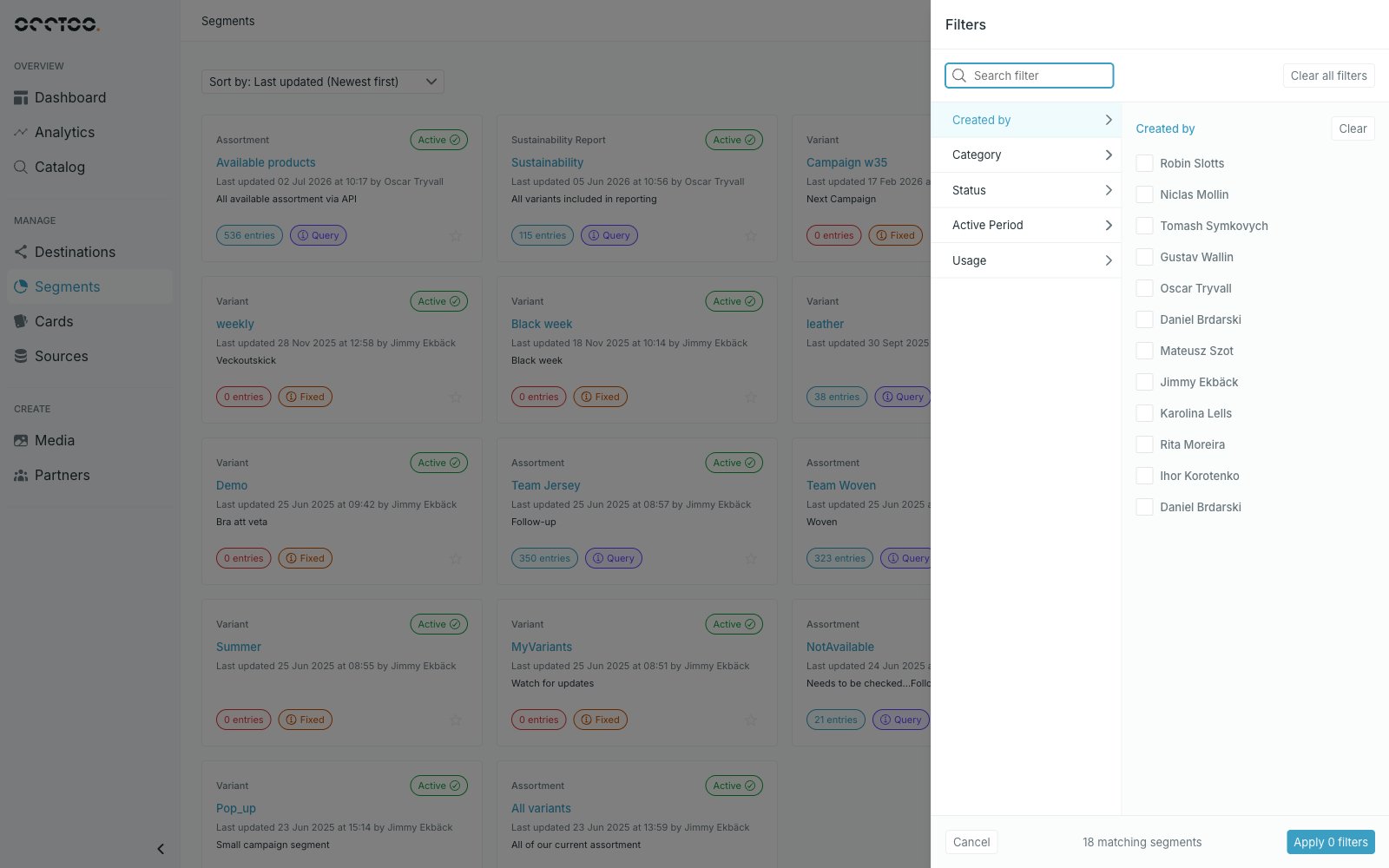
Press **Filter** to open the panel. The footer shows how many segments match before you apply anything.
* **Search for segment name** — find a segment by name.
* **Sort by** — last updated, name, or date created, ascending or descending.
* **Filter** — narrow the list down by several properties at once.
* The star marks the segment as a favourite, which pins it to your dashboard.
## Filters
Press **Filter** to open the panel. The footer shows how many segments match before you apply anything.
 | Filter | Values |
| ------------- | ---------------------------------------------- |
| Created by | The users who created segments |
| Category | The segment categories in the tenant |
| Status | Active, Archived, Scheduled, Initializing |
| Active Period | Starts before, Ends before, In between (range) |
| Usage | In use, Not in use |
| Filter | Values |
| ------------- | ---------------------------------------------- |
| Created by | The users who created segments |
| Category | The segment categories in the tenant |
| Status | Active, Archived, Scheduled, Initializing |
| Active Period | Starts before, Ends before, In between (range) |
| Usage | In use, Not in use |
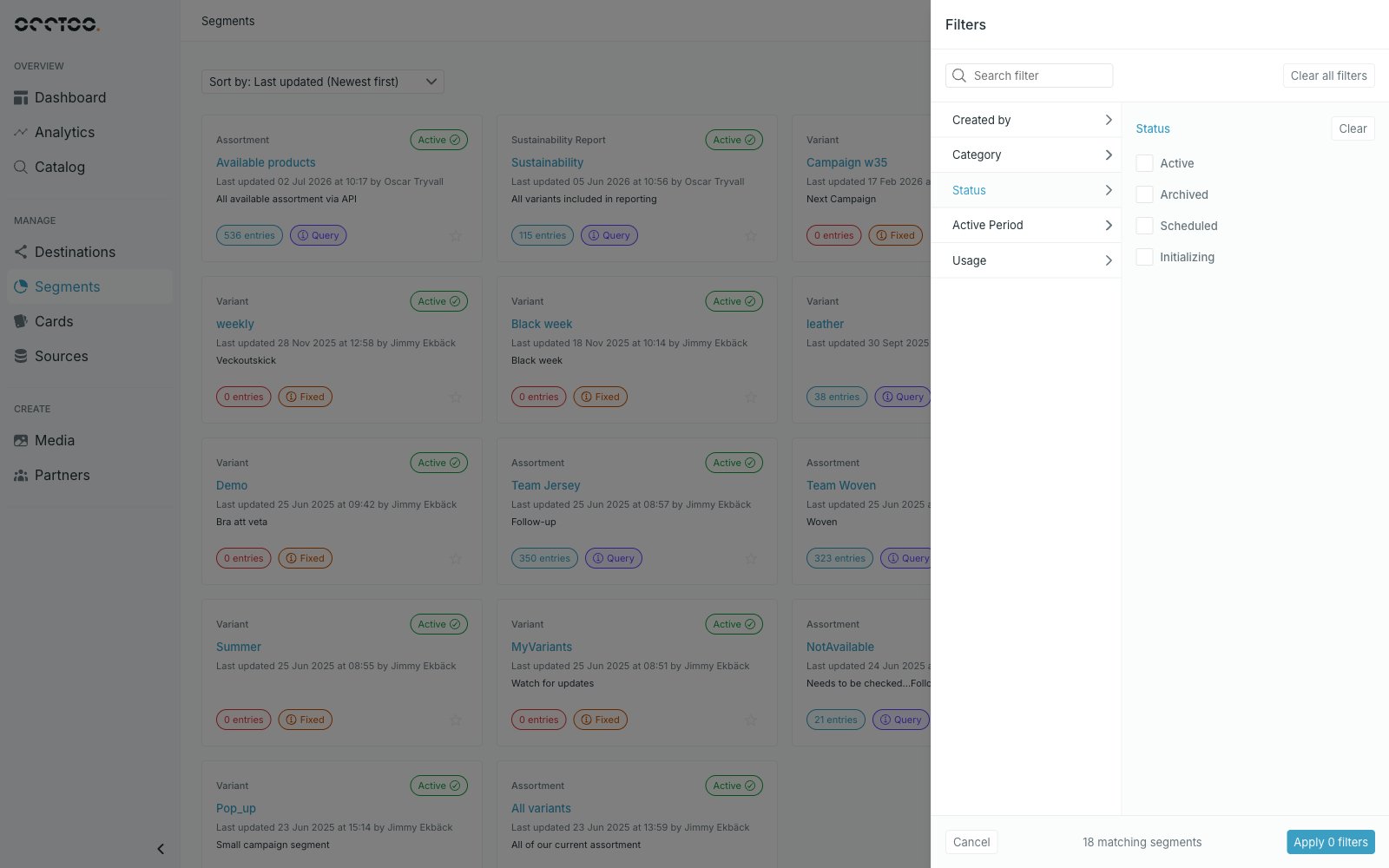 Press **Apply** to filter the list, or **Clear all filters** to reset. The **Filter** button shows how many filters are active.
**Usage** is the quickest way to find segments that no destination consumes, and **Active Period** to find segments that are about to end. See [Schedule a segment](/guides/studio/segments/schedule-a-segment) for what each status means.
## Badges on a segment
* **Category** — the group the segment belongs to, above the name.
* **Status** — Active, Scheduled, Initializing or Archived.
* **Entries** — how many entries the segment currently holds.
* **Query** or **Fixed** — whether entries update automatically with the data, or stay as selected.
## Who can do what
Anyone can read segments. Creating, editing, scheduling, archiving and deleting segments and their categories need the **Contributor** role or higher — a **Reader** sees the same list with those controls disabled. See [Users and roles](/guides/studio/settings/users-and-roles).
Press **Apply** to filter the list, or **Clear all filters** to reset. The **Filter** button shows how many filters are active.
**Usage** is the quickest way to find segments that no destination consumes, and **Active Period** to find segments that are about to end. See [Schedule a segment](/guides/studio/segments/schedule-a-segment) for what each status means.
## Badges on a segment
* **Category** — the group the segment belongs to, above the name.
* **Status** — Active, Scheduled, Initializing or Archived.
* **Entries** — how many entries the segment currently holds.
* **Query** or **Fixed** — whether entries update automatically with the data, or stay as selected.
## Who can do what
Anyone can read segments. Creating, editing, scheduling, archiving and deleting segments and their categories need the **Contributor** role or higher — a **Reader** sees the same list with those controls disabled. See [Users and roles](/guides/studio/settings/users-and-roles).