> ## Documentation Index
> Fetch the complete documentation index at: https://docs.occtoo.com/llms.txt
> Use this file to discover all available pages before exploring further.
# Upload a fixed segment
> Create a fixed segment from a CSV list of entry IDs.
When you already have a list of entries, choose **Fixed · quick upload** as the segment type. Studio matches the IDs in your file against the entries on the card and builds a fixed segment from the matches.
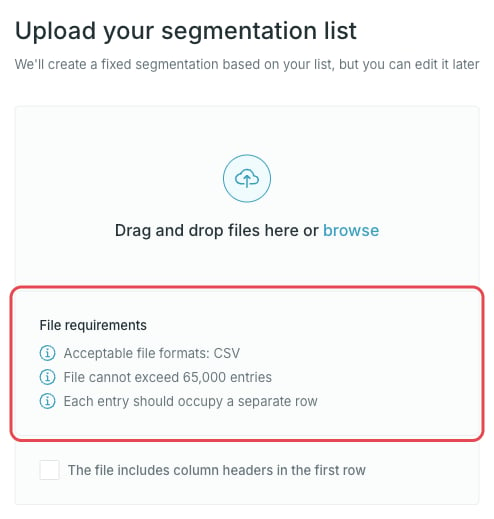 * Acceptable file formats: CSV
* The file cannot exceed 65,000 entries
* Each entry should occupy a separate row
* The first column is read as the entry ID
Duplicate and empty rows are ignored.
Drag the file onto the upload area or press **browse** to pick it. Tick **The file includes column headers in the first row** if your file has a header row.
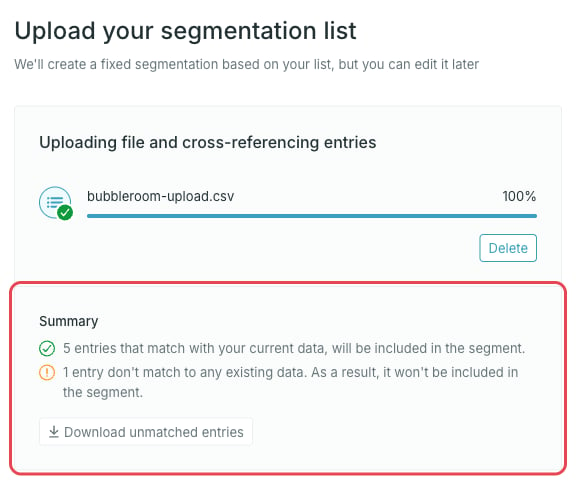
Studio uploads the file and cross-references the entries. The summary tells you how many IDs were matched:
* All entries matched — the segment is ready.
* Only some entries matched — the unmatched IDs are left out. Press **Download unmatched entries** to get them as a CSV.
* No entries matched — nothing can be created from this file. Check that the file holds entry IDs from the selected card.
* Acceptable file formats: CSV
* The file cannot exceed 65,000 entries
* Each entry should occupy a separate row
* The first column is read as the entry ID
Duplicate and empty rows are ignored.
Drag the file onto the upload area or press **browse** to pick it. Tick **The file includes column headers in the first row** if your file has a header row.
Studio uploads the file and cross-references the entries. The summary tells you how many IDs were matched:
* All entries matched — the segment is ready.
* Only some entries matched — the unmatched IDs are left out. Press **Download unmatched entries** to get them as a CSV.
* No entries matched — nothing can be created from this file. Check that the file holds entry IDs from the selected card.
 Press **Next** to open **Review and manage your uploaded entries**. This step lists only the matched entries, each with a ticked checkbox — untick one to drop it from the segment. There are no tabs, no search and no filters here: it is the uploaded selection and nothing else.
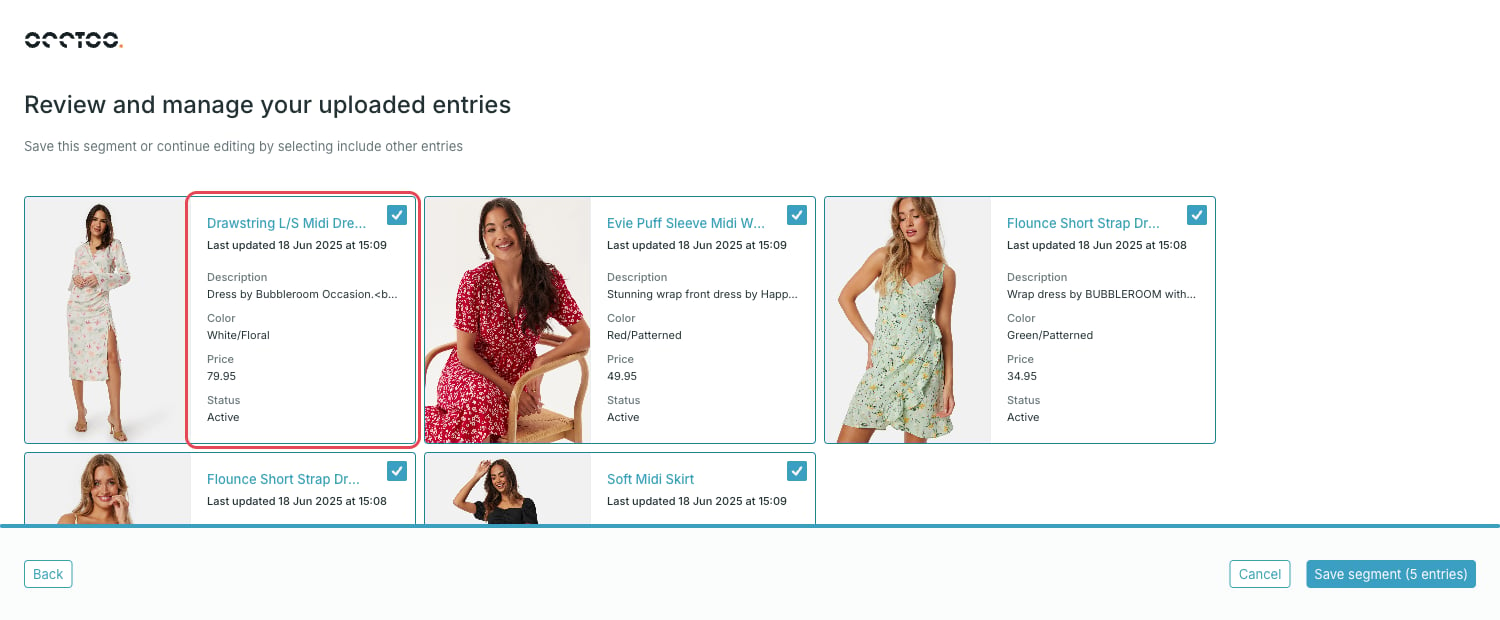 Press **Save segment**, which shows the entry count it will save, for example **Save segment (5 entries)**. The result is a fixed segment: the entries stay as they are, even when the underlying data changes.
Press **Back** to return to the upload step if you want to start from a different file.
## Update the entries of an existing segment
Open a fixed segment, press **Edit segmentation**, then press **Upload entries** and pick a new file. In edit mode you also choose what happens to the entries already in the segment:
* **Replace all entries with the upload** — the uploaded list becomes the segment.
* **Append new entries from the upload** — the uploaded entries are added to the existing ones. Entries that are already in the segment are ignored.
Going back from the upload step erases the current upload, and you have to
upload the file again.
Press **Save segment**, which shows the entry count it will save, for example **Save segment (5 entries)**. The result is a fixed segment: the entries stay as they are, even when the underlying data changes.
Press **Back** to return to the upload step if you want to start from a different file.
## Update the entries of an existing segment
Open a fixed segment, press **Edit segmentation**, then press **Upload entries** and pick a new file. In edit mode you also choose what happens to the entries already in the segment:
* **Replace all entries with the upload** — the uploaded list becomes the segment.
* **Append new entries from the upload** — the uploaded entries are added to the existing ones. Entries that are already in the segment are ignored.
Going back from the upload step erases the current upload, and you have to
upload the file again.