> ## Documentation Index
> Fetch the complete documentation index at: https://docs.occtoo.com/llms.txt
> Use this file to discover all available pages before exploring further.
# Import data from a CSV file
> Upload a CSV straight into a source, review what was parsed, and save.
The CSV importer loads data into a source without an integration. No data provider is needed.
Open the source and press **Import data**, in the page header or in the **Entries** widget.
**Import data** is unavailable while the source is being purged.
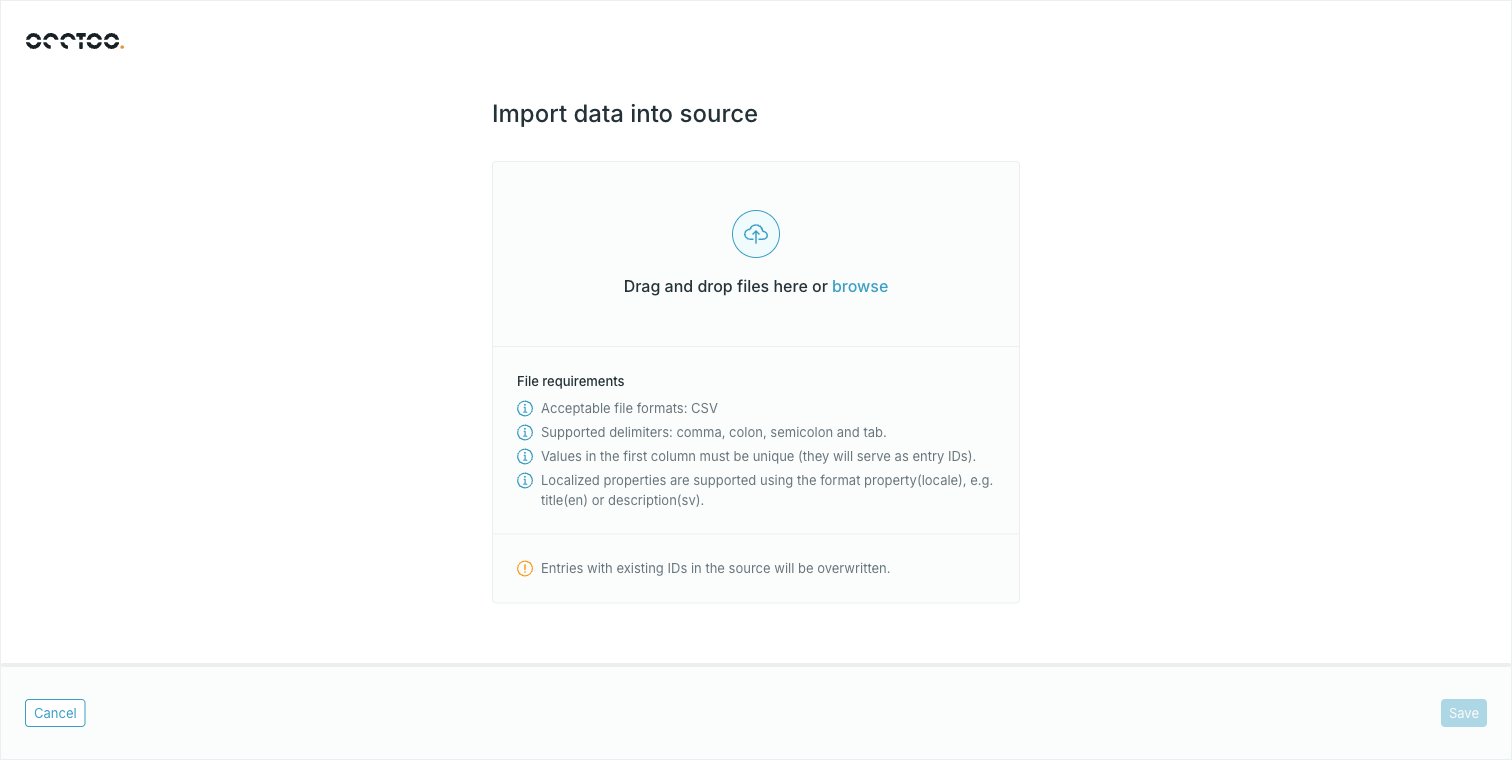 Drag the file onto the drop zone or press **browse**. One file at a time.
The dialog lists the **File requirements**: CSV only, comma, colon, semicolon or tab as the delimiter, unique values in the first column to serve as entry IDs, and `property(locale)` for localized properties.
An import is an upsert on the first column, so an entry ID that already exists in the source has its values overwritten.
Drag the file onto the drop zone or press **browse**. One file at a time.
The dialog lists the **File requirements**: CSV only, comma, colon, semicolon or tab as the delimiter, unique values in the first column to serve as entry IDs, and `property(locale)` for localized properties.
An import is an upsert on the first column, so an entry ID that already exists in the source has its values overwritten.
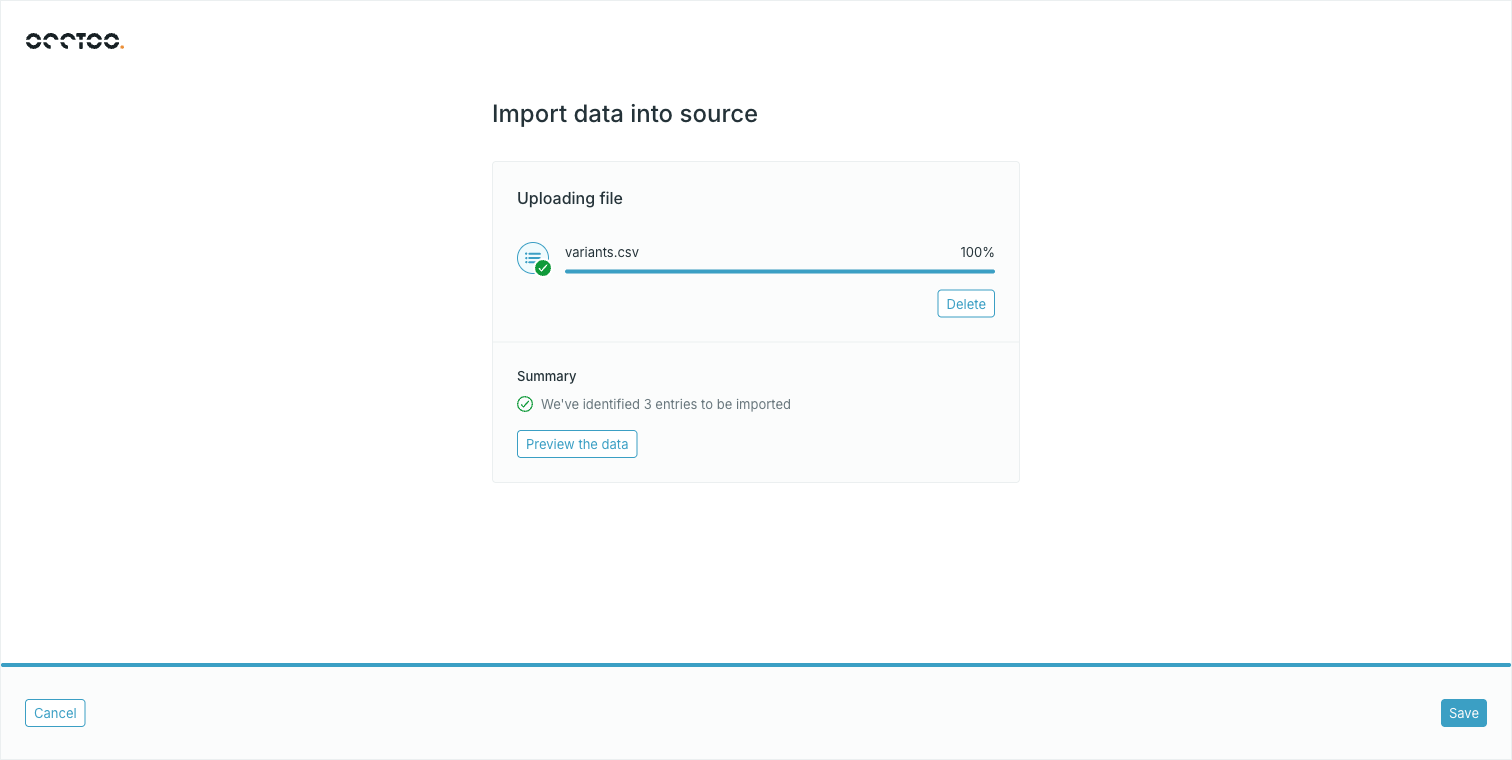 Occtoo parses the file in the browser and reports how many entries it found.
Problems are listed here instead, and block the import until fixed. **Delete** clears the file so you can upload a corrected one.
**Preview the data** opens **Review your data**. The first column is tagged **ID**.
Occtoo parses the file in the browser and reports how many entries it found.
Problems are listed here instead, and block the import until fixed. **Delete** clears the file so you can upload a corrected one.
**Preview the data** opens **Review your data**. The first column is tagged **ID**.
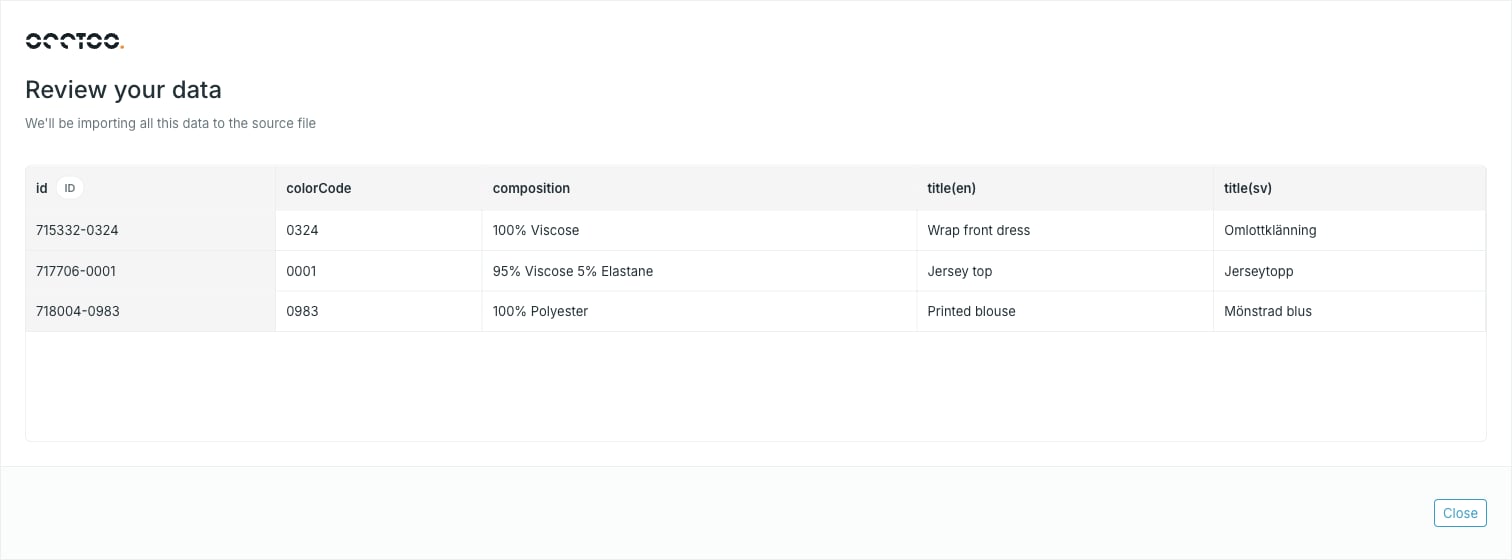 Cells and headers with problems carry a warning icon; hover it for the reason. The preview shows the first 100 rows.
**Save** starts the import and closes the dialog.
The import then runs in the background. The **Entries** widget shows **Import is in progress** and refreshes itself until entries appear.
## File rules
The first row is the header row, and the first column is the entry ID.
**Column headers** must start with a letter and may contain letters, digits, underscores, dashes, slashes, colons, pipes and parentheses — the last for localized properties. Headers have to be unique.
**Entry IDs** must start with a letter or digit and may contain letters, digits, underscores, dashes, slashes, colons and pipes. A row with an empty first column is rejected.
Headers and entry IDs are both capped at 256 characters.
Fully empty rows and columns are skipped rather than treated as errors.
## Localized columns
Write a localized value as `property(locale)`:
```csv theme={null}
id,colorCode,title(en),title(sv)
715332-0324,0324,Wrap front dress,Omlottklänning
```
That lands as one `title` property with an English and a Swedish value, alongside the plain `colorCode`. Locale codes may use hyphens or underscores — `en-US` and `zh_CN` both work. A header that does not match the `property(locale)` pattern is treated as non-localized.
Localized and non-localized columns can be mixed freely in the same file.
## Limits
* One CSV per import, up to 10 MB.
* Files over 65,000 entries are rejected.
For recurring loads, use a data provider and the ingest API instead — see [Import data](/guides/studio/sources/import-data). For import formats other than CSV, contact [support@occtoo.com](mailto:support@occtoo.com).
Cells and headers with problems carry a warning icon; hover it for the reason. The preview shows the first 100 rows.
**Save** starts the import and closes the dialog.
The import then runs in the background. The **Entries** widget shows **Import is in progress** and refreshes itself until entries appear.
## File rules
The first row is the header row, and the first column is the entry ID.
**Column headers** must start with a letter and may contain letters, digits, underscores, dashes, slashes, colons, pipes and parentheses — the last for localized properties. Headers have to be unique.
**Entry IDs** must start with a letter or digit and may contain letters, digits, underscores, dashes, slashes, colons and pipes. A row with an empty first column is rejected.
Headers and entry IDs are both capped at 256 characters.
Fully empty rows and columns are skipped rather than treated as errors.
## Localized columns
Write a localized value as `property(locale)`:
```csv theme={null}
id,colorCode,title(en),title(sv)
715332-0324,0324,Wrap front dress,Omlottklänning
```
That lands as one `title` property with an English and a Swedish value, alongside the plain `colorCode`. Locale codes may use hyphens or underscores — `en-US` and `zh_CN` both work. A header that does not match the `property(locale)` pattern is treated as non-localized.
Localized and non-localized columns can be mixed freely in the same file.
## Limits
* One CSV per import, up to 10 MB.
* Files over 65,000 entries are rejected.
For recurring loads, use a data provider and the ingest API instead — see [Import data](/guides/studio/sources/import-data). For import formats other than CSV, contact [support@occtoo.com](mailto:support@occtoo.com).