> ## Documentation Index
> Fetch the complete documentation index at: https://docs.occtoo.com/llms.txt
> Use this file to discover all available pages before exploring further.
# Display sections and order
> Group source properties into sections and set the order they appear in.
Sections and order control how properties are laid out in the **Properties** widget and in the entry panel, and which of them get a column in the **Entries** widget. They are presentation only — they change nothing about the data or what destinations receive.
In the **Properties** widget on the source page. The button is disabled when the source has no properties.
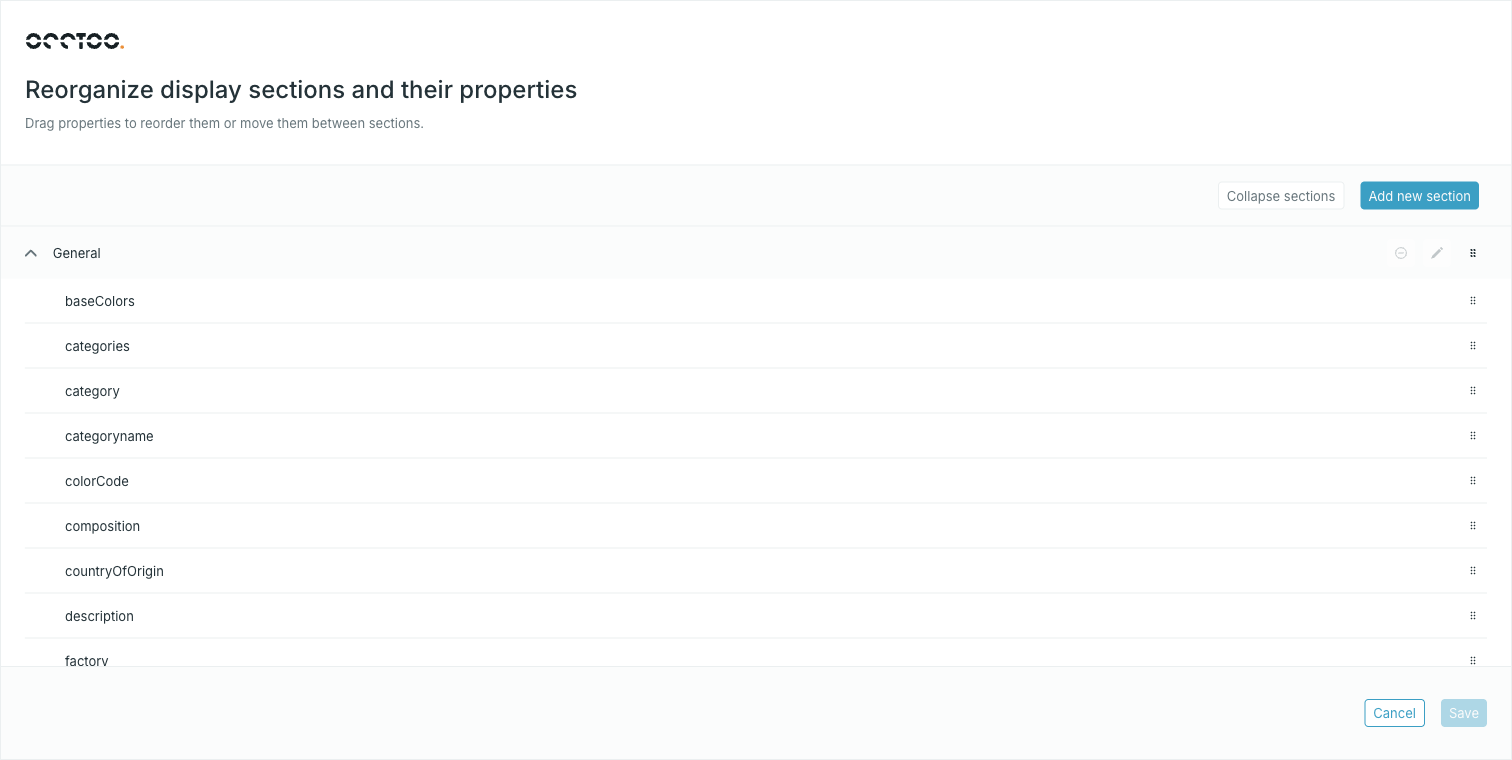 * Drag a property by its handle to move it within a section or into another one.
* Drag a section header to move the whole section.
* **Collapse sections** folds every section; the button then reads **Expand sections**.
* **Add new section** creates an empty section at the top.
* The pencil on a section header renames it, and the remove icon deletes it.
Deleting a section does not delete its properties — they move into the section above it, or the one below if it was first. The last remaining section cannot be deleted.
**Save** stays disabled until you move something.
**Cancel** discards every change made in the dialog. There is no per-property
undo.
## Which properties get an entries-table column
The **Entries** widget columns the first six properties in this order and ignores the rest, so this dialog is where you decide what the entries table shows. Drag a property up into the first six to give it a column, and drag one out to take its column away. Section boundaries do not reset the count — it runs across the whole list, top to bottom.
## The General section
**General** is where properties with no section assigned appear. It is not stored as a real section — leaving a property in **General** simply means it belongs to none. That is why **General** always exists, and why you cannot rename it away.
## Working with a filtered table
The reorder dialog always loads the source's full property list, even when the **Properties** widget behind it has a search filter applied. A save can never rewrite the order from a filtered subset.
You can also set a single property's section from the property form — see [Add
or edit a property](/guides/studio/sources/add-and-edit-a-property).
* Drag a property by its handle to move it within a section or into another one.
* Drag a section header to move the whole section.
* **Collapse sections** folds every section; the button then reads **Expand sections**.
* **Add new section** creates an empty section at the top.
* The pencil on a section header renames it, and the remove icon deletes it.
Deleting a section does not delete its properties — they move into the section above it, or the one below if it was first. The last remaining section cannot be deleted.
**Save** stays disabled until you move something.
**Cancel** discards every change made in the dialog. There is no per-property
undo.
## Which properties get an entries-table column
The **Entries** widget columns the first six properties in this order and ignores the rest, so this dialog is where you decide what the entries table shows. Drag a property up into the first six to give it a column, and drag one out to take its column away. Section boundaries do not reset the count — it runs across the whole list, top to bottom.
## The General section
**General** is where properties with no section assigned appear. It is not stored as a real section — leaving a property in **General** simply means it belongs to none. That is why **General** always exists, and why you cannot rename it away.
## Working with a filtered table
The reorder dialog always loads the source's full property list, even when the **Properties** widget behind it has a search filter applied. A save can never rewrite the order from a filtered subset.
You can also set a single property's section from the property form — see [Add
or edit a property](/guides/studio/sources/add-and-edit-a-property).