> ## Documentation Index
> Fetch the complete documentation index at: https://docs.occtoo.com/llms.txt
> Use this file to discover all available pages before exploring further.
# Bluestone PIM
## Introduction
This integration adds enriched product data from Bluestone PIM into the Occtoo Product Orchestration Engine. Digital teams can then combine that product data with data and content from other sources, such as ERP and CRM systems, enrich it further, and activate it in any channel in real time for a seamless customer experience. Everything is executed in a no-code studio, making digital teams more autonomous when launching new digital initiatives.
## About Bluestone PIM
With Bluestone PIM, you can get your products to market and in front of customers faster, regardless of channel, region, or language.
Read more at [bluestonepim.com](https://www.bluestonepim.com/).
## Data flow
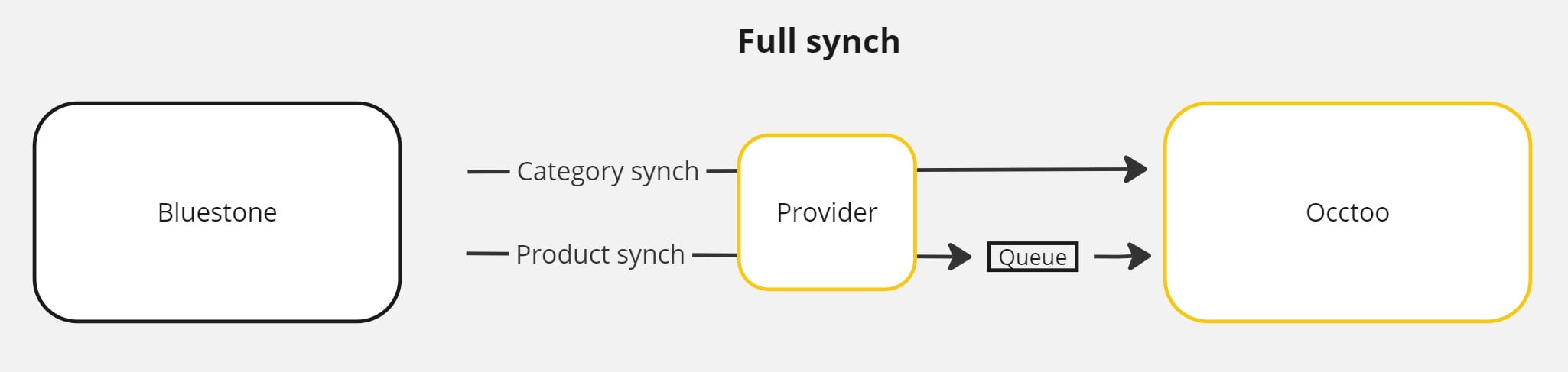
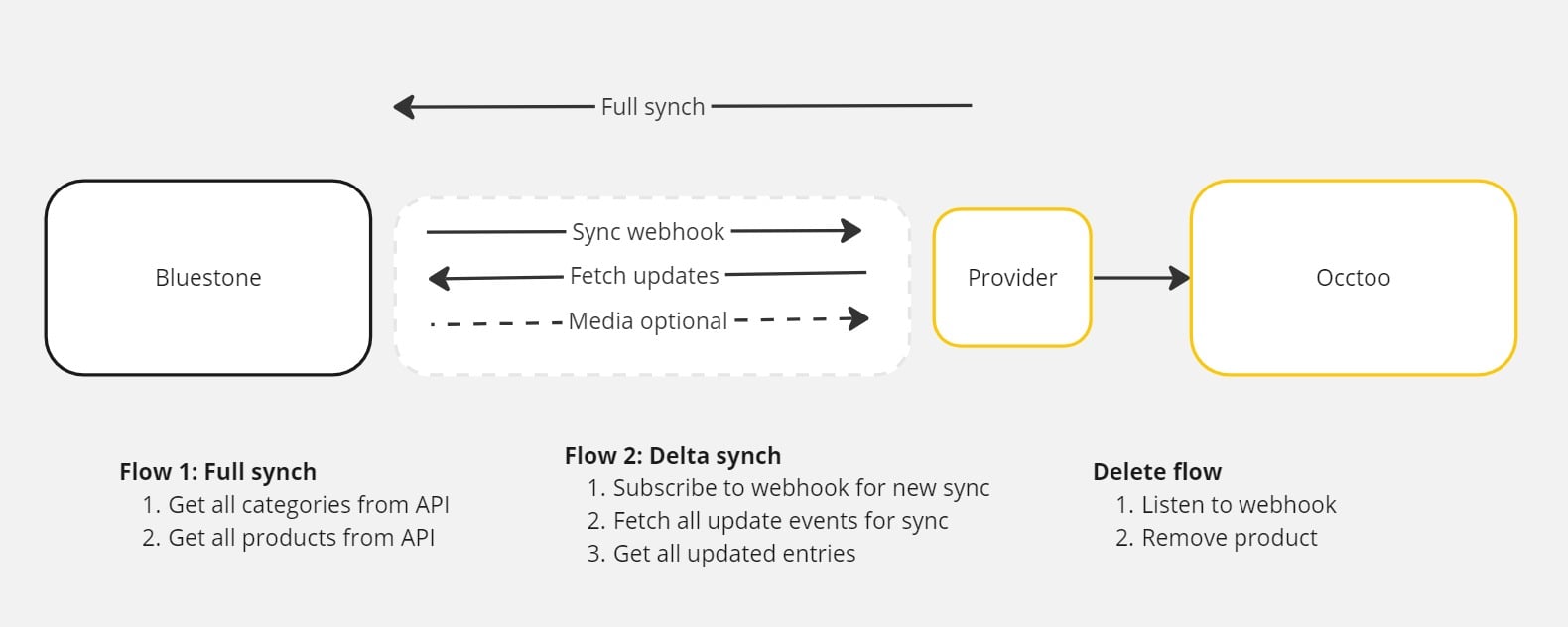
Updates from Bluestone PIM are transferred automatically to the relevant Occtoo sources. You can run a full synchronization when needed, and continuous updates run whenever a sync is done to the public API.
The full synchronization fetches all products and categories and imports them asynchronously. For continuous updates to work, you must configure a webhook in the Bluestone PIM user interface. The webhook triggers an event every time a sync completes and transfers all data related to that batch of updates, including both product- and category-related changes.
 ## Install and set up the provider
### Prerequisites
To complete the setup, you need:
* Access to the Bluestone PIM client
* A Bluestone PIM API key
* Access to the source code
* An Azure storage account
### Get the code
Request the code from [developer@occtoo.com](mailto:developer@occtoo.com).
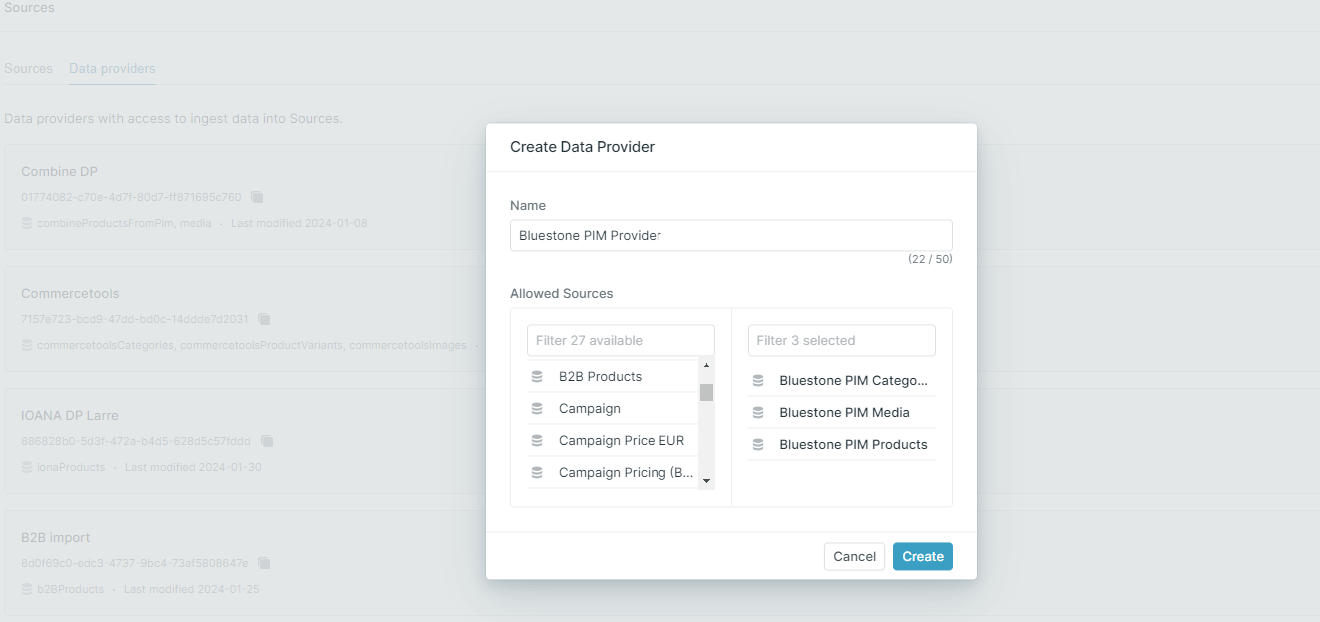
### Create sources in Occtoo
Create the target sources in Occtoo, then add their identifiers to the following provider settings:
* `CategoriesDataSource`
* `ProductsDataSource`
* `MediaDataSource`
For instructions, see [Add a data source](/guides/studio/sources/add-a-data-source).
### Register the provider in Occtoo
Register a provider and include the target sources from the previous step. Add the data provider ID and secret to the following settings:
* `DataProviderId`
* `DataProviderSecret`
For instructions, see [Add a data provider](/guides/studio/sources/add-a-data-provider).
## Install and set up the provider
### Prerequisites
To complete the setup, you need:
* Access to the Bluestone PIM client
* A Bluestone PIM API key
* Access to the source code
* An Azure storage account
### Get the code
Request the code from [developer@occtoo.com](mailto:developer@occtoo.com).
### Create sources in Occtoo
Create the target sources in Occtoo, then add their identifiers to the following provider settings:
* `CategoriesDataSource`
* `ProductsDataSource`
* `MediaDataSource`
For instructions, see [Add a data source](/guides/studio/sources/add-a-data-source).
### Register the provider in Occtoo
Register a provider and include the target sources from the previous step. Add the data provider ID and secret to the following settings:
* `DataProviderId`
* `DataProviderSecret`
For instructions, see [Add a data provider](/guides/studio/sources/add-a-data-provider).
 ### Media
Set the `HandleMedia` setting to one of three values:
* `ignore` — media is not transferred.
* `bluestone` — use the original URLs provided by Bluestone PIM.
* `occtoo` — upload all assets to the Occtoo media service.
### Configure the Bluestone API
Before any data can be retrieved, you need an API key to connect to the Bluestone API. Add the key to the `BluestoneAPIKeyValue` setting.
### Languages and contexts
Configure the languages, or contexts, to transfer up front. Two settings control the contexts:
* `DefaultContext`
* `AdditionalContext`
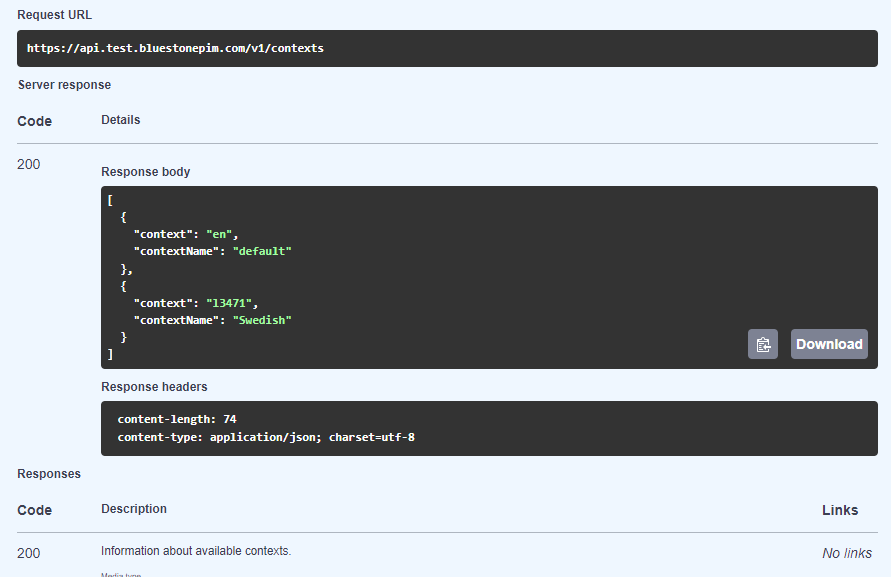
The default context holds the data for all non-localized attributes. Its value combines the context key from Bluestone and the language identifier from Occtoo, separated by a colon — for example, `en:en`.
The additional context is optional and can contain one or more contexts to transfer as localized content. This setting works in relation to localized attributes. It follows the same structure as the default context, with multiple contexts separated by a comma — for example, `13472:sv,14373:de`.
To retrieve the context keys, call the `/Contexts` endpoint in the Bluestone public API.
### Media
Set the `HandleMedia` setting to one of three values:
* `ignore` — media is not transferred.
* `bluestone` — use the original URLs provided by Bluestone PIM.
* `occtoo` — upload all assets to the Occtoo media service.
### Configure the Bluestone API
Before any data can be retrieved, you need an API key to connect to the Bluestone API. Add the key to the `BluestoneAPIKeyValue` setting.
### Languages and contexts
Configure the languages, or contexts, to transfer up front. Two settings control the contexts:
* `DefaultContext`
* `AdditionalContext`
The default context holds the data for all non-localized attributes. Its value combines the context key from Bluestone and the language identifier from Occtoo, separated by a colon — for example, `en:en`.
The additional context is optional and can contain one or more contexts to transfer as localized content. This setting works in relation to localized attributes. It follows the same structure as the default context, with multiple contexts separated by a comma — for example, `13472:sv,14373:de`.
To retrieve the context keys, call the `/Contexts` endpoint in the Bluestone public API.
 ### Attributes
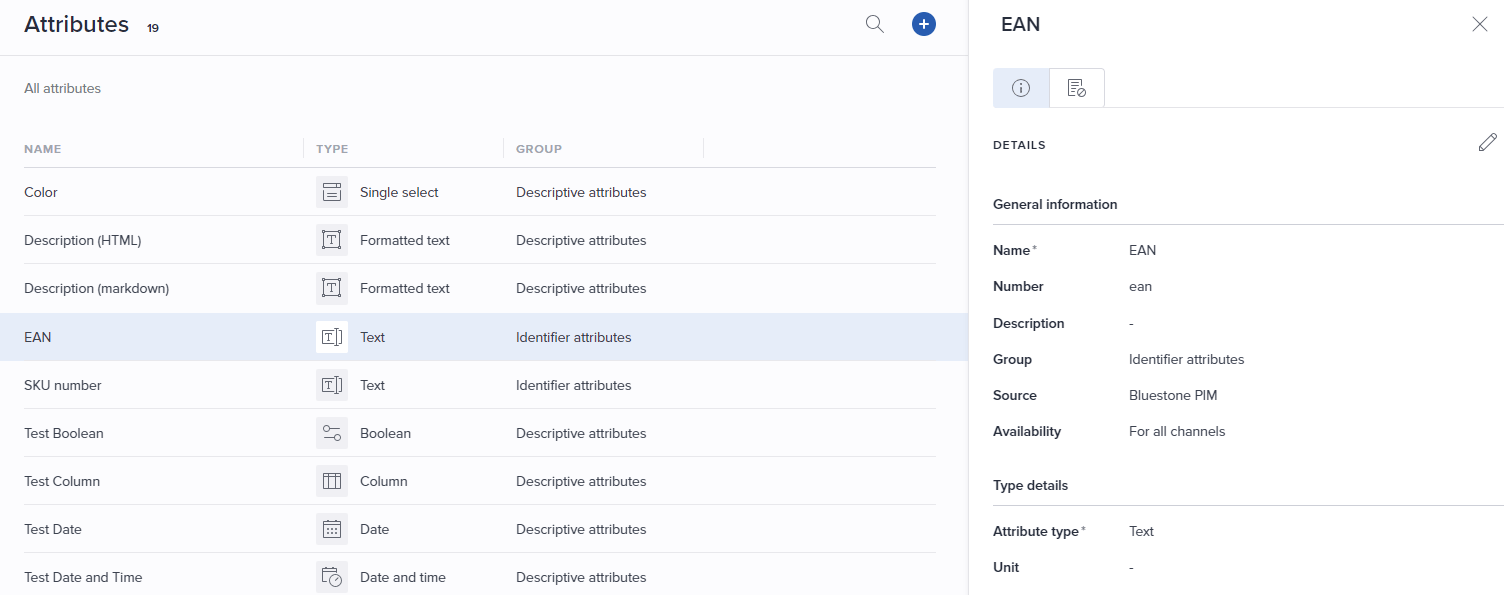
All attribute types from Bluestone are transferred to Occtoo automatically, and the attribute number is used as the attribute identifier in Occtoo. Complex data types from Bluestone are serialized into JSON. For key-value properties, both the key and the value are transferred as separate properties. For multi-select values, the default separator is `|`.
Properties that should be treated as localized text in Occtoo need to be configured. Two settings control localized properties:
* `LocalizedPropertiesProduct`
* `LocalizedPropertiesCategory`
Separate multiple properties with a comma. Specifying a property as localized means it receives the values for all configured contexts.
### Attributes
All attribute types from Bluestone are transferred to Occtoo automatically, and the attribute number is used as the attribute identifier in Occtoo. Complex data types from Bluestone are serialized into JSON. For key-value properties, both the key and the value are transferred as separate properties. For multi-select values, the default separator is `|`.
Properties that should be treated as localized text in Occtoo need to be configured. Two settings control localized properties:
* `LocalizedPropertiesProduct`
* `LocalizedPropertiesCategory`
Separate multiple properties with a comma. Specifying a property as localized means it receives the values for all configured contexts.
 ### Configure webhooks
The update flow requires two webhooks — one for updates and one for deletes.
#### Update webhook
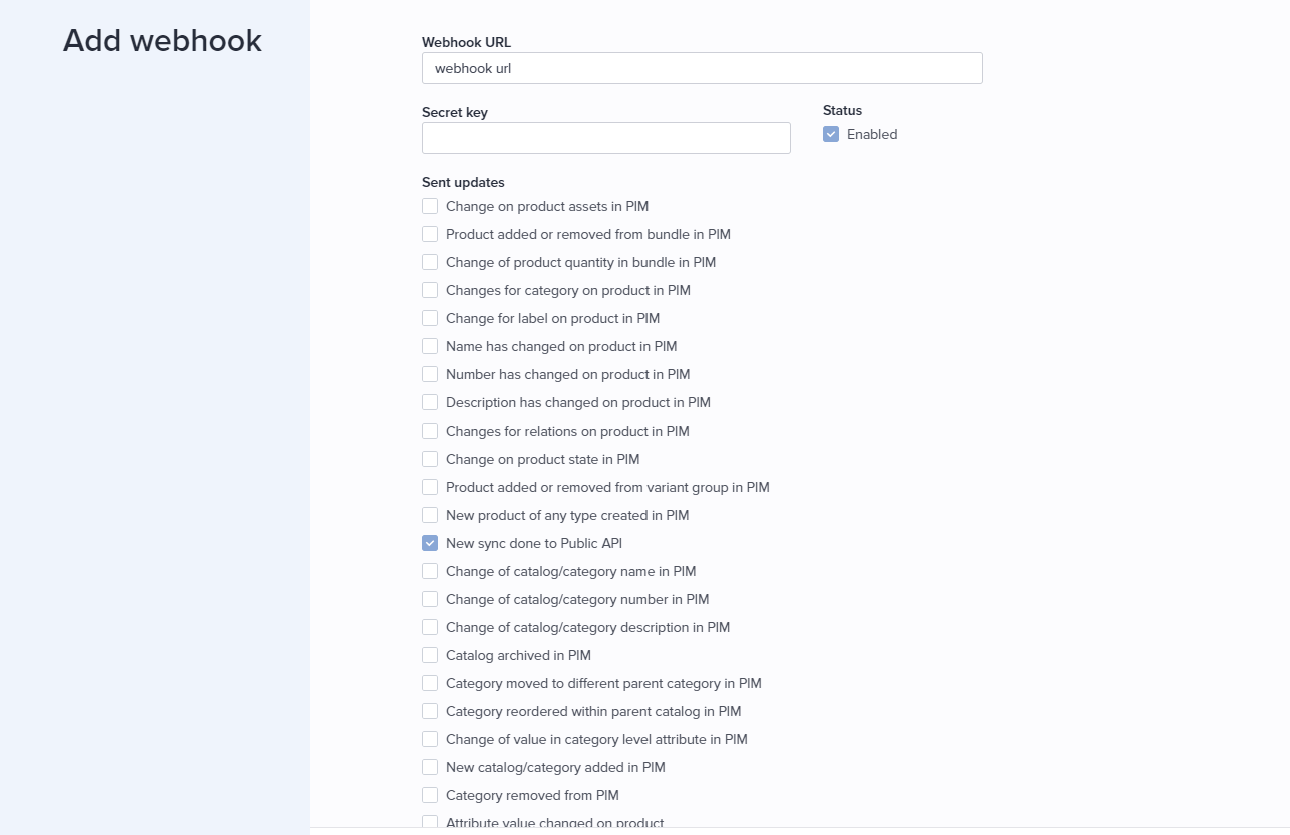
The update webhook publishes all changes to products and categories. When you create it, select the **New sync done to public API** option and add the URL to the `DataSync` HTTP function.
### Configure webhooks
The update flow requires two webhooks — one for updates and one for deletes.
#### Update webhook
The update webhook publishes all changes to products and categories. When you create it, select the **New sync done to public API** option and add the URL to the `DataSync` HTTP function.
 #### Delete webhook
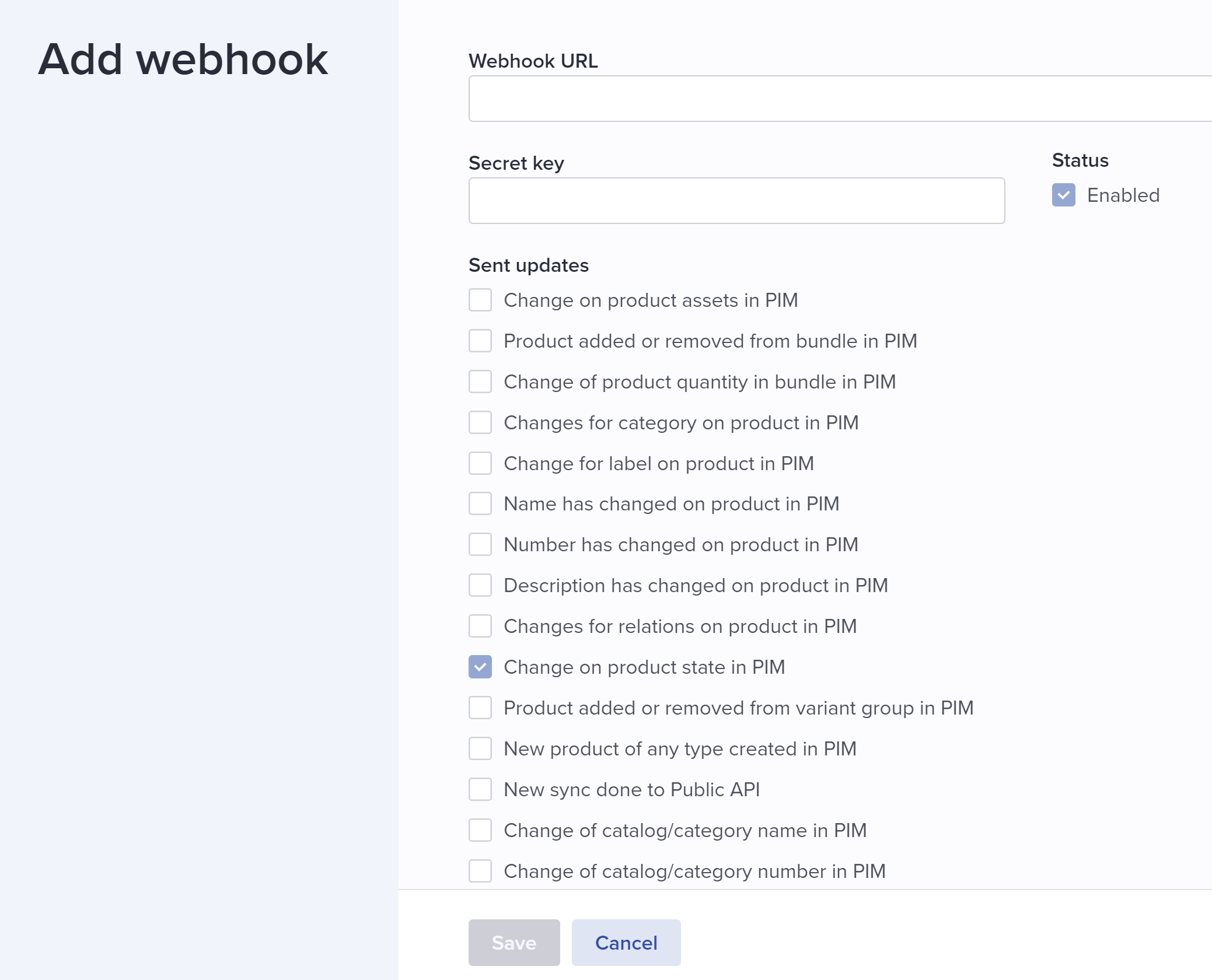
The delete webhook removes products from Occtoo that have been archived in Bluestone. When you create it, select the **Change on product state in PIM** option.
#### Delete webhook
The delete webhook removes products from Occtoo that have been archived in Bluestone. When you create it, select the **Change on product state in PIM** option.
 ### Full synchronization
Two endpoints handle full synchronization — one for categories and one for products. Both accept GET and POST requests.
The category synchronization runs synchronously, fetching all categories and pushing them to the Occtoo onboarding API. The product synchronization iterates over all products and imports them asynchronously by placing them in a queue, which is then processed by a separate worker.
```bash theme={null}
# Categories full sync
GET https://[root-url]/CategoriesFullSync
# Products full sync
POST https://[root-url]/ProductFullSync
```
#### Storage account
The full export requires an Azure storage account. Configure it with the following settings:
* `StorageConnectionString` — the connection string for the storage account.
* `ProductQueue` — the name of the queue for the products.
* `ProductContainer` — the blob container used to persist the data.
### Full synchronization
Two endpoints handle full synchronization — one for categories and one for products. Both accept GET and POST requests.
The category synchronization runs synchronously, fetching all categories and pushing them to the Occtoo onboarding API. The product synchronization iterates over all products and imports them asynchronously by placing them in a queue, which is then processed by a separate worker.
```bash theme={null}
# Categories full sync
GET https://[root-url]/CategoriesFullSync
# Products full sync
POST https://[root-url]/ProductFullSync
```
#### Storage account
The full export requires an Azure storage account. Configure it with the following settings:
* `StorageConnectionString` — the connection string for the storage account.
* `ProductQueue` — the name of the queue for the products.
* `ProductContainer` — the blob container used to persist the data.