

Available in Q4 2026 for all customers. No action is needed: existing media, folders and enrichment are migrated automatically. Media integrations are not affected by this update.
Why we built this
Product images, videos and documents rarely live in one place. Some arrive from a PIM or DAM, some are uploaded by hand, and some sit on a shared drive waiting for someone to add them. Tagging happens twice, nobody is quite sure which image is live, and getting a new file into Occtoo often means a ticket to IT. Media Management puts all of it in one place in Studio and gives media the same treatment as your products. You find files in the same place, describe them with the same kind of fields, and they reach your webshop, apps and marketplaces through the same channels.- One place for every file. Images that arrive from your PIM, DAM or agency show up next to the ones you upload, so there is one answer to “do we have a picture of this?”
- Tag once, in your own fields. Season, usage, rights expiry, tags: you decide which fields your team fills in, and they travel with the file to every channel.
- Fix hundreds of files in one go. Find every image missing a usage tag, select them, and update them together.
What it means for you
Organise the catalogue the way you think about it. Create folders inside folders, such as Product imagery / Studio / SS26, and see at a glance how many files each one holds. Rename, move and delete folders directly from the tree.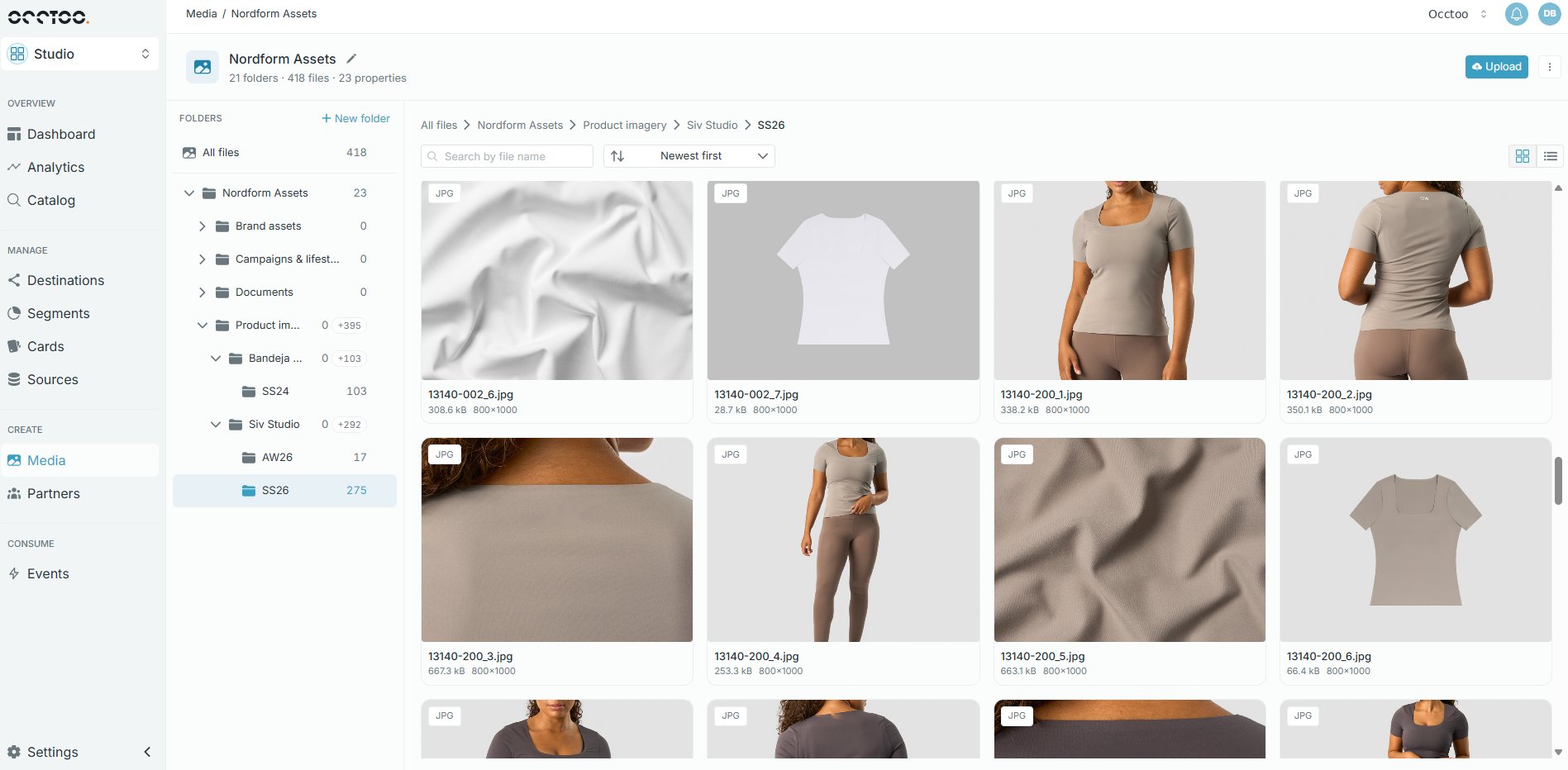
What stays the same
- Your existing folders, files and tags are migrated automatically. Nothing needs to be re-uploaded or re-tagged.
- Links to existing files keep working.
- Existing media integrations continue to work without changes.
- Uploading by drag and drop in Studio works as before.
Everything that is new
- Media libraries next to product data. Media libraries are listed and managed in the same place as your product sources.
- Nested folders. Folders inside folders, with file counts in the tree. Rename, move and delete them from the tree.
- Upload from anywhere. Drag and drop in Studio, or let your IT team or integration partner connect other systems so files arrive automatically.
- Find and act in bulk. Search, filter and sort within a folder. Move, edit or delete a selection, or download it as a zip, with progress shown.
- Clear upload status. You see each upload’s progress, and failed uploads are marked, so there is nothing to check back on later.
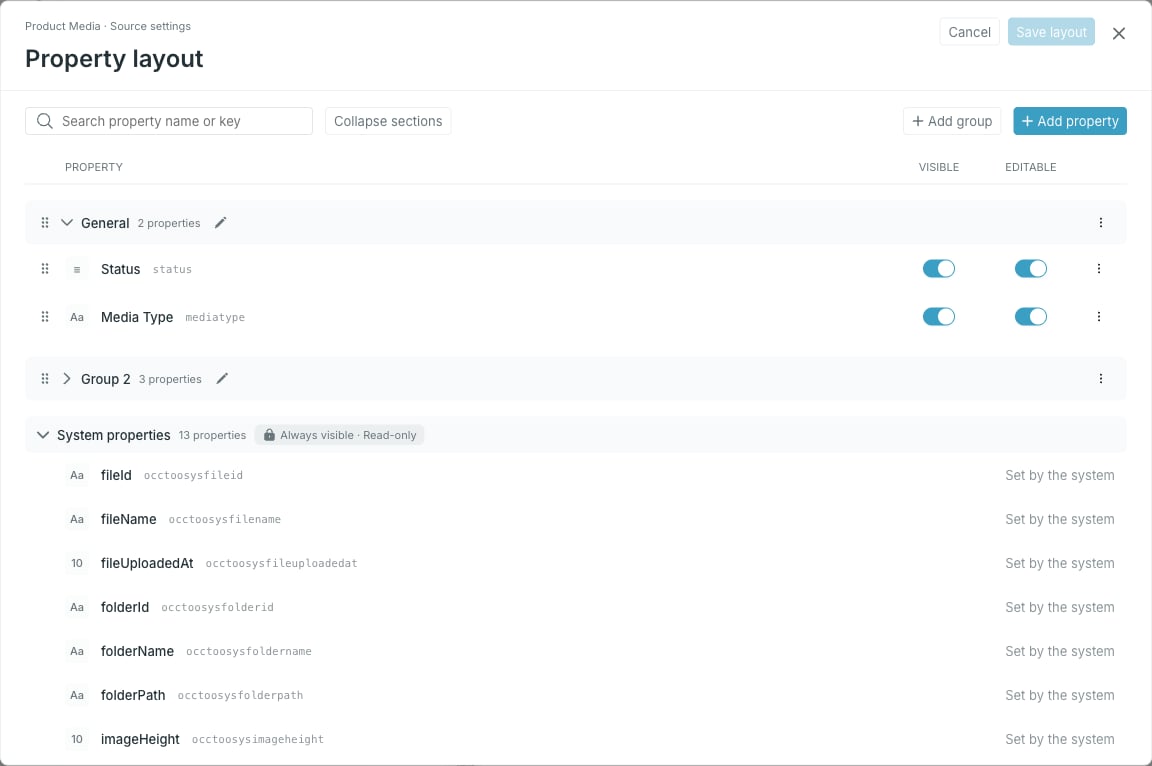
- Fields you design. Choose, group and order the fields to fill in, and adjust them per folder. Fields can hold multiple values and translations.
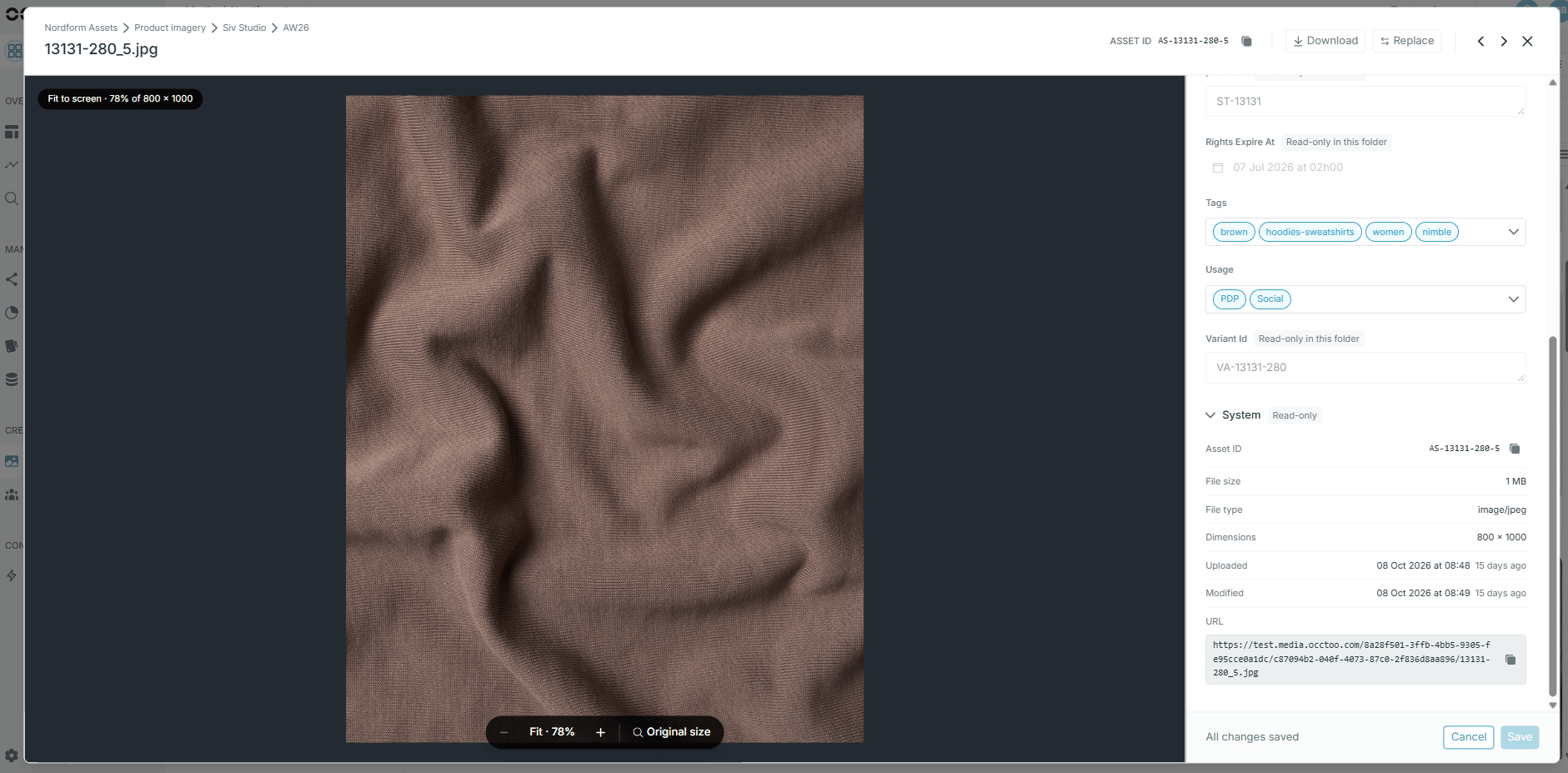
- A better file view. See where a file lives, when it was uploaded and changed, and copy its link, with a zoomable preview.
- Download and replace single files. Download any file on its own, or Replace it in place and keep its link and tags.