1
Create a source
To begin with we are going to need somewhere to store our uploaded images. This is done by creating a data source in the Occtoo Studio. A tutorial about this can be found in the section “Add a source”
2
Create a card
In order to choose what kind of metadata is going to be applied, a card needs to be created. It is possible to determine the data type for different properties and also create a preset selection of list values that can be chosen by the user when enriching specific fields. More info about this can be found in the “Create a card” section.
You can create preset options and set the order of properties if you edit them and choose “Display settings”.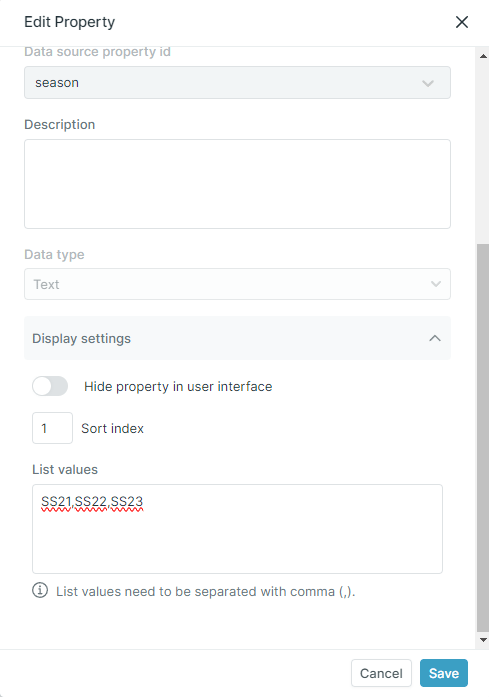
3
Create an upload folder
Once the card is completed we are ready to move on to the next step, which is creating folders. This is a great way of structuring media. One common example is dividing media for different seasons into separate folders, but the structure can be set up however it suits the user. Once you create a folder it has to be connected to a card, in this case we can use the one that was created under the first step of this tutorial.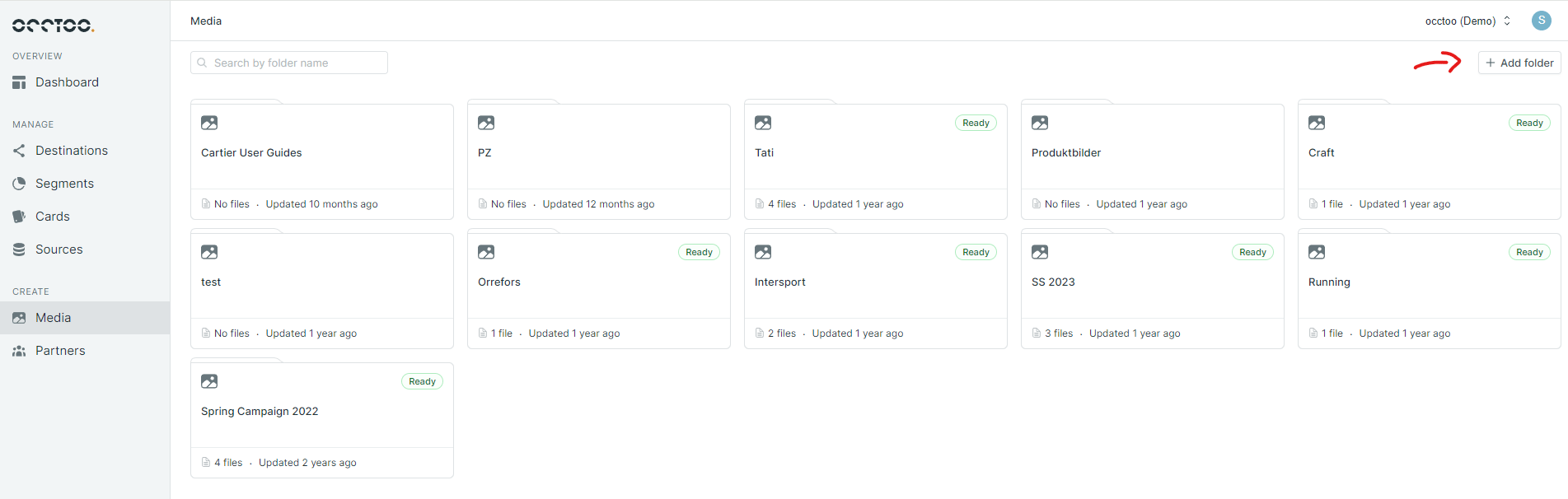
4
Upload media
At this point we are ready to upload our desired media objects. This can be done by entering the folder and simply dragging and dropping. Once the media has been uploaded you can simply click the object of interest which will open a new window allowing you to enrich the media according to the card setup that was done in step 2 of this guide. You can update media one by one or in batches.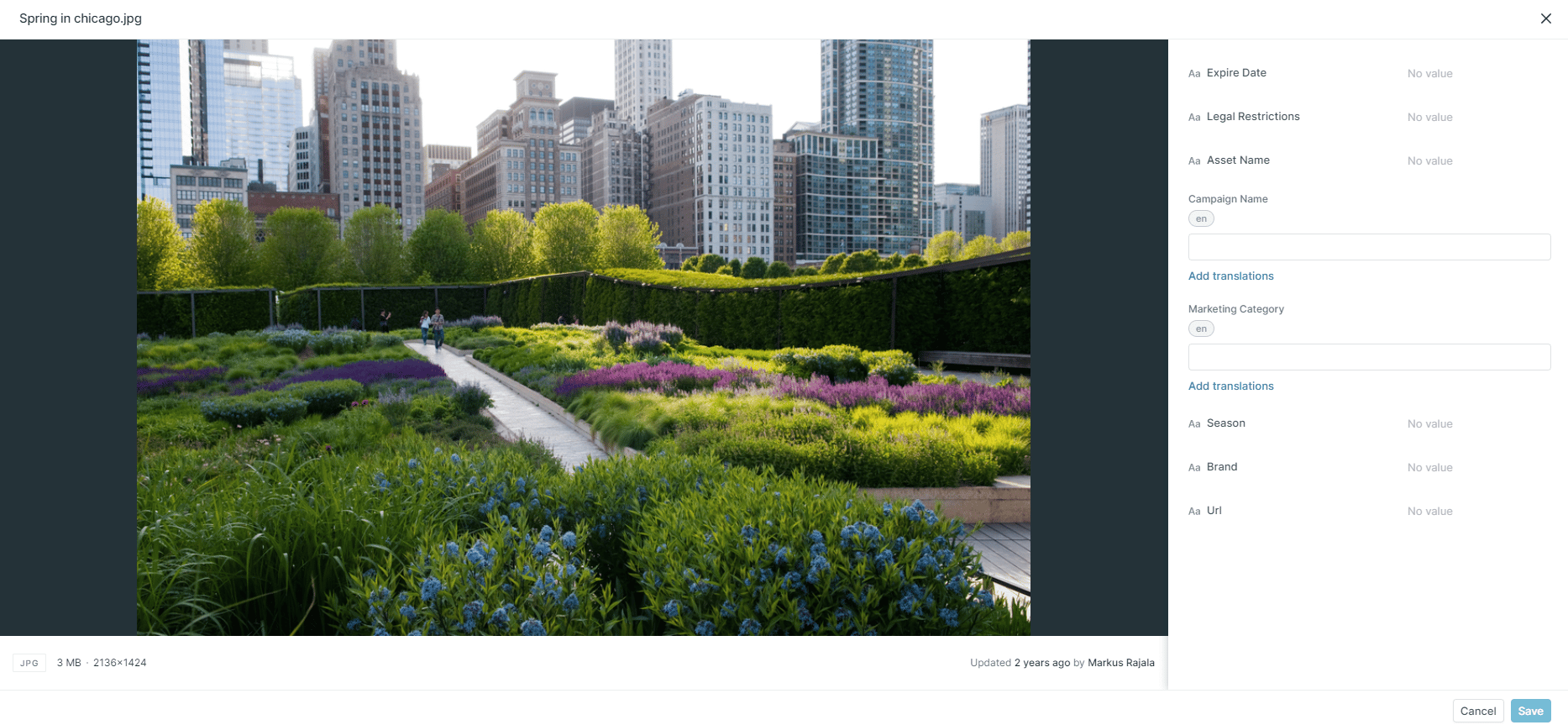
5
Batch edit or delete media
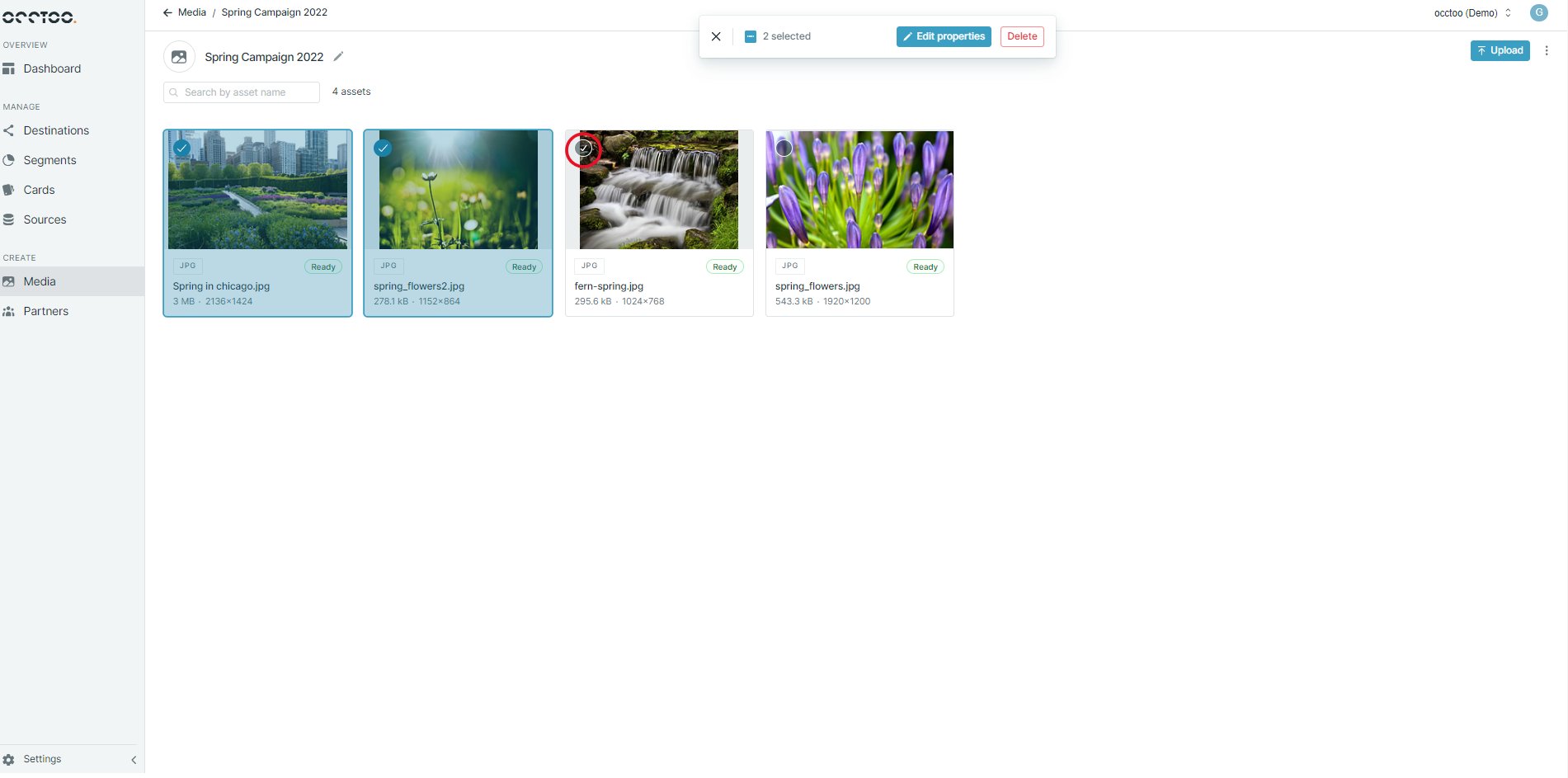
It is possible to update several media objects at once using the batch update.
This can be done by marking the different media you’re interested in and then pressing “Edit properties”.
You also have the possibility to delete a media when an object is marked this way.