

The roles
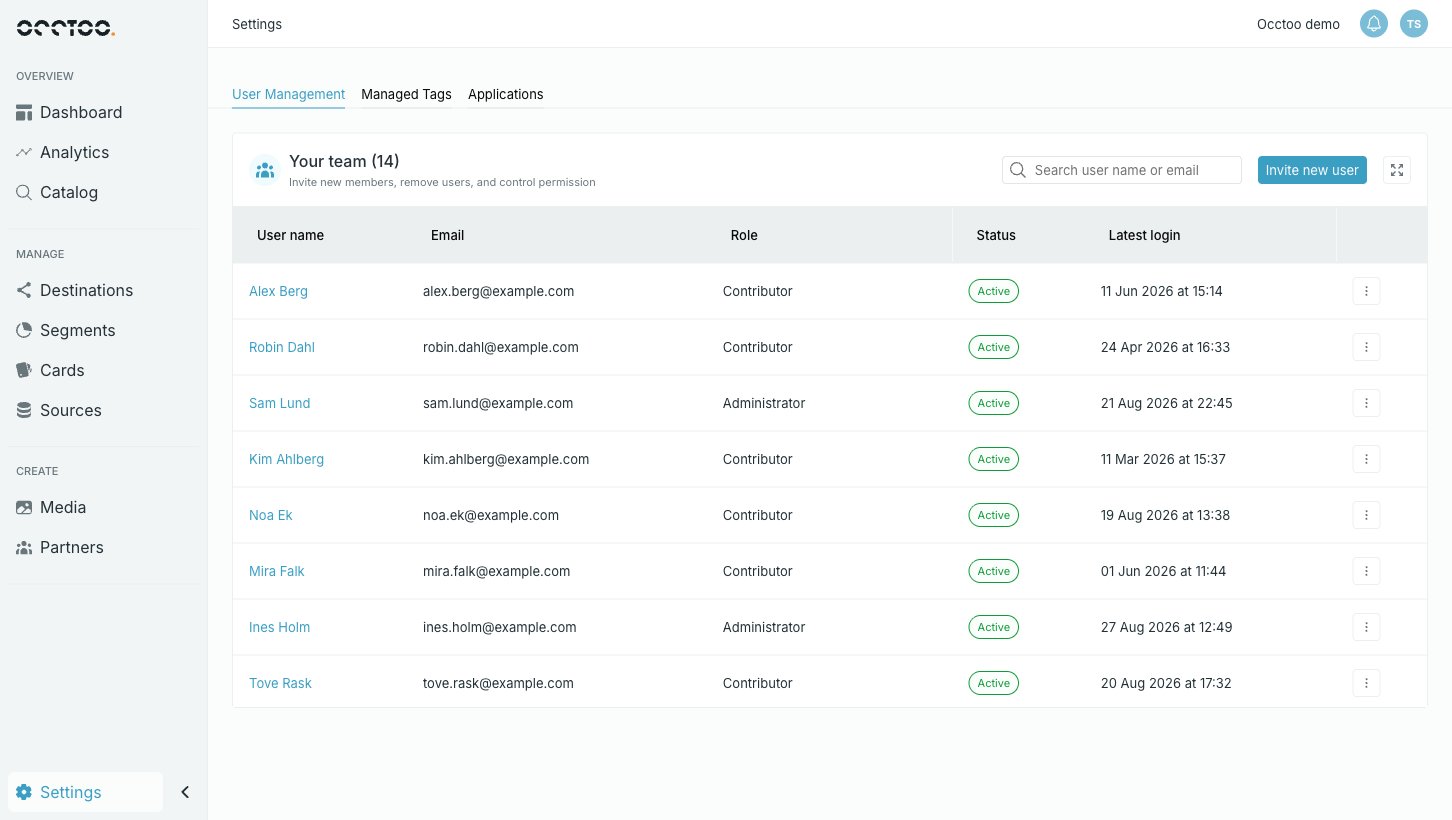
A user holds one role, and that role decides what they can do everywhere in Studio. There is no per-module or per-card permission to configure — pick the role and you are done.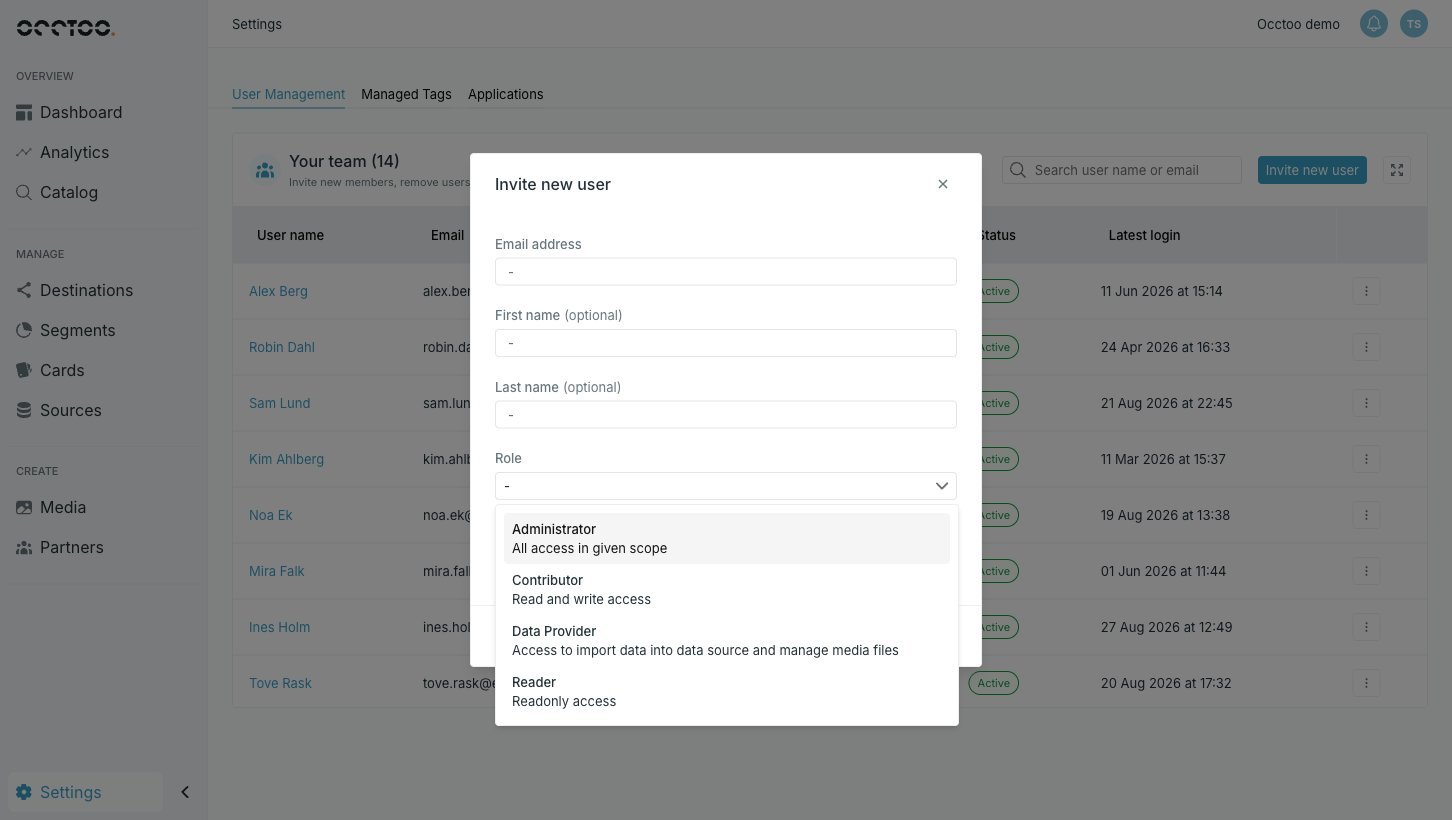
The three general roles stack, so you only need to decide how far up someone should sit:
Reader → Contributor → Administrator
Throughout these guides, “needs the Contributor role” means Contributor or Administrator. A Reader sees the same screens and the same data — the controls that would change something are disabled, and their tooltip says the action is not available for your role.
Invite someone
1
Press Invite new user
Fill in the email address. First and last name are optional — if you leave them out, the person fills them in when they accept.
2
Pick the role
Each role in the list carries a one-line summary of what it grants.
3
Send the invitation
The person receives an email with instructions to join. Until they accept, they are listed with a Pending status.
Change a role, or remove someone
The menu at the end of a user’s row holds the actions:- Update user role — swap the role. The change applies to that person’s next action; they do not need a new invitation.
- Resend invitation — only on users who have not accepted yet.
- Remove user — revokes access to this tenant.
Everything on this tab needs the Administrator role. Other roles do not see Settings → User Management at all, and opening its address directly lands on the access-denied page.