

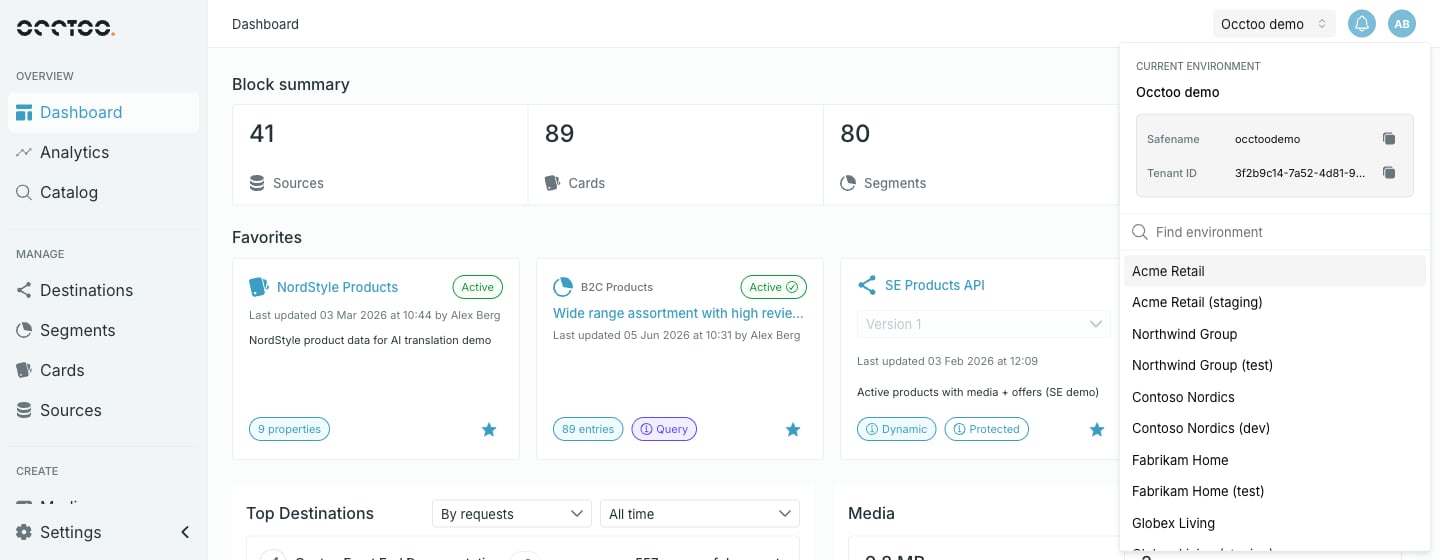
Identify the current environment
Under Current environment the panel shows the display name, and two values integrations need, each with a copy control:Move to another environment
Environments you belong to are listed below the divider, sorted alphabetically. Select one to switch. The list carries a Find environment search box once you belong to more than five environments. Below that number the panel just lists them.If you belong to a single environment the panel shows only the details block — there is nothing to switch to. Access is granted per environment; ask an Administrator of the environment you need. See Users and roles.