

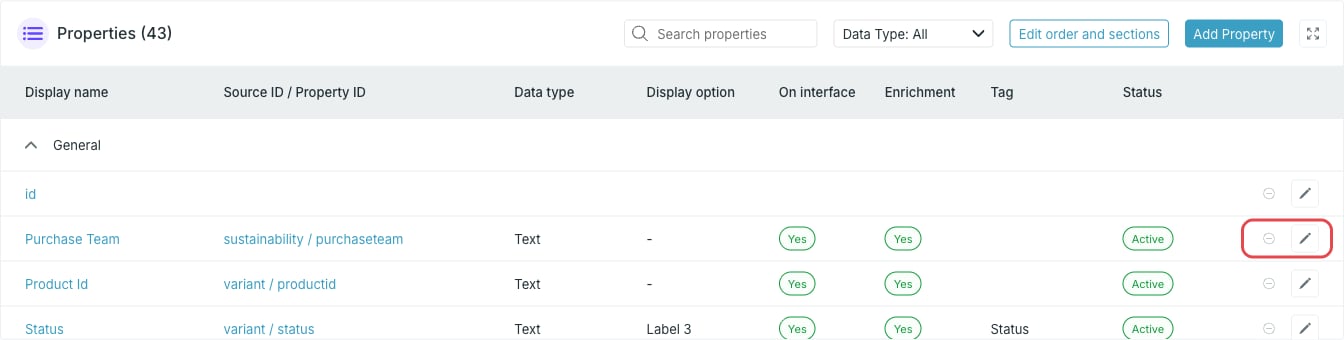
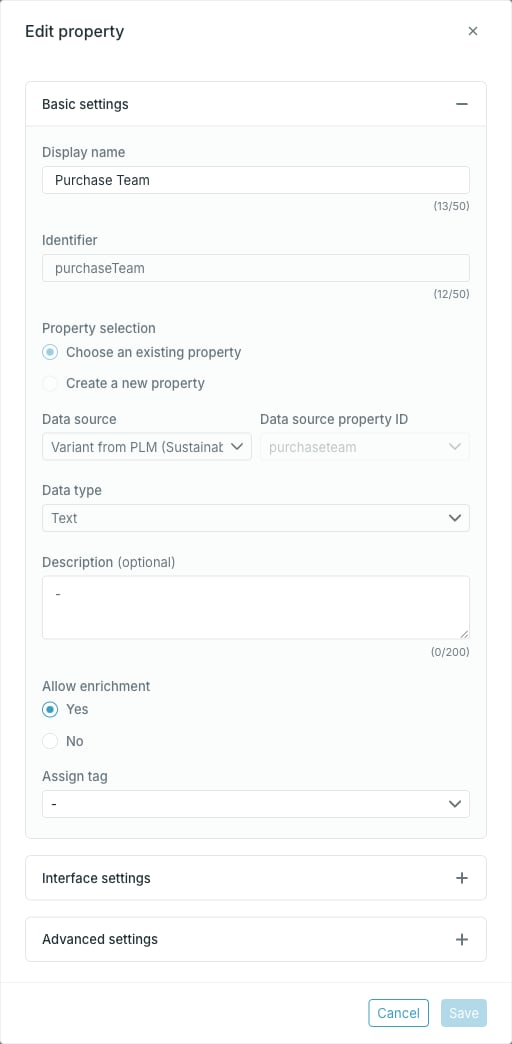
What you can change
- Display name
- Description
- Allow enrichment
- Assign tag and Use the key of the tag
- Display section
- Display option
- Show on interface
What is locked
- Identifier
- Property selection
- Data source
- Data source property ID
- Data type and Delimiter
A property that is still pending — added but not yet activated — is the exception: its mapping fields are still editable until the card is activated.
Changes on an active card
On a Draft card an edit applies immediately. On an Active card the property moves to Pending changes and the edit is applied when you press Activate card. See Work with pending changes.The id property
Every card has a built-inid property. It has its own dialog, Edit ‘id’ property, with a single field: Display option.
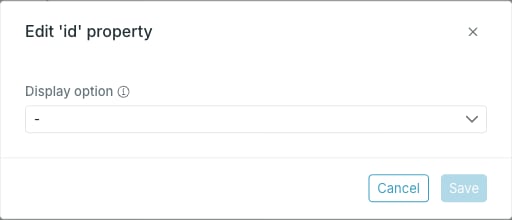
The
id property cannot be renamed, retyped or removed, and it has no source mapping of its own.