Header
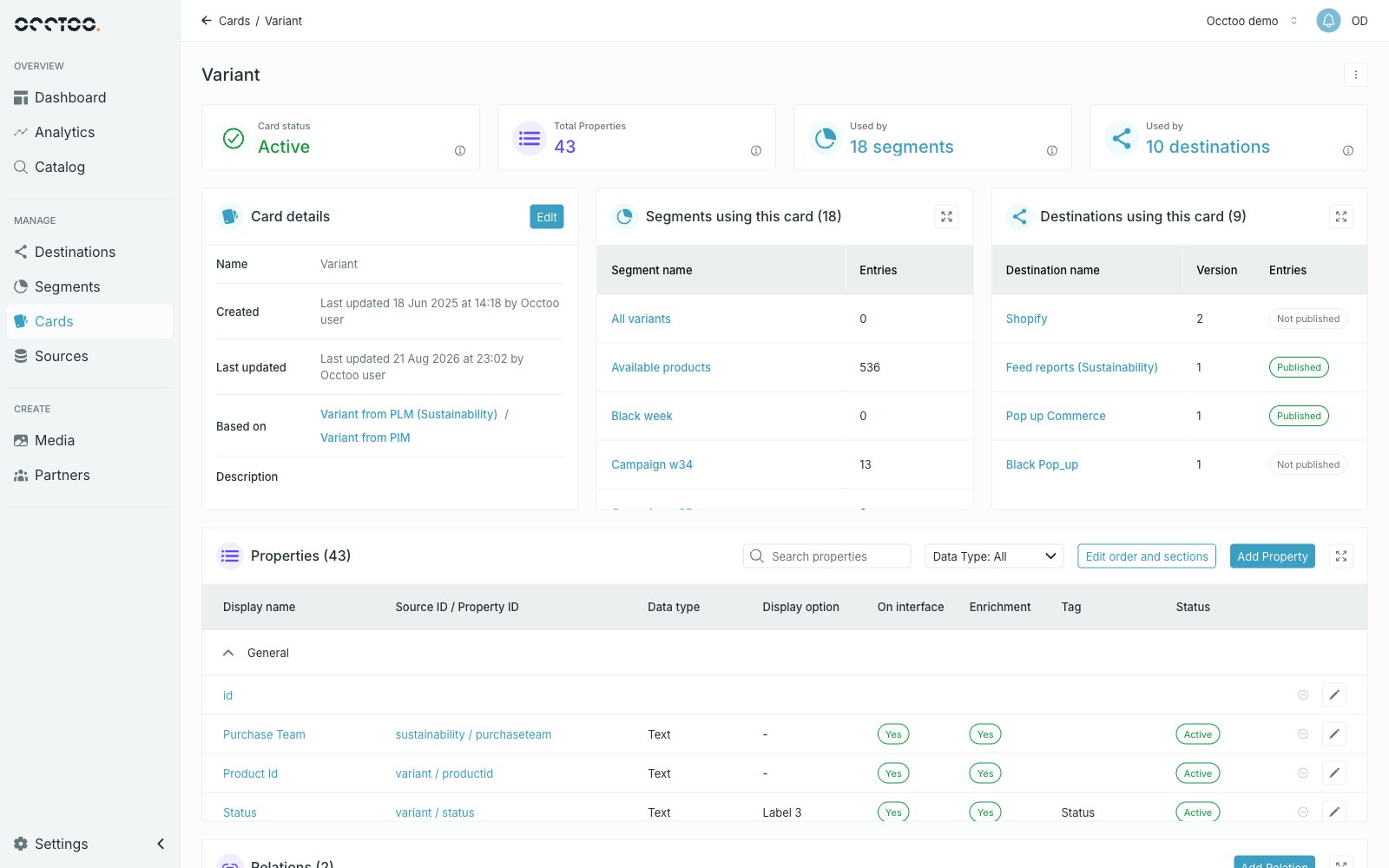
Four information cards sit under the card name. Each has an info icon explaining what it counts.- Card status — see the status list in Find cards.
- Total Properties — every property on the card.
- Used by — how many segments use the card.
- Used by — how many destinations use the card.
Card details
The Card details widget lists Name, Created, Last updated, Based on (links to the data sources) and Description. Edit opens Edit card details, where the name and description can be changed at any time.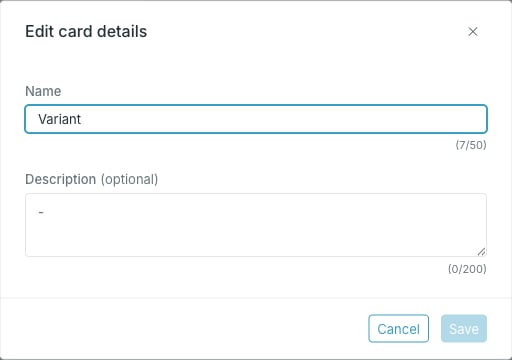
Only the name and description are editable here. The data sources a card is
built on are fixed once the card is created — to base a card on other sources,
copy the card or create a new one.
Usage widgets
Segments using this card and Destinations using this card list where the card’s data ends up. See Track usage of a card.Properties and relations
The Properties widget holds the property table with its own search, filter and actions — see Add a property. The Relations widget holds relations to other cards — see Create a relation between cards.Card menu
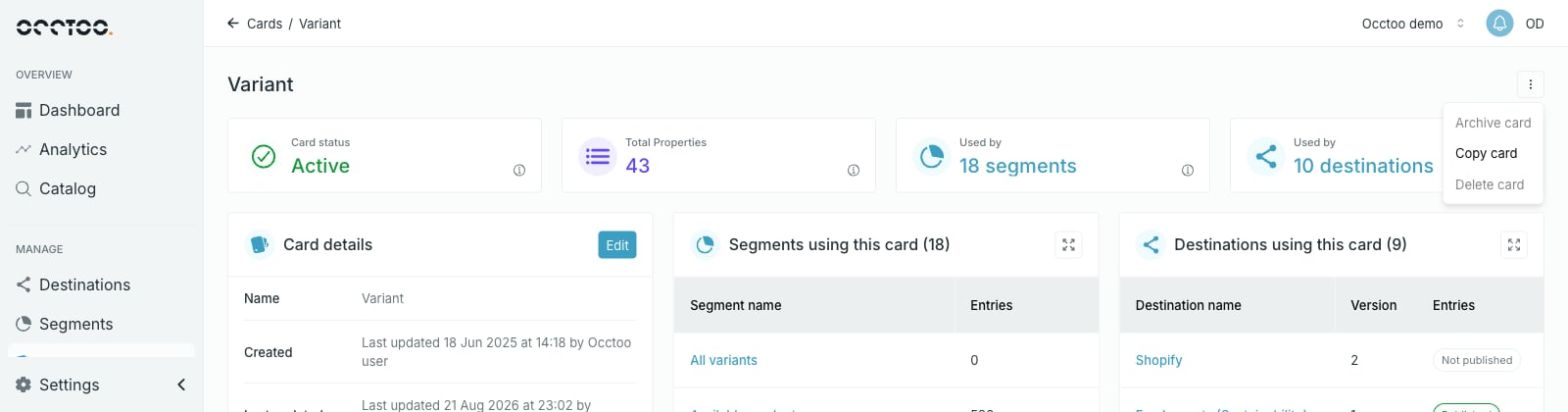
The menu in the upper right corner holds Archive card, Copy card and Delete card.