

1
Open the category list
Press New segment on the Segments page, name the segment and pick the card it is based on. Then open Select a category.The list only shows categories that fit the selected card. Studio preselects the category that matches the card, when there is one.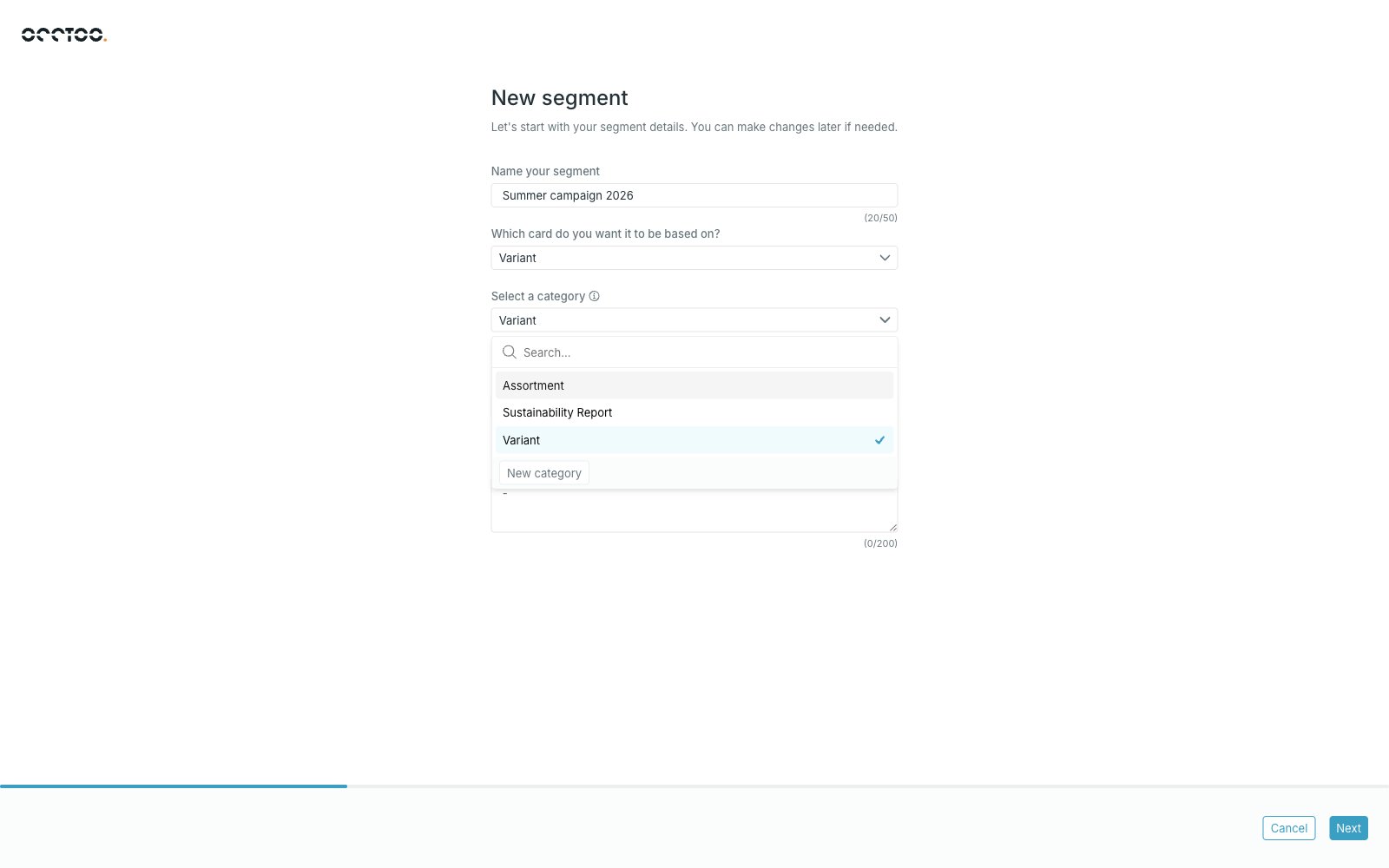
2
Add the category
Press New category, enter a name and press Save.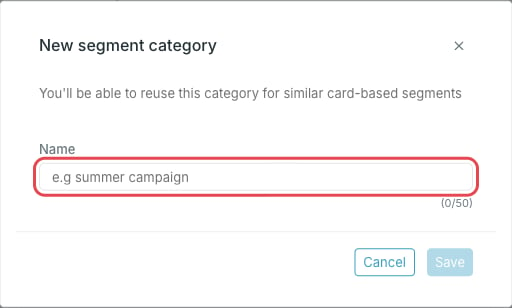
The name has to be unique. The identifier is derived from it.
3
Finish the segment
The new category is selected for the segment. It is created together with the segment when you press Save segment at the end of the flow, and is then available for other segments on the same card.
Where categories are shown
- In the segments list, above the segment name.
- On the segment page, in the Segment details widget.
- In the Category filter on the Segments page, so you can list all segments in a category.