

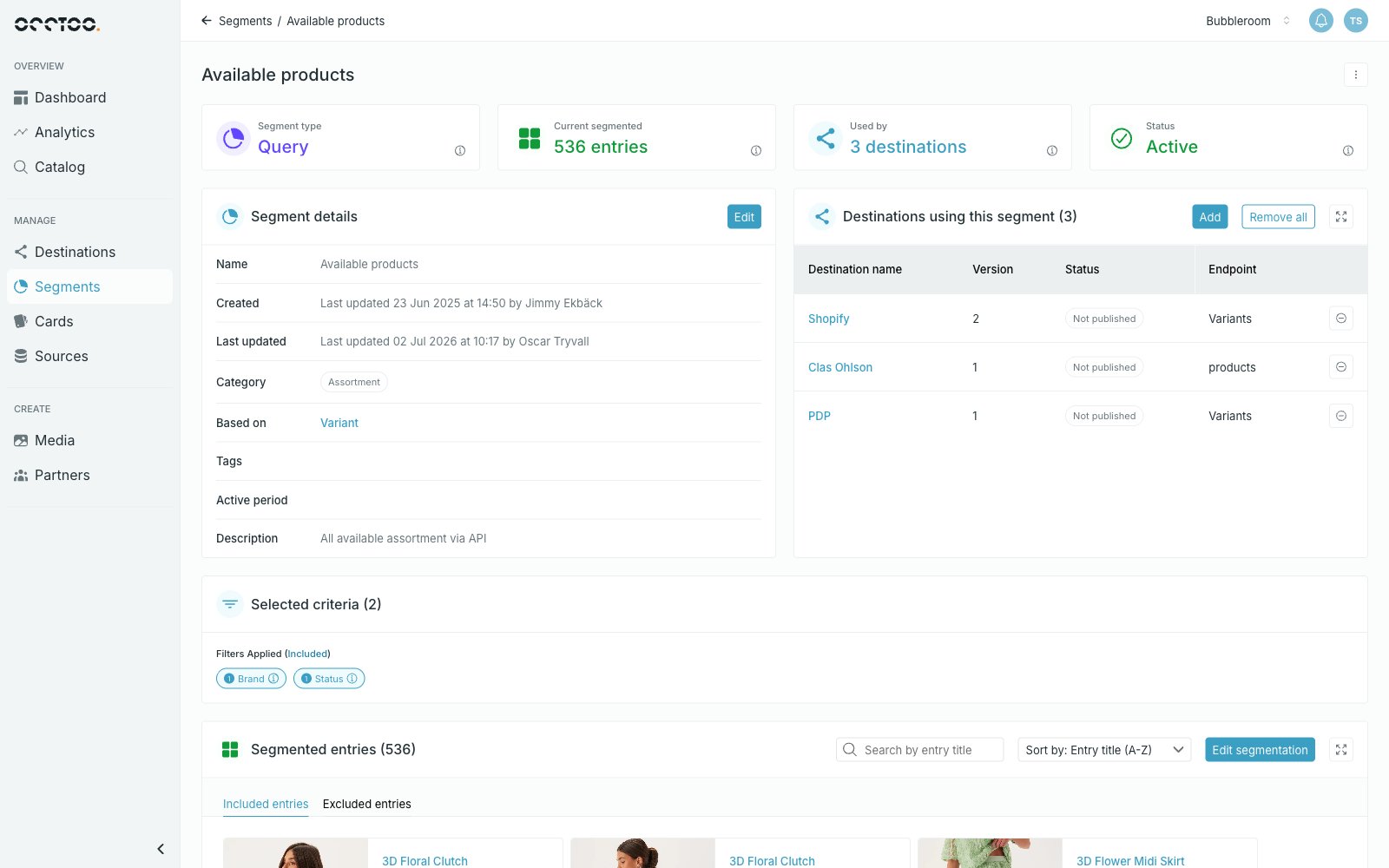
Edit the details
Press Edit in the Segment details widget.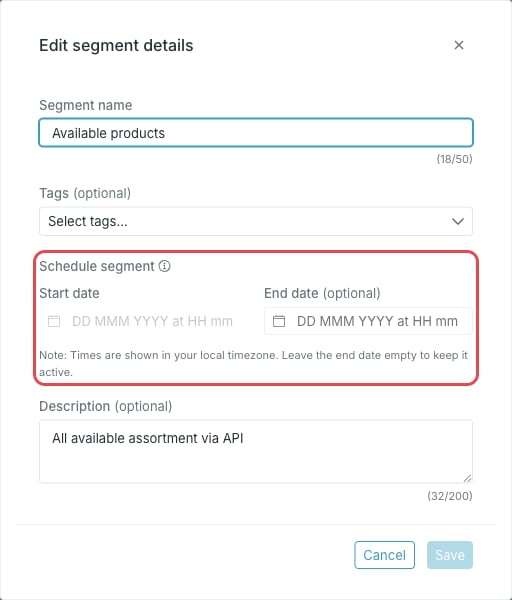
- Segment name
- Tags
- Schedule segment — start and end date
- Description
The card and the category a segment is based on cannot be changed after the
segment is created.
Edit the entry selection
Press Edit segmentation in the Segmented entries widget.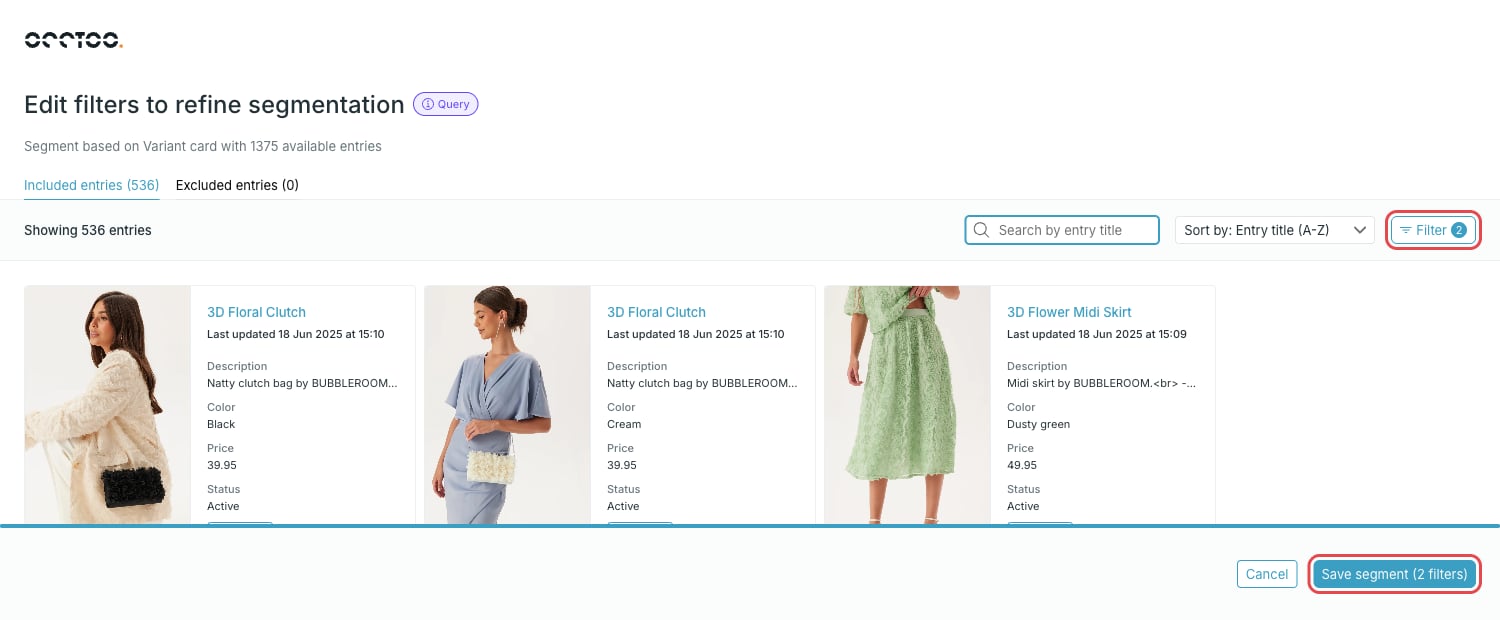
1
Change the filters
Press Filter to open the filter panel. The filters already on the segment are preselected. Adjust them, or press Clear all filters to start over, and press Apply to see the new result.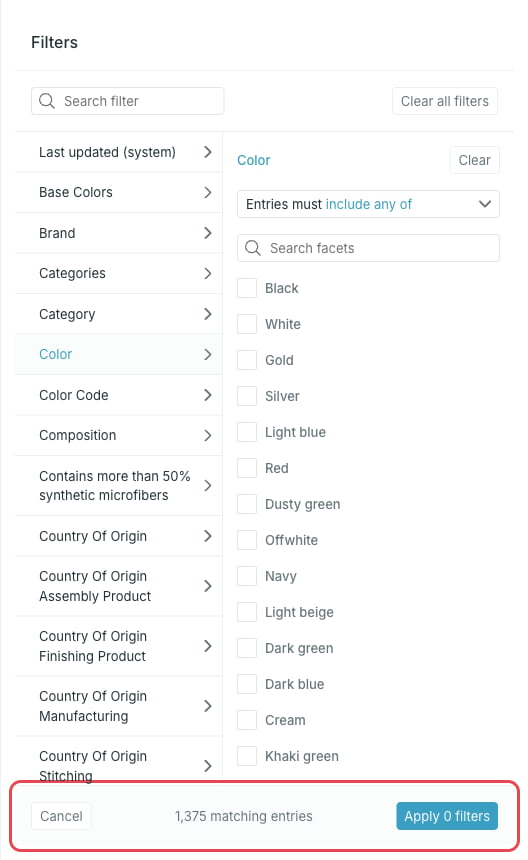
2
Adjust single entries
On a Query segment, press Exclude on an entry to keep it out of the result, and Include to bring it back. The Included entries and Excluded entries tabs show the current split.On a Fixed segment, entries carry a checkbox instead. Tick entries under All entries to add them, untick them under Included entries to remove them, or press Clear to empty the selection.
3
Save the segment
Press Save segment in the lower right corner. Cancel discards the changes.
When you change the query criteria, allow a few minutes after saving for the new settings to be processed.
For a fixed segment you can also replace or extend the entries with a CSV
file. See Upload a fixed
segment.