

1
Prepare the file
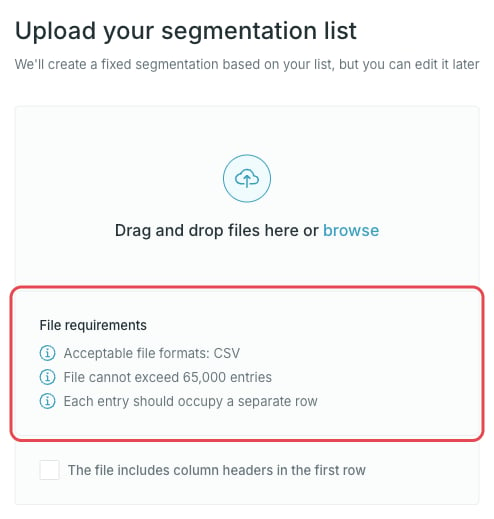
- Acceptable file formats: CSV
- The file cannot exceed 65,000 entries
- Each entry should occupy a separate row
- The first column is read as the entry ID
Duplicate and empty rows are ignored.
2
Upload the file
Drag the file onto the upload area or press browse to pick it. Tick The file includes column headers in the first row if your file has a header row.
3
Check the result
Studio uploads the file and cross-references the entries. The summary tells you how many IDs were matched: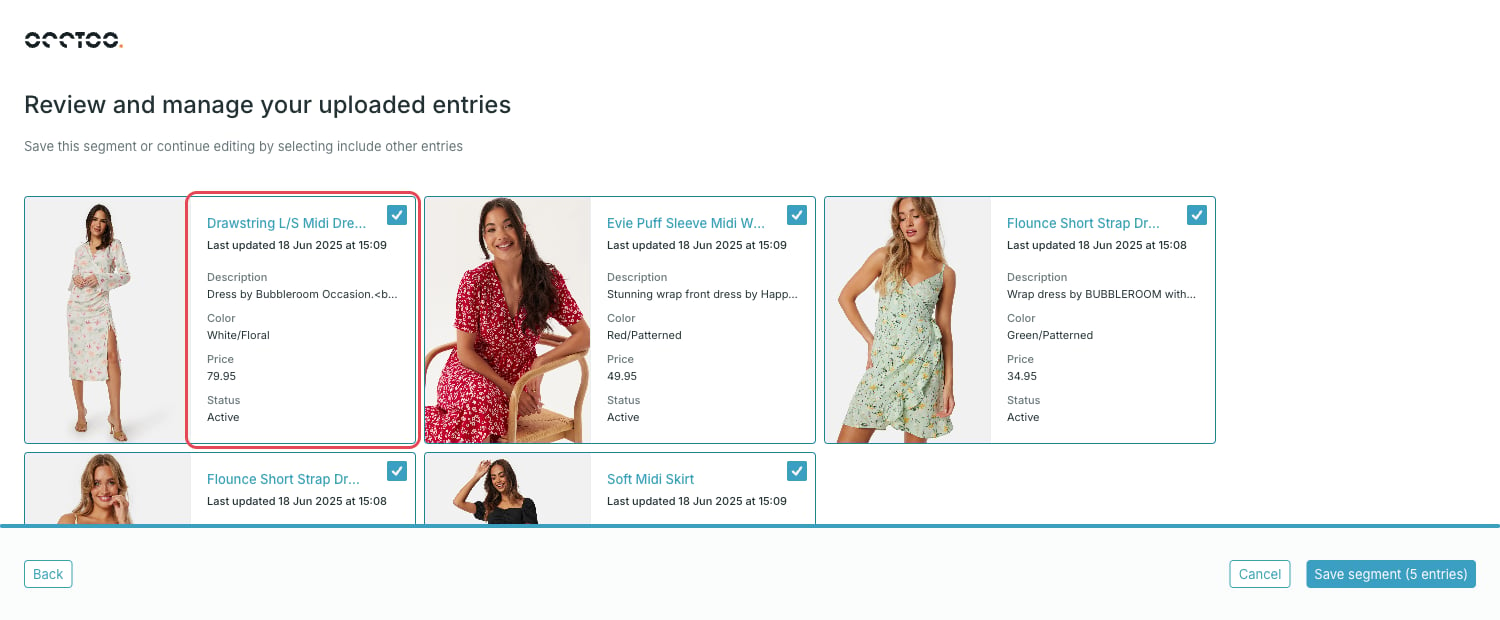
- All entries matched — the segment is ready.
- Only some entries matched — the unmatched IDs are left out. Press Download unmatched entries to get them as a CSV.
-
No entries matched — nothing can be created from this file. Check that the file holds entry IDs from the selected card.
4
Save the segment
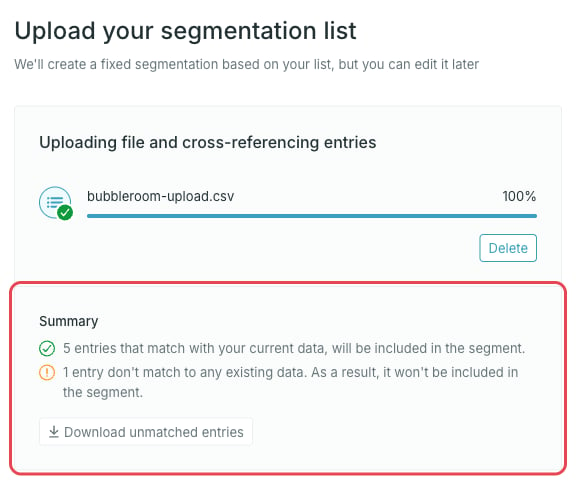
Press Save segment, which shows the entry count it will save, for example Save segment (5 entries). The result is a fixed segment: the entries stay as they are, even when the underlying data changes.Press Back to return to the upload step if you want to start from a different file.
Update the entries of an existing segment
Open a fixed segment, press Edit segmentation, then press Upload entries and pick a new file. In edit mode you also choose what happens to the entries already in the segment:- Replace all entries with the upload — the uploaded list becomes the segment.
- Append new entries from the upload — the uploaded entries are added to the existing ones. Entries that are already in the segment are ignored.