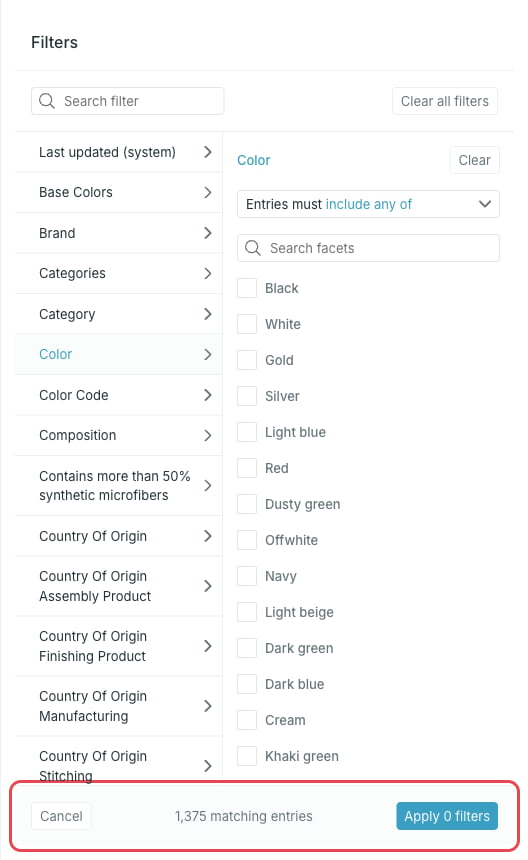
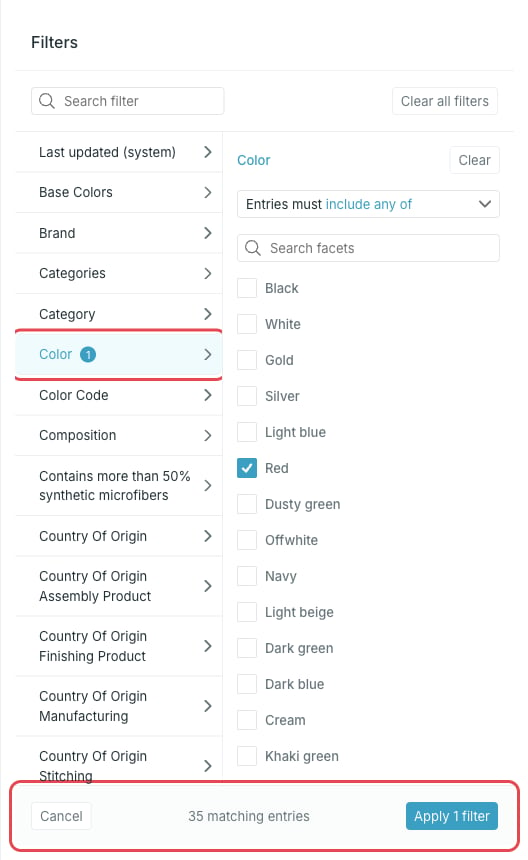
- Property list (left) — every filterable property on the card, in alphabetical order, plus Last updated (system) at the top. A badge shows how many values you selected for a property.
- Value editor (right) — the filter options for the selected property.
- Footer — the number of matching entries for your current selection, and Apply to put the filters on the segment.
The number in the footer updates as you change the filters, so you can see the size of the result before you apply anything.
Text and list properties
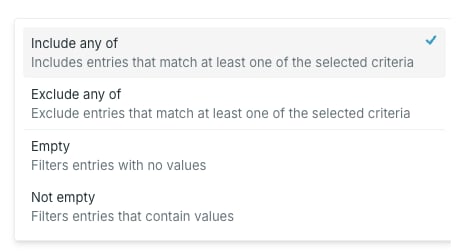
Text and list properties are filtered on their values (facets). Pick an operator, then select the values.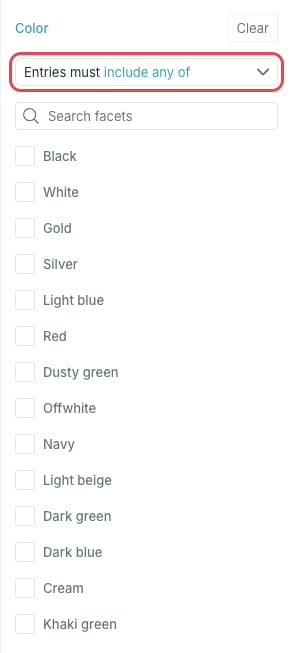
Use Search facets when a property has many values. Selected values are counted on the property in the left list, so you can see at a glance where your filters sit.
Number properties
Integer and decimal properties are filtered on a value or a range:- Equals
- Greater than or equals
- Less than
- In between (range)
- Empty (no values) and Is not empty (has values)
Date properties
Timestamp properties, including Last updated (system), are filtered on a point in time or a period: After, Before, or In between (range).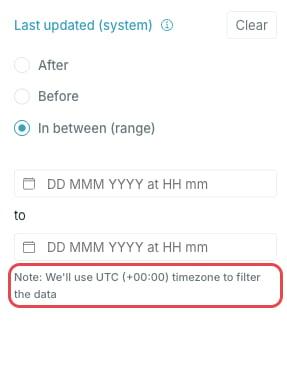
True/false properties
Boolean properties are filtered with True, False, Empty (no values) or Is not empty (has values).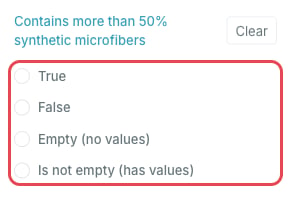
Relations
Relations appear in the property list as Relation [name]. Filter on whether the entry has the relation at all: Empty (no values) or Is not empty (has values).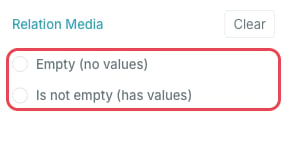
Localized content
When the data behind the card is localized, the panel header holds a Localized content selector. It lists the languages found in the data sources that feed the card, and decides which language the facet values and the entry list are read in. The choice is saved with the segment.Properties you cannot filter on
Some properties stay in the list but are greyed out and cannot be selected. Hover one to see why:- Conversion properties — a format-only cast, so they cannot be used as a filter.
- Non-indexed properties — the property is not indexed and cannot be used as a filter.
Applied filters
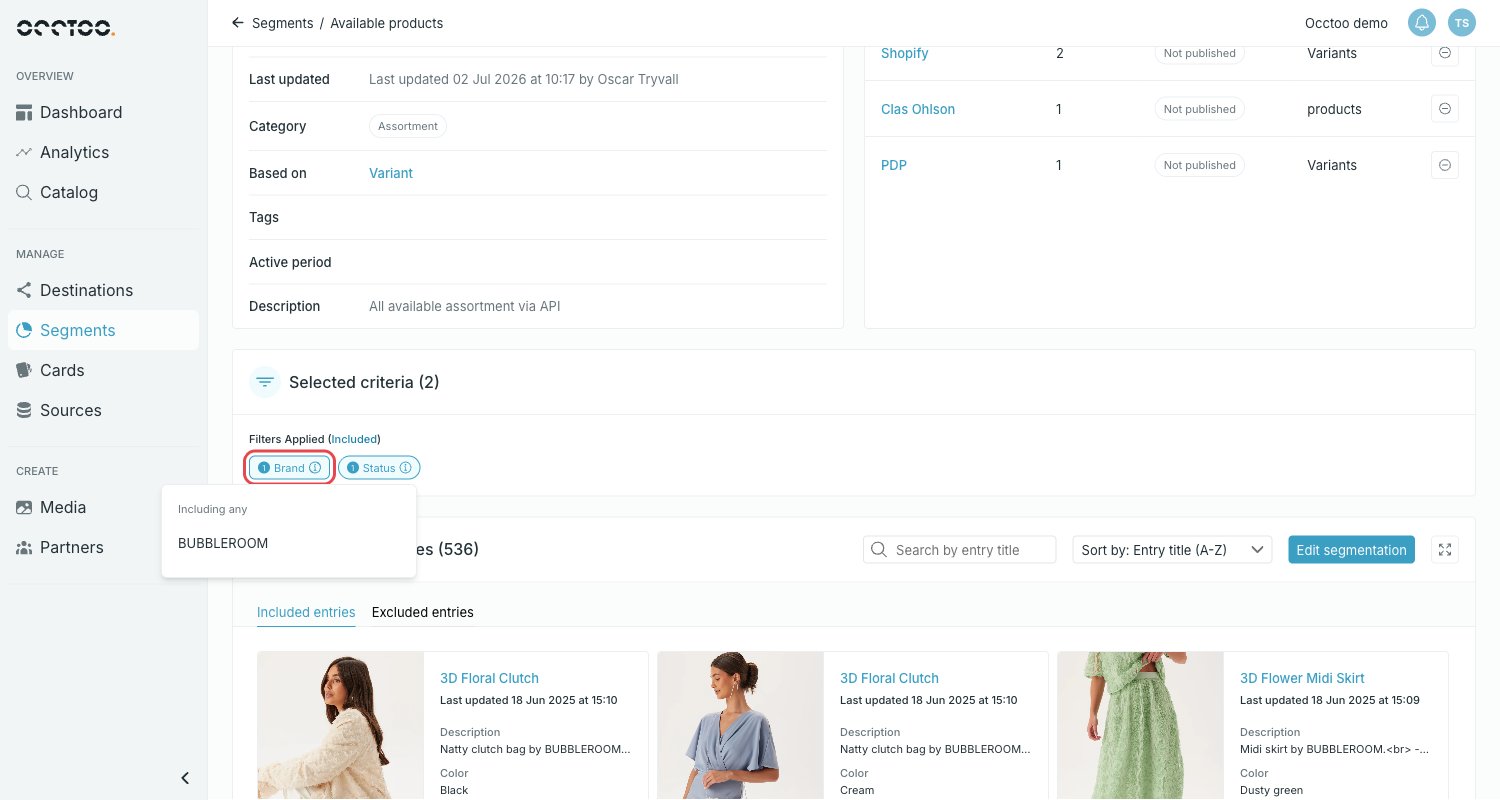
Press Apply to put the filters on the segment. The Filter button then shows how many filters are active, and the entry list is reduced to the matching entries. On the segment page, the applied filters are listed under Selected criteria. Select a filter chip to see the operator and the values behind it.