

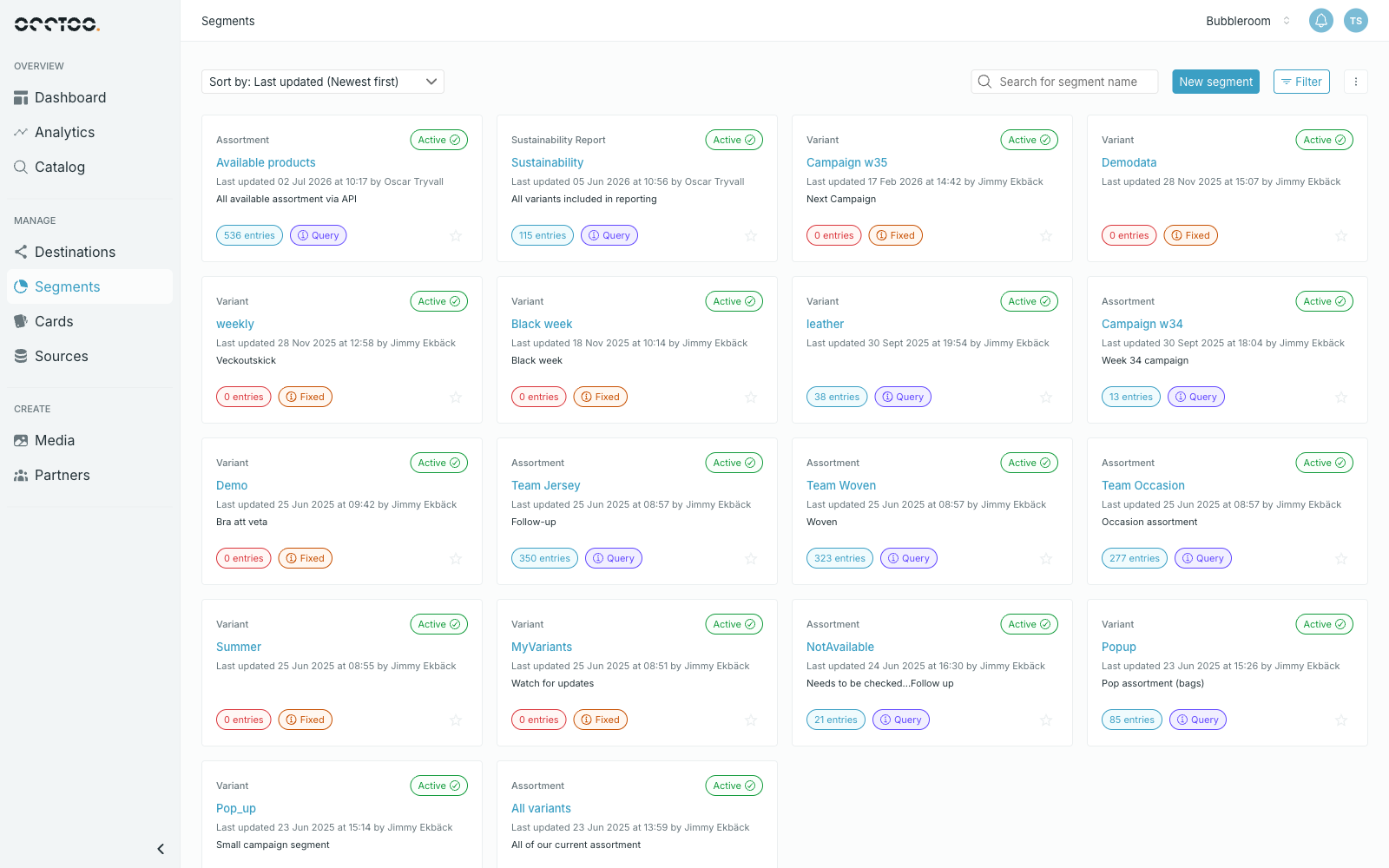
- Search for segment name — find a segment by name.
- Sort by — last updated, name, or date created, ascending or descending.
- Filter — narrow the list down by several properties at once.
- The star marks the segment as a favourite, which pins it to your dashboard.
Filters
Press Filter to open the panel. The footer shows how many segments match before you apply anything.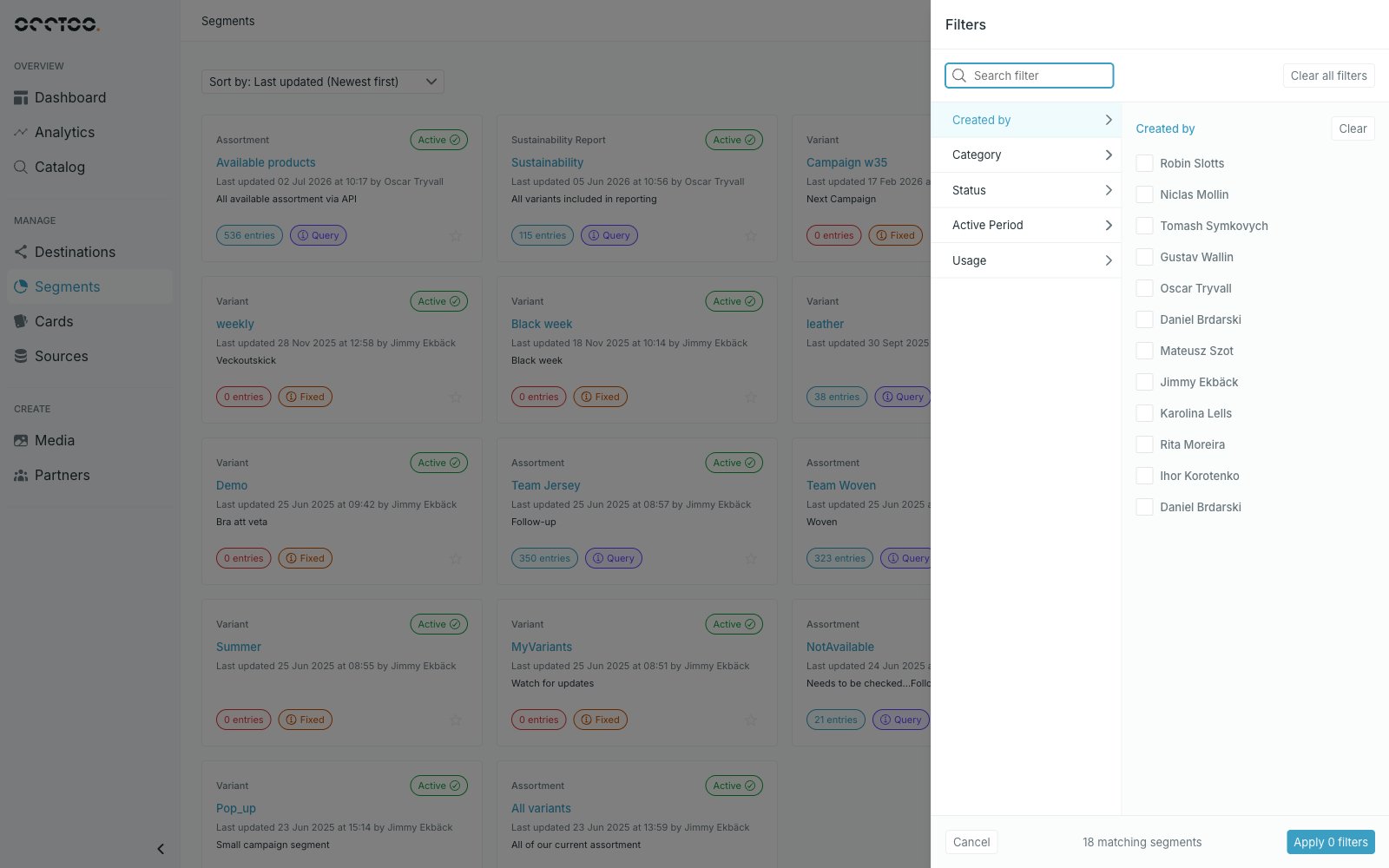
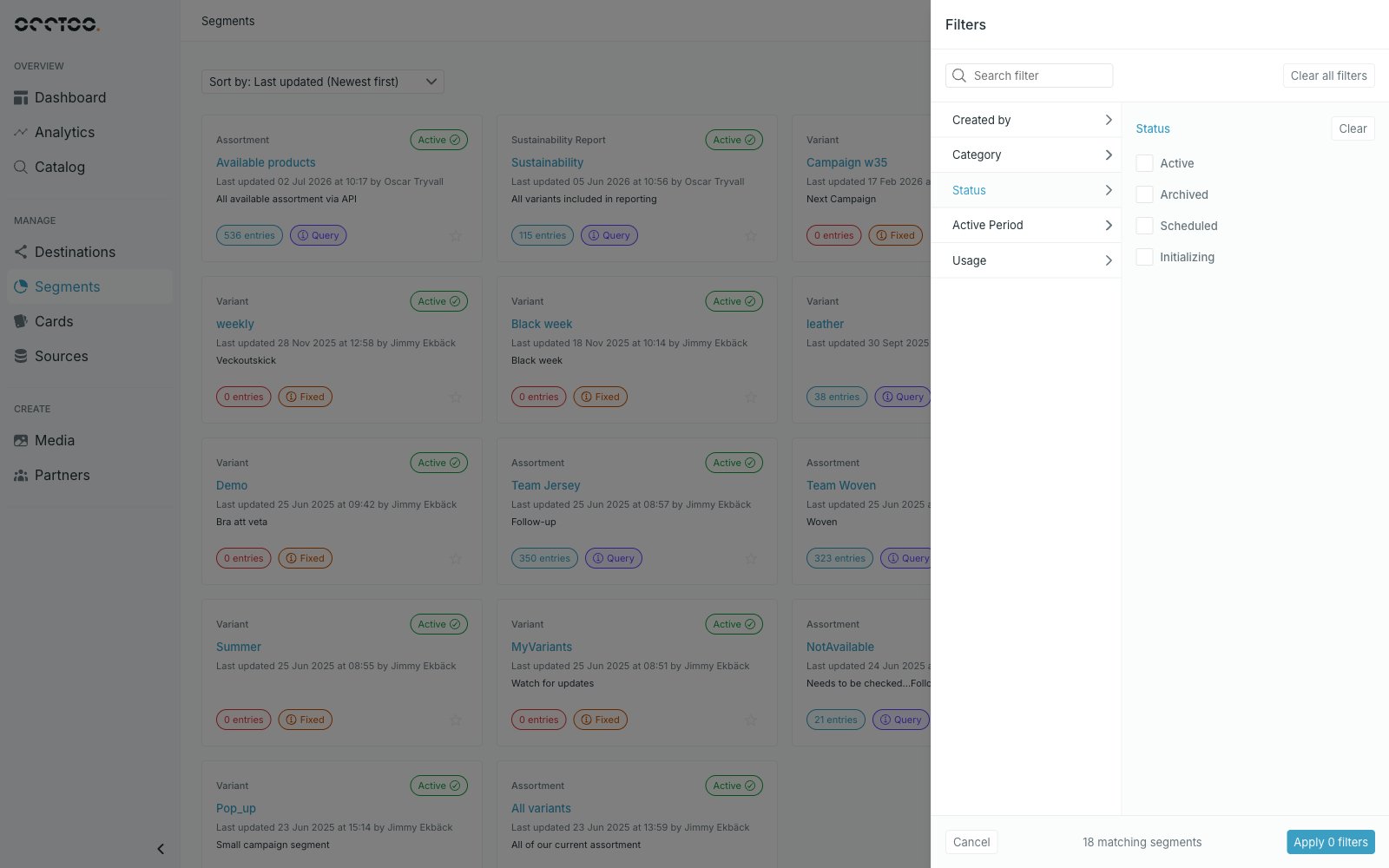
Usage is the quickest way to find segments that no destination consumes, and Active Period to find segments that are about to end. See Schedule a segment for what each status means.
Badges on a segment
- Category — the group the segment belongs to, above the name.
- Status — Active, Scheduled, Initializing or Archived.
- Entries — how many entries the segment currently holds.
- Query or Fixed — whether entries update automatically with the data, or stay as selected.