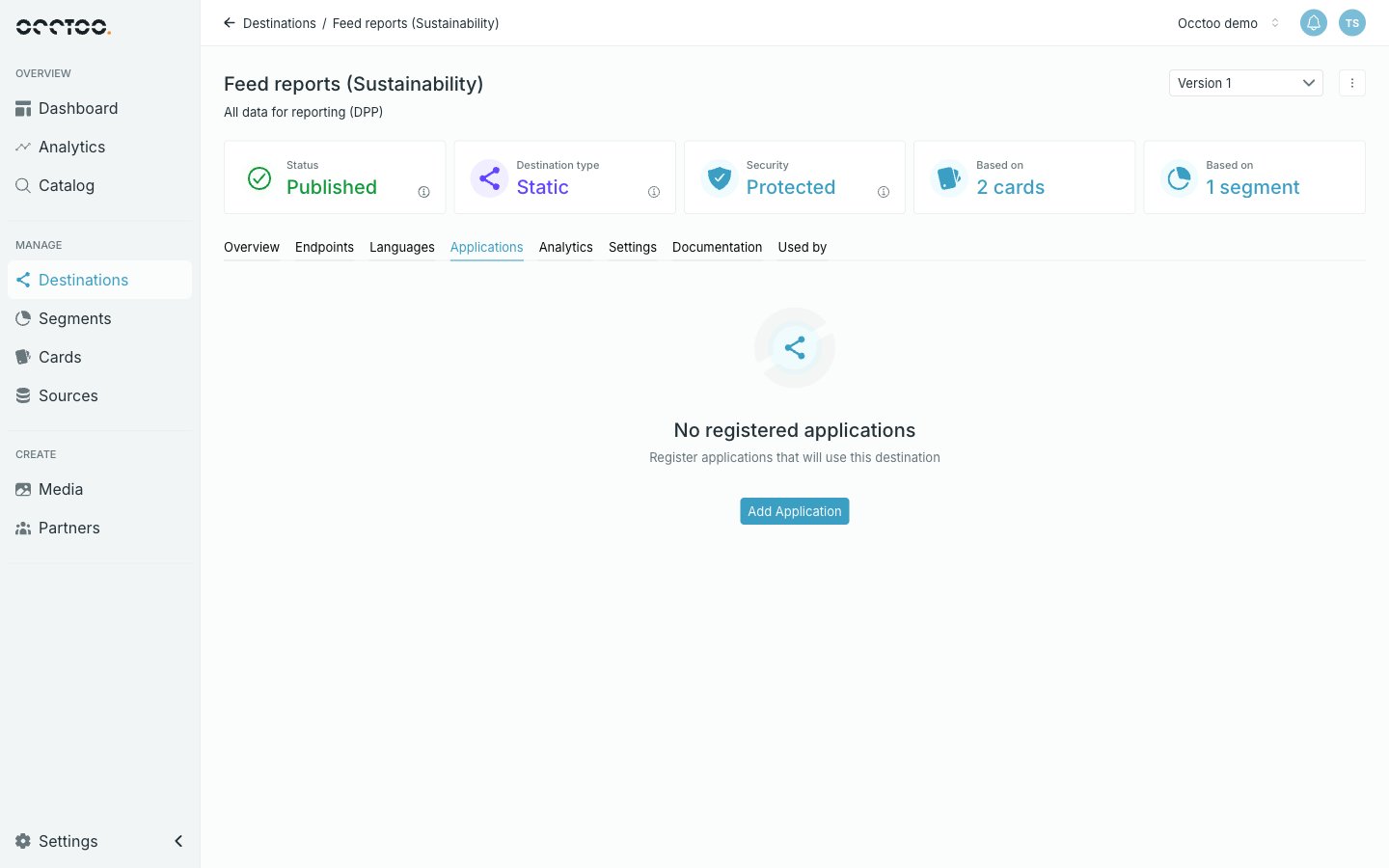
A Protected destination only answers callers holding a valid token. Registering an application produces the Client ID and client secret used to fetch that token. The Applications tab
1

Open the Applications tab

Open the destination and select Applications, then click Add Application.
The tab only exists on a Protected version. A Public destination needs no application.
2

Name the application
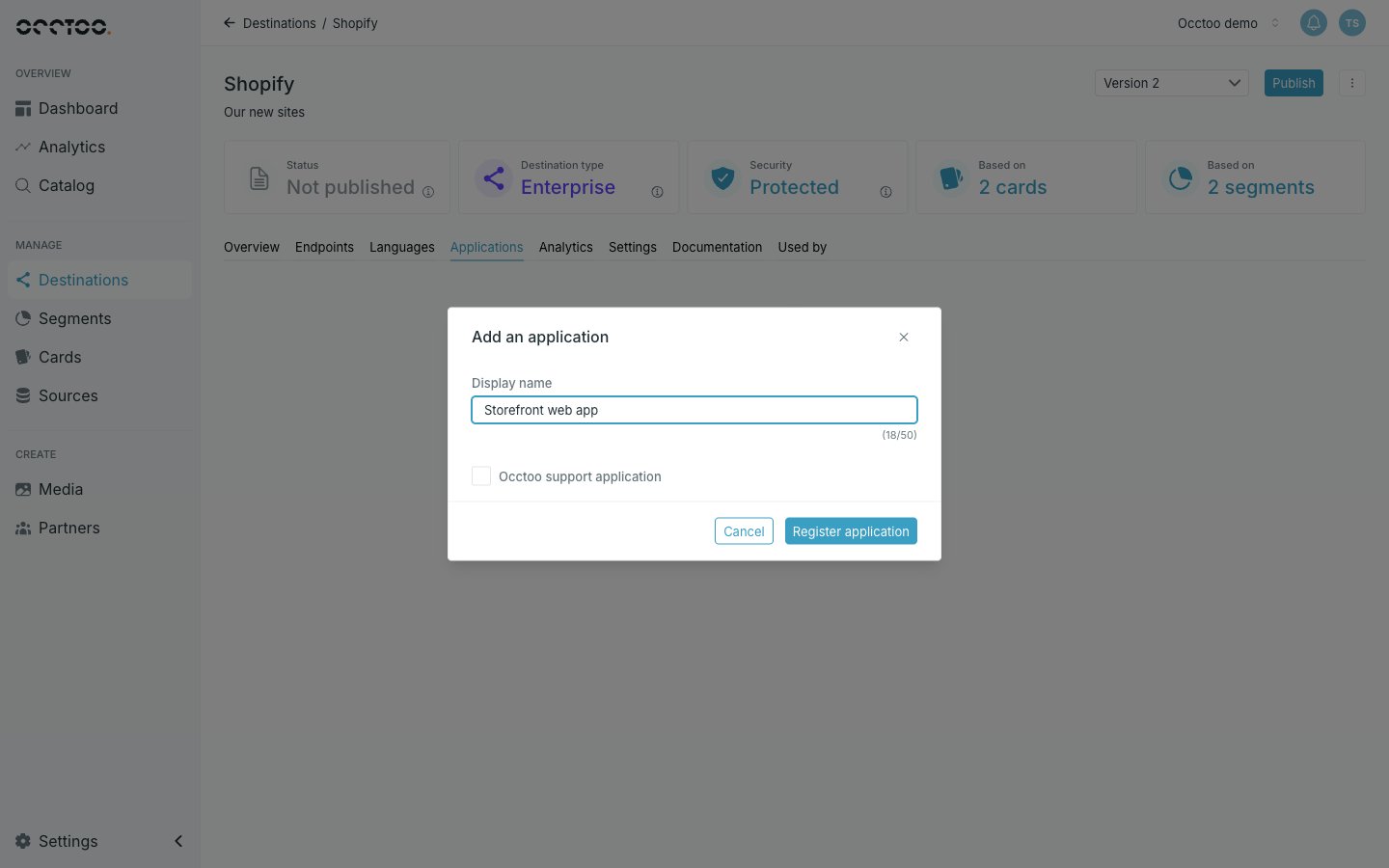
The Add an application dialogGive it a Display name that identifies the consumer — the storefront, the marketplace connector, the agent — then click Register application.
3

Copy the secret

The secret appears once, with a copy control. Copy and store it, then confirm with I have copied the secret. Close the dialog.
The secret is shown only at creation and cannot be retrieved afterwards. Trying to close the dialog without copying it raises a warning; closing a second time dismisses it anyway — the only way forward is to reset the secret.
Each registered application is listed with its name and Client ID, both copyable, and a menu.

What a consumer needs

See Application authentication for exchanging these for a token.

How many you can register

Only Multi-consumer destinations accept several applications. Dynamic, Static and Enterprise destinations allow one, and Add Application is disabled with a tooltip once it exists. See Destination types. Add Application is also disabled while a publish or update is running.