

Apply filters
1
Open the endpoint
Open the destination, select Endpoints, and click the endpoint.
2
Open the filters
Click the segment icon next to the node name in the tree — the root node for the endpoint’s own entries, or a relation node to filter the related entries instead.
3
Include or exclude
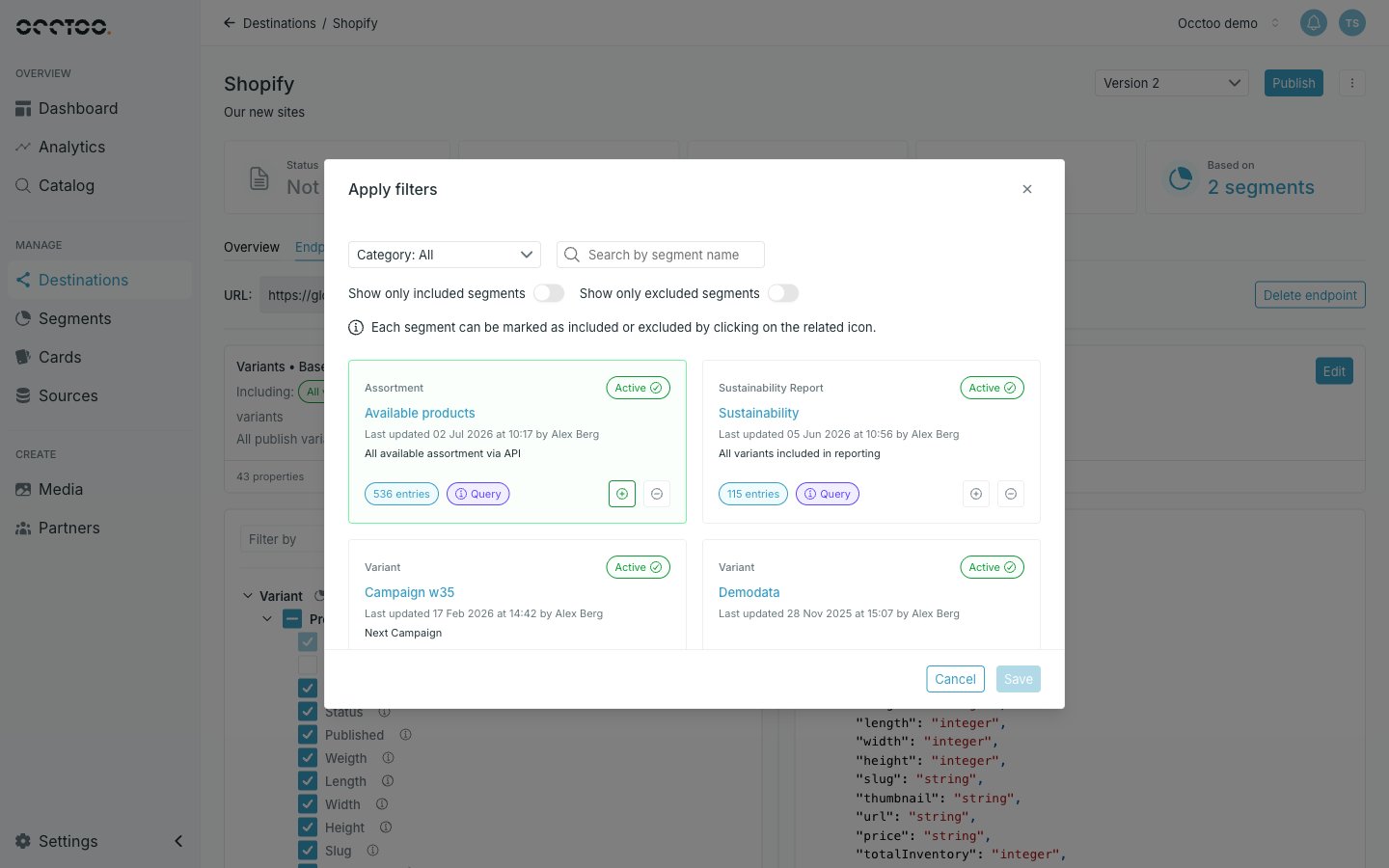
4
Save
Click Save. Filters save immediately against the endpoint rather than waiting for Save settings on the tree.
How include and exclude combine
Include narrows to the union of the included segments; exclude then removes those entries. An entry that is both included and excluded is excluded. With nothing selected the endpoint returns all entries of its card — the endpoint header reads Including all <card> entries. Once filters exist, the header lists them as Including and Excluding badges.Only segments built on the endpoint’s own card can be applied. If a segment you expect is missing, check which card it belongs to — see Find segments.