

1
Press Edit order and sections
In the Properties widget on the source page. The button is disabled when the source has no properties.
2
Rearrange
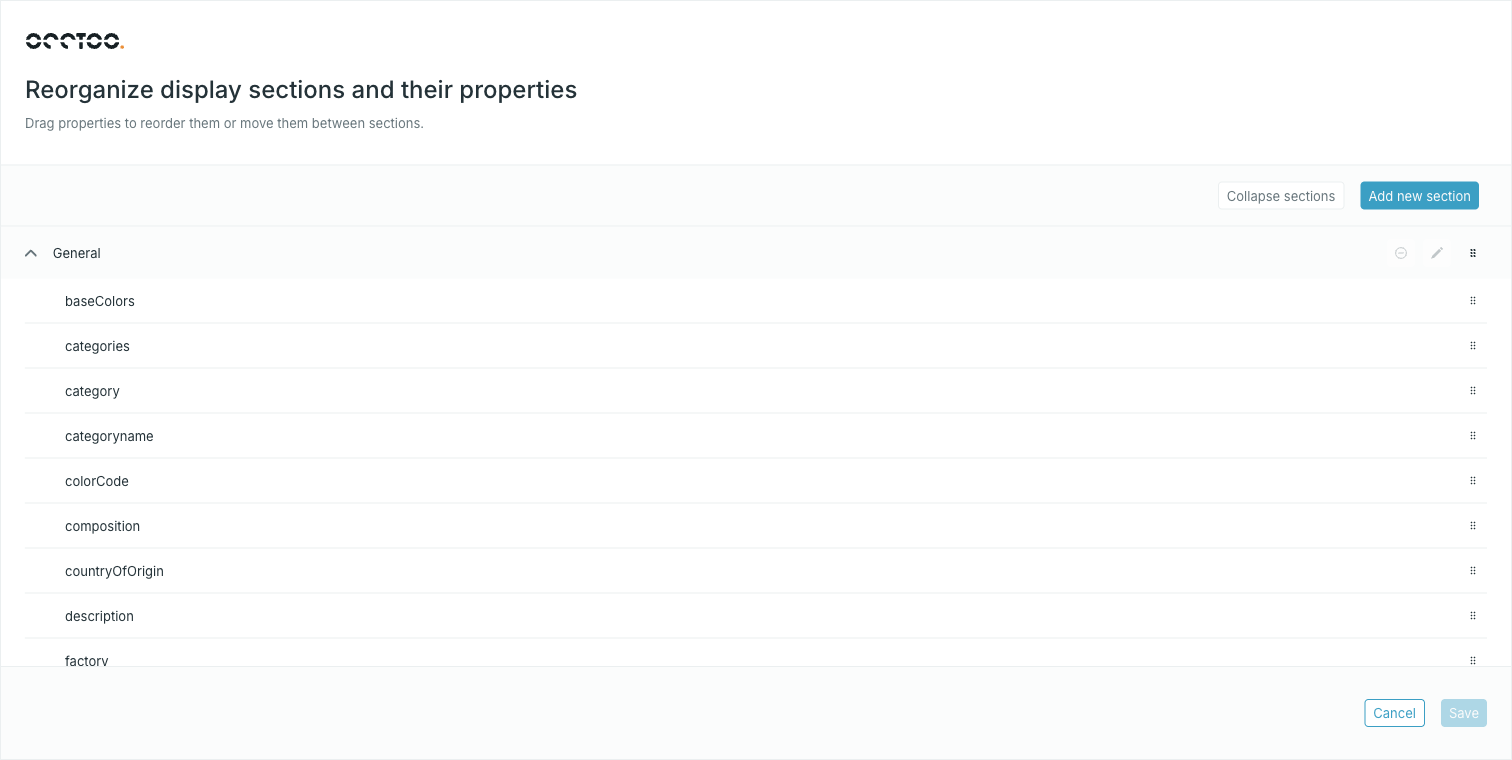
- Drag a property by its handle to move it within a section or into another one.
- Drag a section header to move the whole section.
- Collapse sections folds every section; the button then reads Expand sections.
- Add new section creates an empty section at the top.
- The pencil on a section header renames it, and the remove icon deletes it.
Deleting a section does not delete its properties — they move into the section above it, or the one below if it was first. The last remaining section cannot be deleted.
3
Press Save
Save stays disabled until you move something.
Which properties get an entries-table column
The Entries widget columns the first six properties in this order and ignores the rest, so this dialog is where you decide what the entries table shows. Drag a property up into the first six to give it a column, and drag one out to take its column away. Section boundaries do not reset the count — it runs across the whole list, top to bottom.The General section
General is where properties with no section assigned appear. It is not stored as a real section — leaving a property in General simply means it belongs to none. That is why General always exists, and why you cannot rename it away.Working with a filtered table
The reorder dialog always loads the source’s full property list, even when the Properties widget behind it has a search filter applied. A save can never rewrite the order from a filtered subset.You can also set a single property’s section from the property form — see Add
or edit a property.